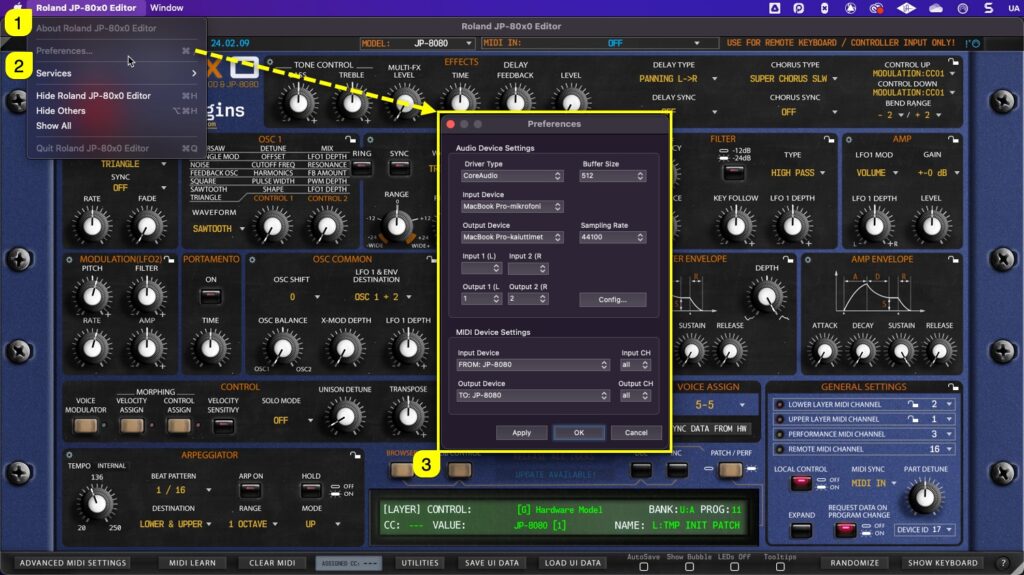
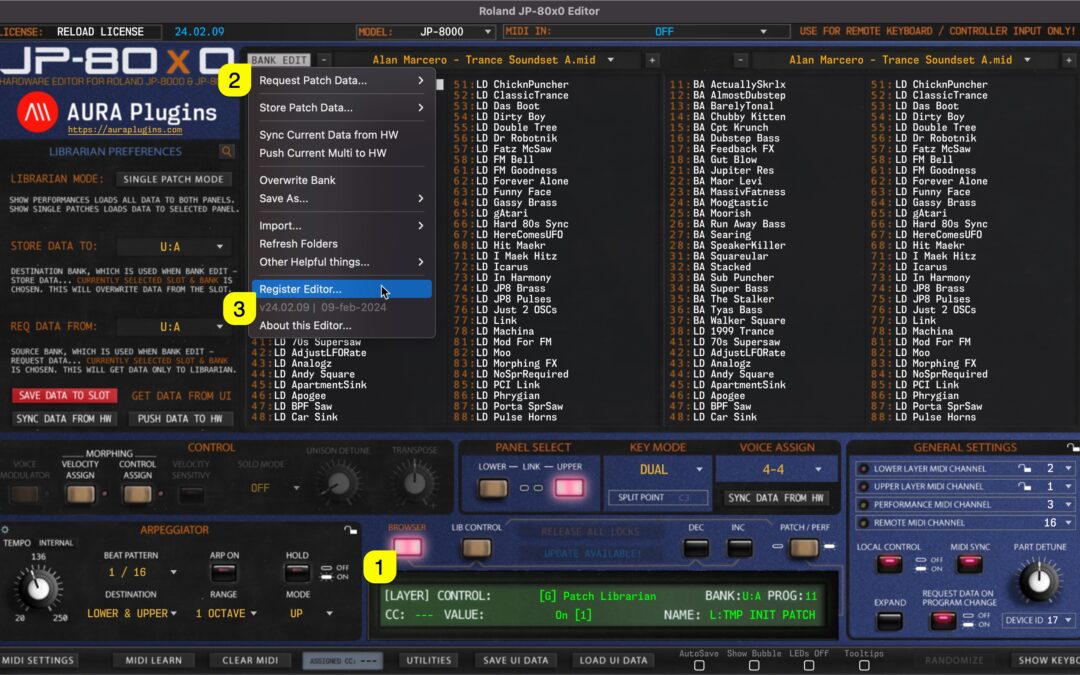
Set MIDI ports with Standalone Application If you use the Standalone Application, click “Roland JP-80×0 Editor [1]” from top bar and choose Preferences [2]. This will open Preferences dialog [3] where you can set MIDI Input Device and MIDI Output Device. On Windows...
If you made the decision to purchase the license for our Editor, you are the best! Just wanted to thank YOU. License owners can enjoy the full advantages of the Editor, like: Plug-in parameters can be automated directly from your DAW. Librarian is fully functional and...
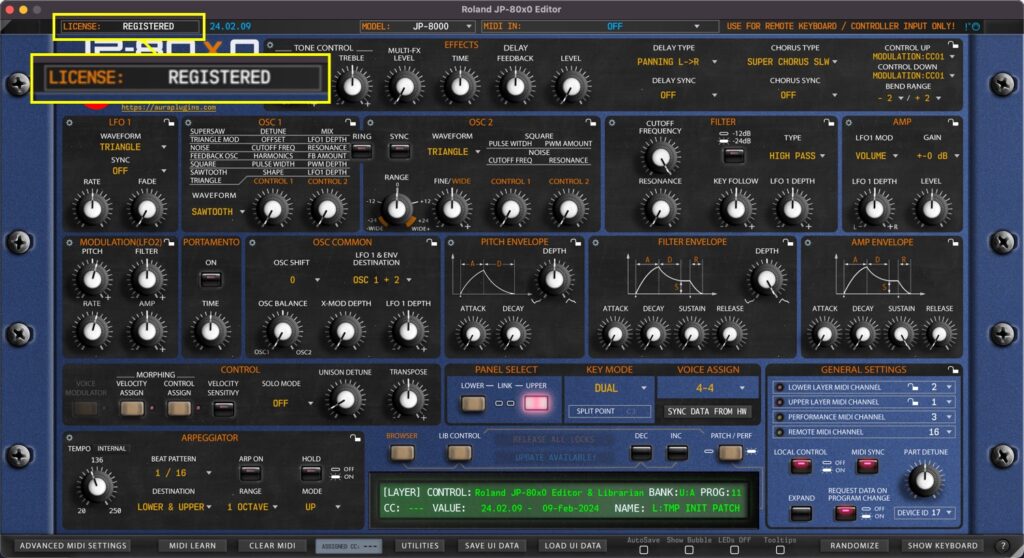
Displays current state of the Editor license. If DEMO version is installed, then display will show **DEMO VERSION**. If Full version is installed, then you will see RELOAD LICENSE or REGISTERED if license is applied. To learn more about registering our Editor, please...
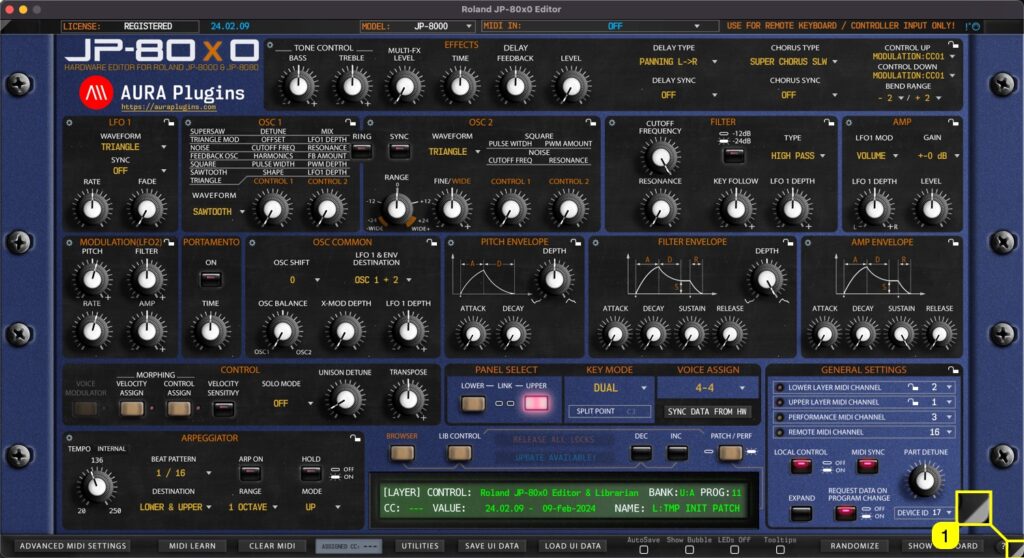
Real-time Resize You can resize the Editor user interface in real time by clicking and dragging the white triangle [1] in the bottom right corner. Double click will revert the scaling level back to 100%. This setting is saved with DAW project data, but Standalone...
HARDWARE DIFFERENCES To understand how the menus work in JP-80×0 Editor, you need to understand the differences between the hardware models. JP-8080 is simply, more. Here are the key differences: Spec JP-8000 JP-8080 Polyphony 8 10 Inputs – yes Distortion...