Knowledge Base forWaldorf microQ Editor
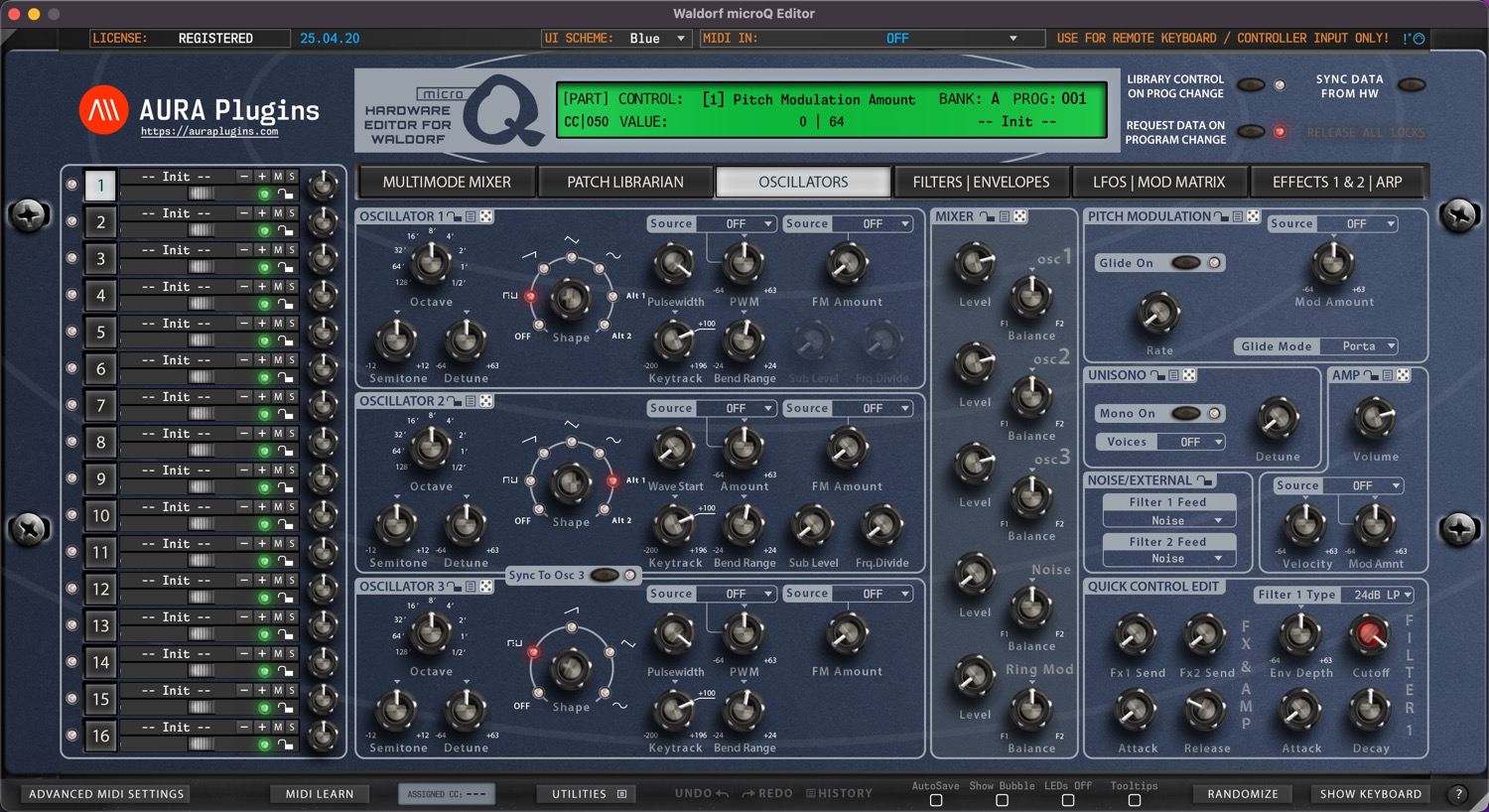
Documentation
Resources
Latest Update:
Version 26.01.25
[ Fixed ] Resolved issue where update url was scoped even when the option was disabled from Utilities menu.
[ Fixed ] Resolved issue where Load UI Data function changed MIDI I/O, DeviceID, Global MIDI Ch, UI SKIN and Main tab values.
[ Fixed ] Resolved issue where double clicking item from the librarian would show a warning message under certain circumstances.
[ Fixed ] Show Keyboard toggle is now turned off when loading UI Data to prevent graphical glitches.
[ Fixed ] Search results didn't show the entity names properly in the librarian.
[ Fixed ] Wrong data install path was shown in librarian if patch files were missing.
[ Fixed ] Global Control TX action was addressed to Global Control RX.
[ Fixed ] Effect 2 parameters were assigned wrong when changing FX type.
[ Improvement ] AAX loads faster with better stability.
[ Improvement ] Librarian functions and stability improved.
[ Improvement ] XY Pad had wrong defaults set to it.
[ Improvement ] Vavra compatibility added for where it was failing.
[ Other ] Product URLs updated to support upcoming User Manual update. Use tooltips to show function purpose. Most are self-explanatory.
[ Other ] Windows: Our signing certificate expired, so use right click -> open to install.
Issues with Editor? Open Support Ticket.
Join our Waldorf microQ Editor community over at Discord!
Want to support our development and free updates? Buy us a coffee!
[ Fixed ] Resolved issue where update url was scoped even when the option was disabled from Utilities menu.
[ Fixed ] Resolved issue where Load UI Data function changed MIDI I/O, DeviceID, Global MIDI Ch, UI SKIN and Main tab values.
[ Fixed ] Resolved issue where double clicking item from the librarian would show a warning message under certain circumstances.
[ Fixed ] Show Keyboard toggle is now turned off when loading UI Data to prevent graphical glitches.
[ Fixed ] Search results didn't show the entity names properly in the librarian.
[ Fixed ] Wrong data install path was shown in librarian if patch files were missing.
[ Fixed ] Global Control TX action was addressed to Global Control RX.
[ Fixed ] Effect 2 parameters were assigned wrong when changing FX type.
[ Improvement ] AAX loads faster with better stability.
[ Improvement ] Librarian functions and stability improved.
[ Improvement ] XY Pad had wrong defaults set to it.
[ Improvement ] Vavra compatibility added for where it was failing.
[ Other ] Product URLs updated to support upcoming User Manual update. Use tooltips to show function purpose. Most are self-explanatory.
[ Other ] Windows: Our signing certificate expired, so use right click -> open to install.
Issues with Editor? Open Support Ticket.
Join our Waldorf microQ Editor community over at Discord!
Want to support our development and free updates? Buy us a coffee!
Full history: https://auraplugins.com/kb/article/waldorf-microq-editor-changelog/
View in Shop

Start with Waldorf microQ Editor here
Most Viewed Content for Waldorf microQ Editor
Why my DAW crashes when I set MIDI in / out from the editor?
This is usually caused by the fact that your DAW has the MIDI port in use.
Be sure to follow our DAW User Guides to setup your environment properly before setting the MIDI ports.
Start with Setting MIDI Devices guide and follow up with the specific hardware instructions.
Why Editor displays DEMO version after purchasing the license?
You need to download and install FULL version of our Editor in order to register it.
Head down to https://auraplugins.com/my-account/ (login if prompted) – You should see the downloads links once logged in.
- Download the full installer and license.
- Install full version.
- Check license instructions and install license.
- Re-open the Editor to validate the license.
- When validation succeeds, Editor says “Registered” in the top left corner.
Do you have a roadmap for future projects?
Yes we do, but we keep the roadmap in our Discord server. You can follow our development and participate the upcoming features in our https://ko-fi.com/auraplugins page and by joining our Discord server.
How can I review your Product?
Navigate to https://auraplugins.com/my-account/ and login if prompted. Once logged in, you can review products you’ve purchased.
Next, go to https://auraplugins.com/products/ and choose the product you want to review.
Scroll down until you see Reviews tab and you can leave a review there!
Is there a way to support your Development?
Waldorf microQ Editor User Manual Feedback 0
Waldorf microQ Editor Changelog Feedback 0
Share this with fellow producers