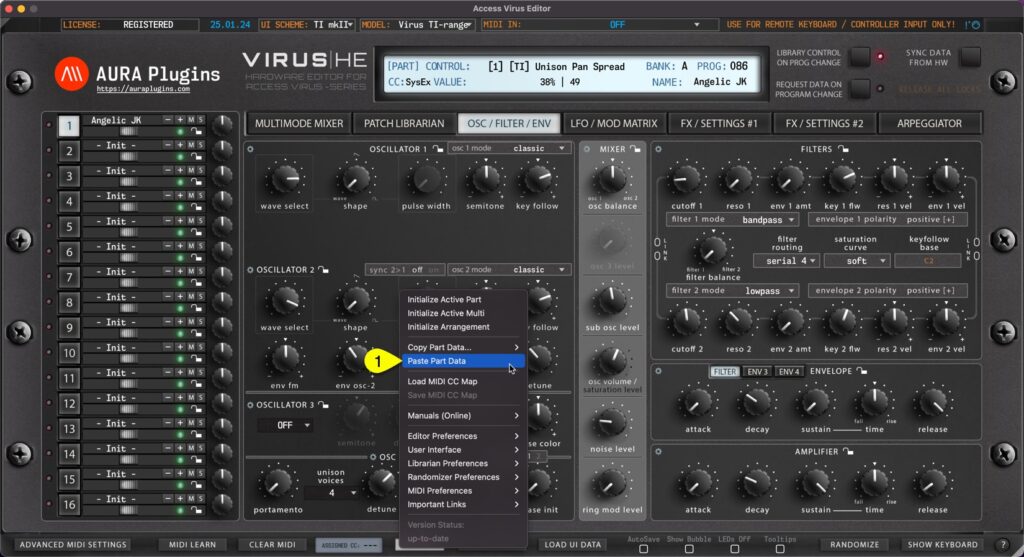
Paste Part Data You can paste currently copied Part data from the clipboard. Open Utilities Menu and select Paste Part Data… [1]. See previous page for explanation for each copy function and what they include. You can achieve this the same result if you right...
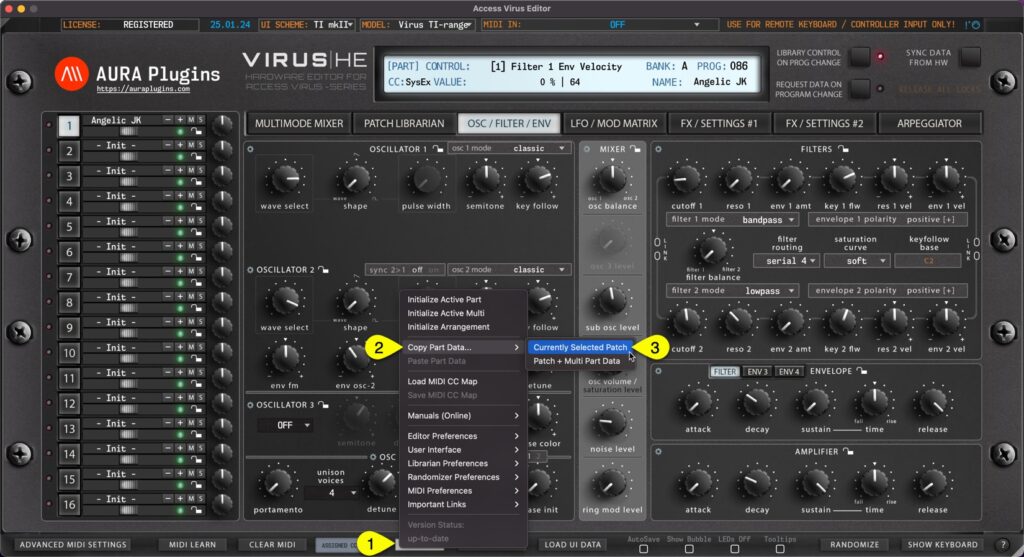
Currently Selected Patch You can copy currently selected Part data to clipboard and paste the data to another Part for further processing. Here is how you can do it: Open Utilities Menu [1], select Copy Part Data… [2] and then select Currently Selected Patch...
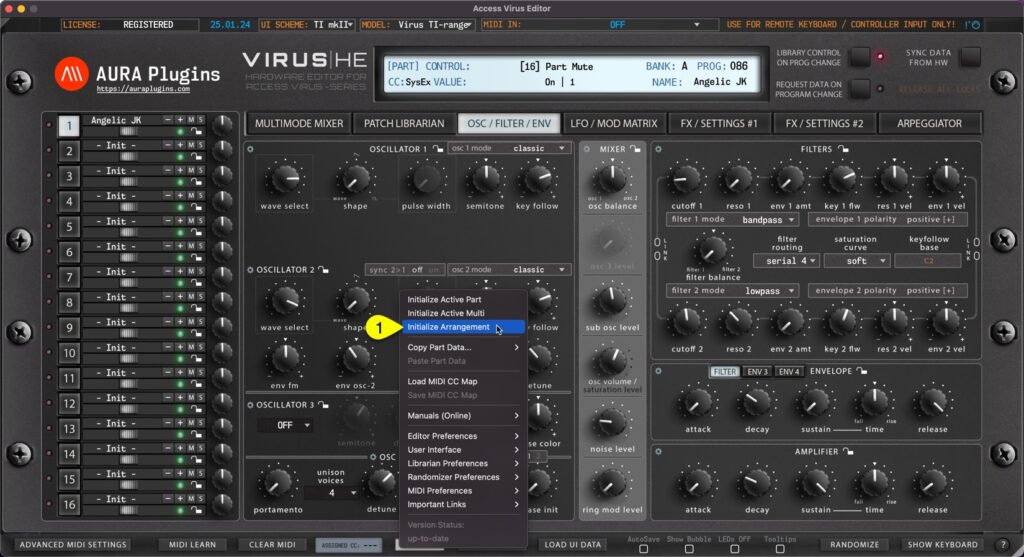
You can Initialize Arrangement by clicking Utilities Menu [1] and then Initialize Arrangement [2]. This function will initialize the whole Editor to initial state. Multi / Seq and each part are set to default values. Start from clean slate! Initialize Active Multi...
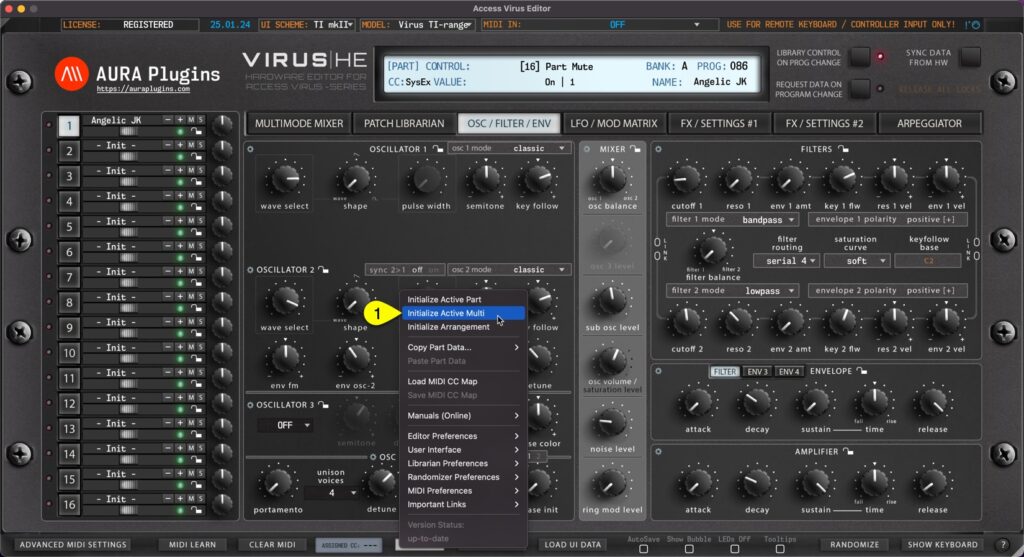
You can Initialize Active Multi by clicking Utilities Menu [1] and then Initialize Active Multi [2]. This function will initialize only the multi / sequencer parameters. All part key ranges, detune settings, output routings etc will be initialized as well as Multi /...
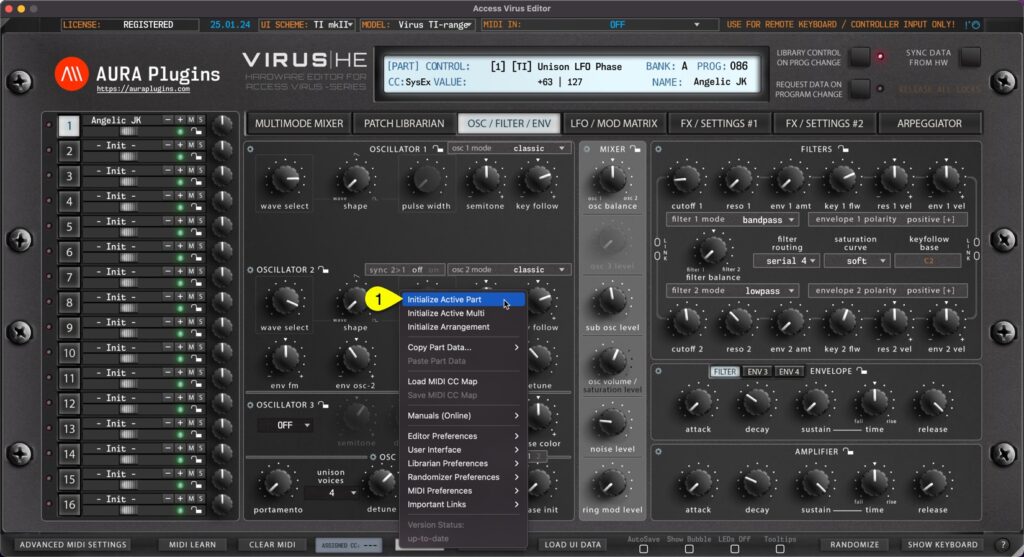
You can Initialize Active Part by clicking Utilities Menu [1] and then Initialize Active Part [2]. This function will initialize which ever Part you have active at the moment. All current part parameters will initialized to default “init” patch values....