Knowledge Base forAccess Virus Editor

Documentation
Resources
Access Virus Editor – Utilities: User Interface
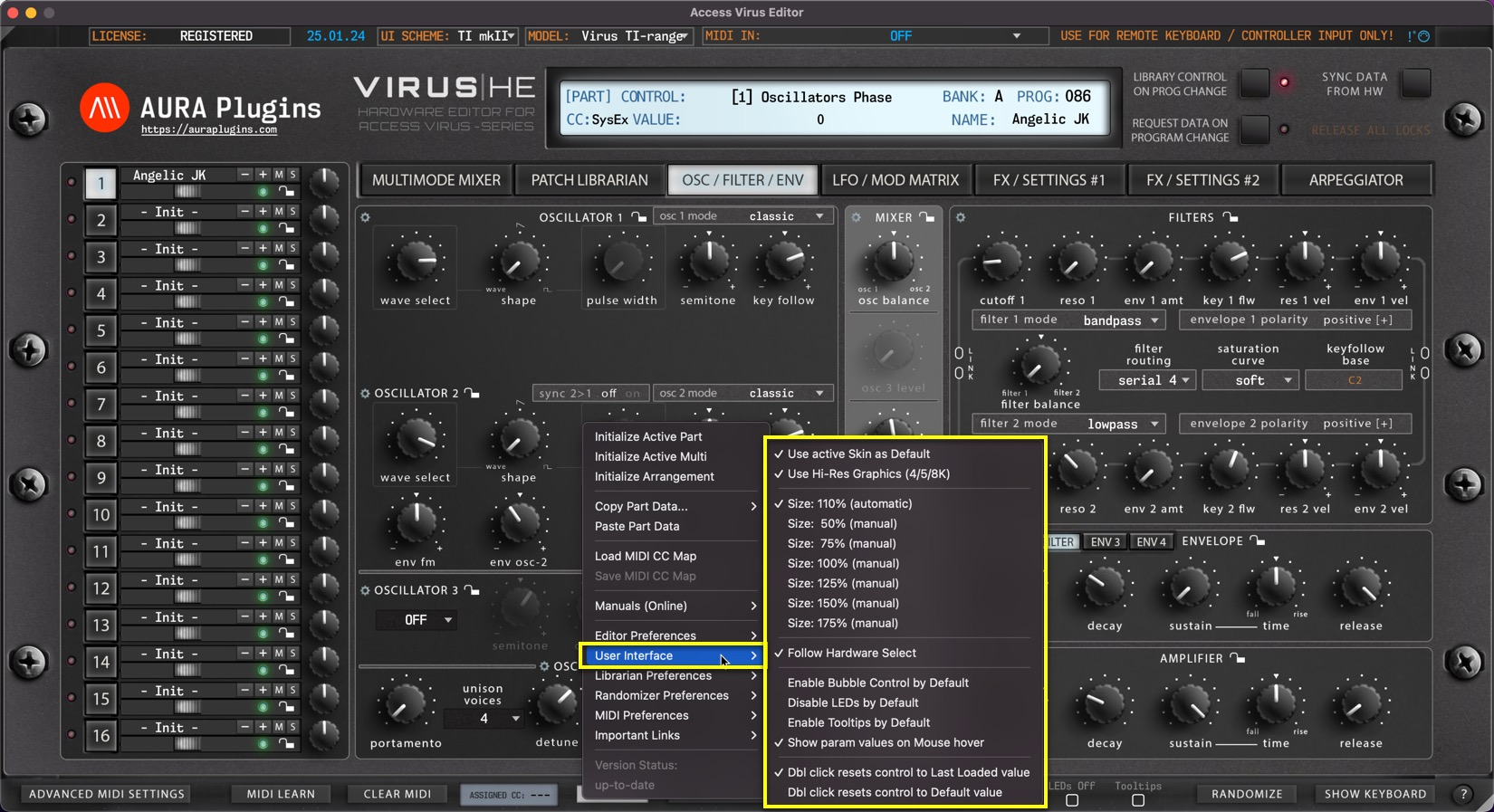
Utilities Menu – User Interface Breakdown
Use active Skin as Default
When you load a new instance and you set a specific UI SCHEME, you can now set this skin as a default for every new instance without having to set it up each time. This is great if you have only one hardware model in your setup.
Use Hi-Res Graphics (4/5/8K)
Loads a bit better graphics for the end user – recommended if you have a proper display to show more pixels. Sharp graphics!
Adjust Interface Size
Automatic or manually adjusted User Interface size. Automatic is recommended, but there might be cases where lower or much higher UI size is needed. Then this is your tool for it.
Double click top left corner triangle = adjusts UI to 100%. Single click shrinks the UI to 50%.
Follow Hardware Select
Some “view” controls send out SysEx commands upon triggering them. When this option is enabled, hardware triggers will make the user interface follow their path.
Enable Bubble Control by Default
When enabled, Bubble is shown on the control by default when parameter is adjusted.
Disable LEDs by Default
Removes all the distraction LED blinks from the user interface and saves a bit of CPU/GPU. If you know what you are doing, then this can be toggled on all the time.
Enable Tooltips by Default
This will show the tooltip everytime mouse is moved over to a control. Not all controls support tooltip, but when they do, it is shown with a bit of delay.
Show param values on Mouse over
When enabled, Editor Control Display area will always show the currently hovered control parameter value.
Double Click resets control to…
Last Loaded value
When double clicked, control is “reset” to last loaded value. ie, when you change patch, then new “default” is memorized.
Default value
If this option is chosen, then Initial Patch value is applied to double function.
Share this with fellow producers