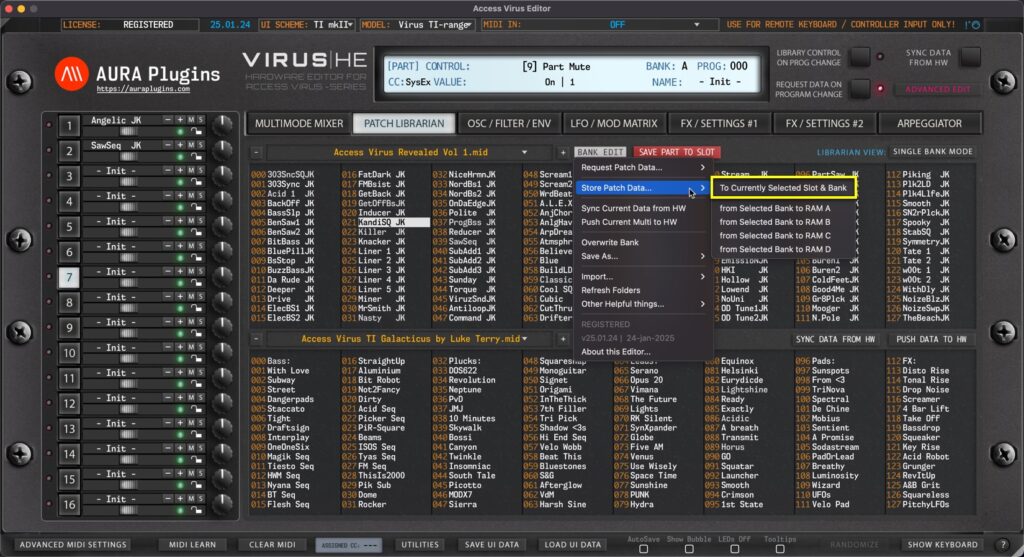
NOTE #1: Before you start data writing to hardware, make sure you know which slot you are overwriting and STOP all activities on your DAW in regards of the hardware to ensure data is written properly! To Currently Selected Slot & Bank Open BANK EDIT menu and...
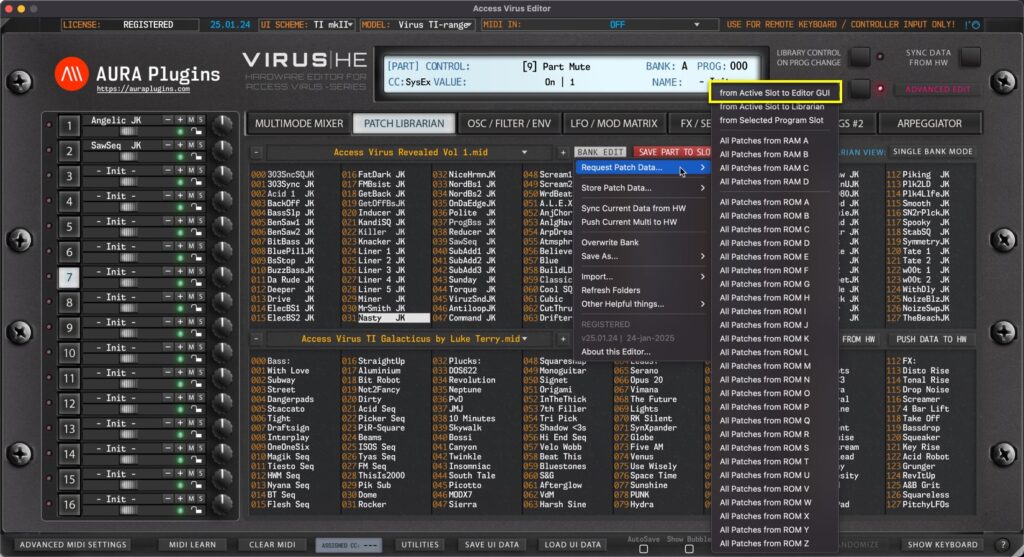
NOTE: To successfully request the patch data from the hardware, STOP all activities on your DAW so that the SysEx data is received as expected! from Active Layer to Editor GUI Open BANK EDIT menu and choose Request Patch Data … -> from Active Slot to Editor...
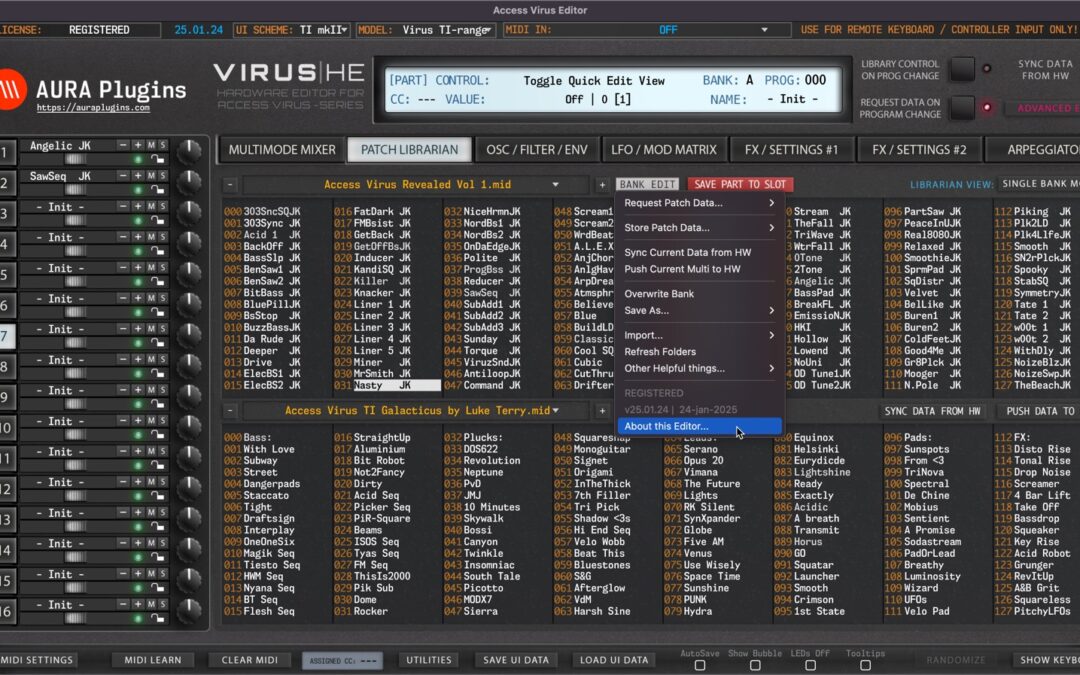
Librarian BANK EDIT menu offers functions to: Request Single Patch Data from the hardware to the Librarian. Request Multi Data from the hardware to the Librarian. Write Single Patch Data to hardware memory slots. Write Multi Data to hardware memory slots. Overwrite...
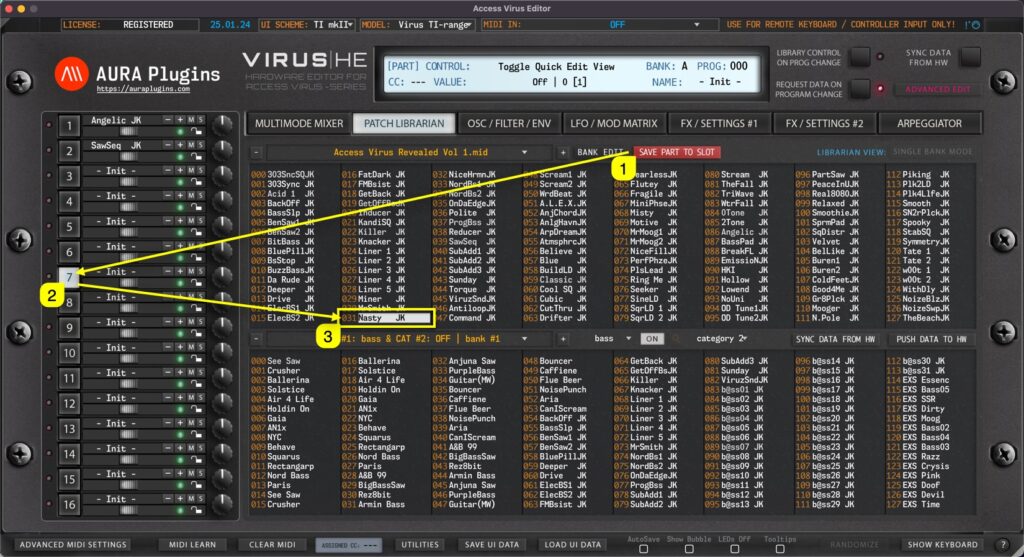
Save Part to Slot gets current User Interface data and places it into currently selected slot in the librarian. In this case we click the Save Part To Slot [1] button while PART 7 [2] is selected. This will then get Editor data from Part 7 slot and place it into...
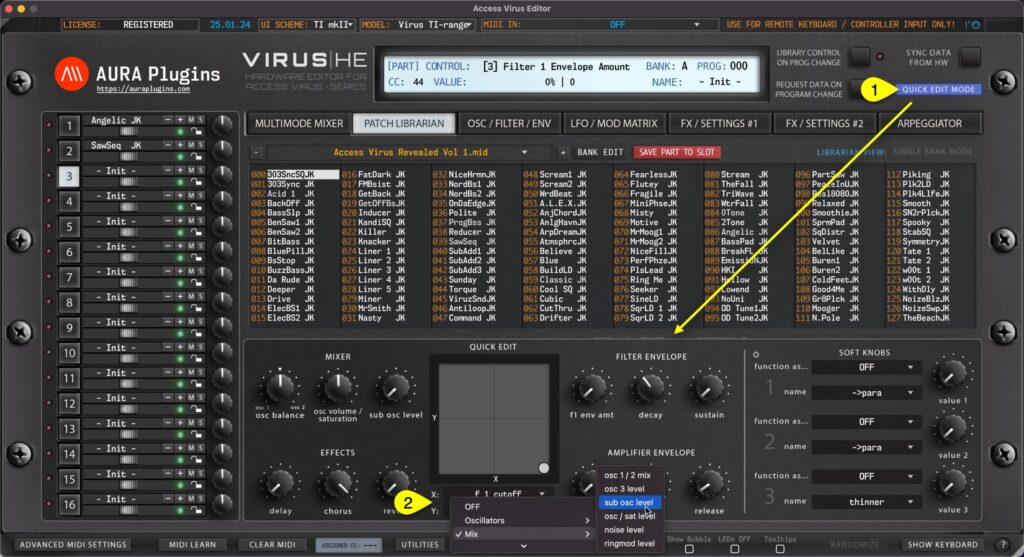
Patch Librarian has additional view to make quick edits on SINGLE PATCHES while browsing them through the Patch Librarian: Quick Edit Mode. Once Quick Edit Mode [1] is toggled on, LOWER list view is replaced with Quick Edit controls and customizable XY PAD. You can...