Knowledge Base forAccess Virus Editor

Documentation
Resources
Access Virus TI USB Audio with macOS – Natively
NOTE: Video link to setup Virus TI USB Audio with macOS available at the end of this User Guide!
Access Virus TI USB Audio with macOS 10.12 and greater – Is it going to work?
Yes. We were been able to get all Virus TI USB Audio channels to work inside our DAW – NATIVELY. We are running macOS 12.7.6 Monterey with M1 powered MacBook Pro. As a long time Logic Pro user, it was just an experimental idea to check “what if…” and boom! It worked! Note that Logic Pro is NOT required, this works with every macOS out of the box – natively! You can optionally use Audiomovers Omnibus and/or Inject to route audio from the Virus to your DAW.
OK, let’s get into it. What do you need?
- Access Virus TI and/or Access Virus TI Snow (obviously)….
- USB cable.
- USB-C to USB 2 or USB 3 Hub.
- Access Virus Editor.
Install our Access Virus Editor from the downloads page. Demo works too, but you are missing a lot features with it ($69.95 is a very small fee for a fully working editor)!
Step 1
Turn off power from your Virus TI. UNINSTALL Access Virus Control software, if you have it installed on your computer. Once your computer has rebooted, open new Finder window and navigate to:
/Library/Audio/MIDI Drivers/
check and make sure Virus TI MIDI Driver.plugin is removed.
Next navigate to:
/Library/Extensions/
check and make sure AccessVirusTI.kext is removed.
If either one of the files are present in your system, the Editor and MIDI won’t work as expected. You can manually remove the files by selecting the correct file name and click cmd + backspace.
Step 2
Unplug USB and MIDI cables from your Virus TI.
Install our Access Virus Editor with all Editor formats enabled even if you are not using them (VST2, VST3, Audio Unit, AAX). This ensures the Editor and all the drivers are installed properly. Once installer is completed, navigate to:
/Library/Audio/MIDI Drivers/
check and make sure that AURA Plugins Virus TI USB Midi.plugin is installed – if not, run the installer again!
Step 3
Reboot your computer. Power up your Virus TI and wait until it is booted. Plug in the USB cable. Virus TI display will say “Audio clock changed” and “USB” text will appear in the top right corner.
NOTE: Read our Access Virus User Manual article about USB & MIDI connections here: https://auraplugins.com/kb/article/access-virus-editor-prepare-your-hardware/
Audio MIDI Setup
In order to get the Virus TI USB Audio with macOS working, we have to create aggregate device stack and make sure the device is online. This is all native macOS Apps, no 3rd party apps installed. Open Audio MIDI Setup.app from your macOS -> Applications -> Utilities folder. If you can’t see Audio Devices window, click “window” and “show audio devices”. You should also open MIDI-studio view from the same menu with “show MIDI-studio“.
- CMD + 1 (show / hide audio devices)
- CMD + 2 (show / hide MIDI-studio)
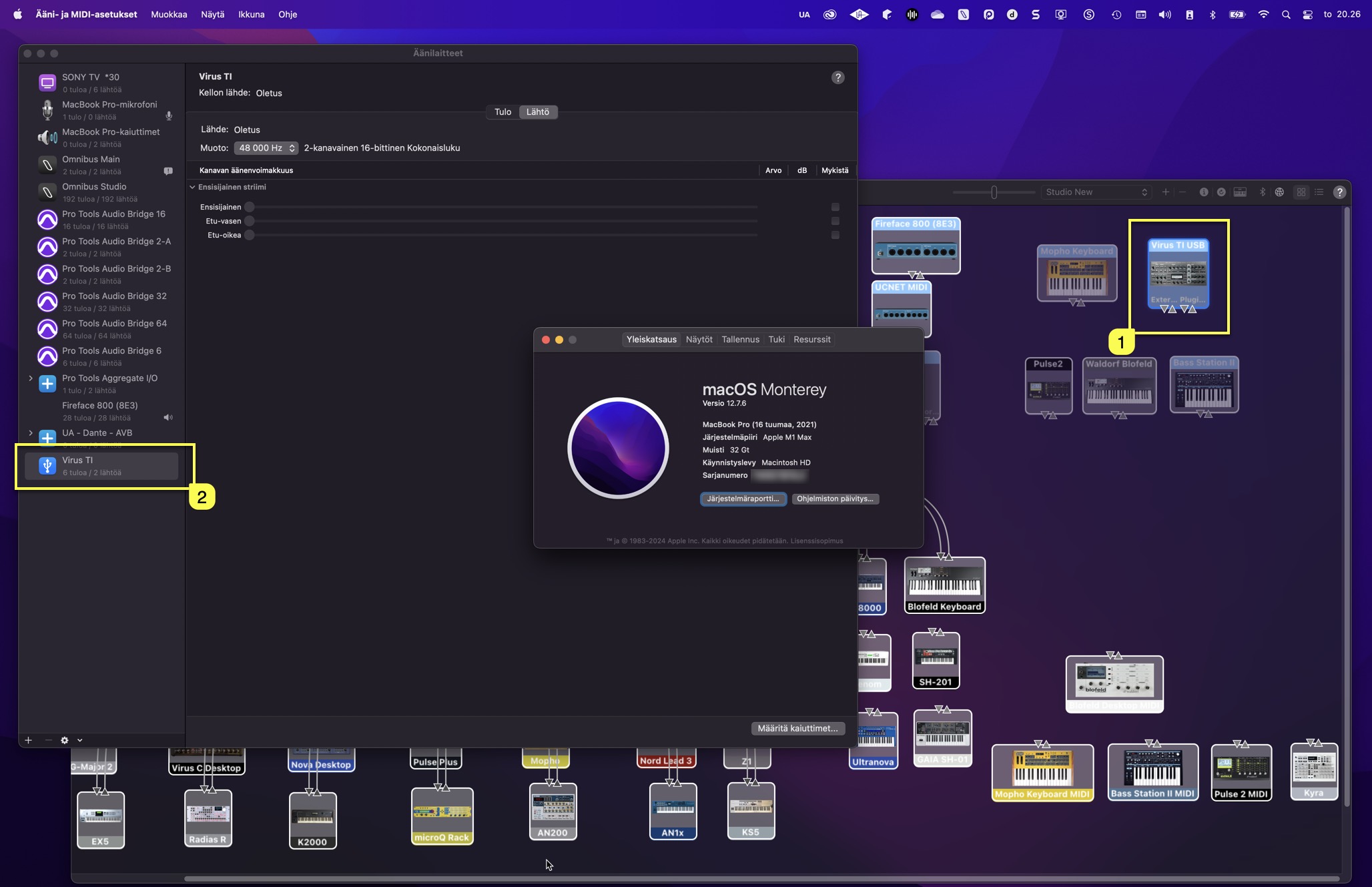
In MIDI-studio view, you can see that Virus TI USB [1] is now installed. In Audio Devices view you can see that Virus TI [2] is now showing up with 6 inputs / 2 outputs.
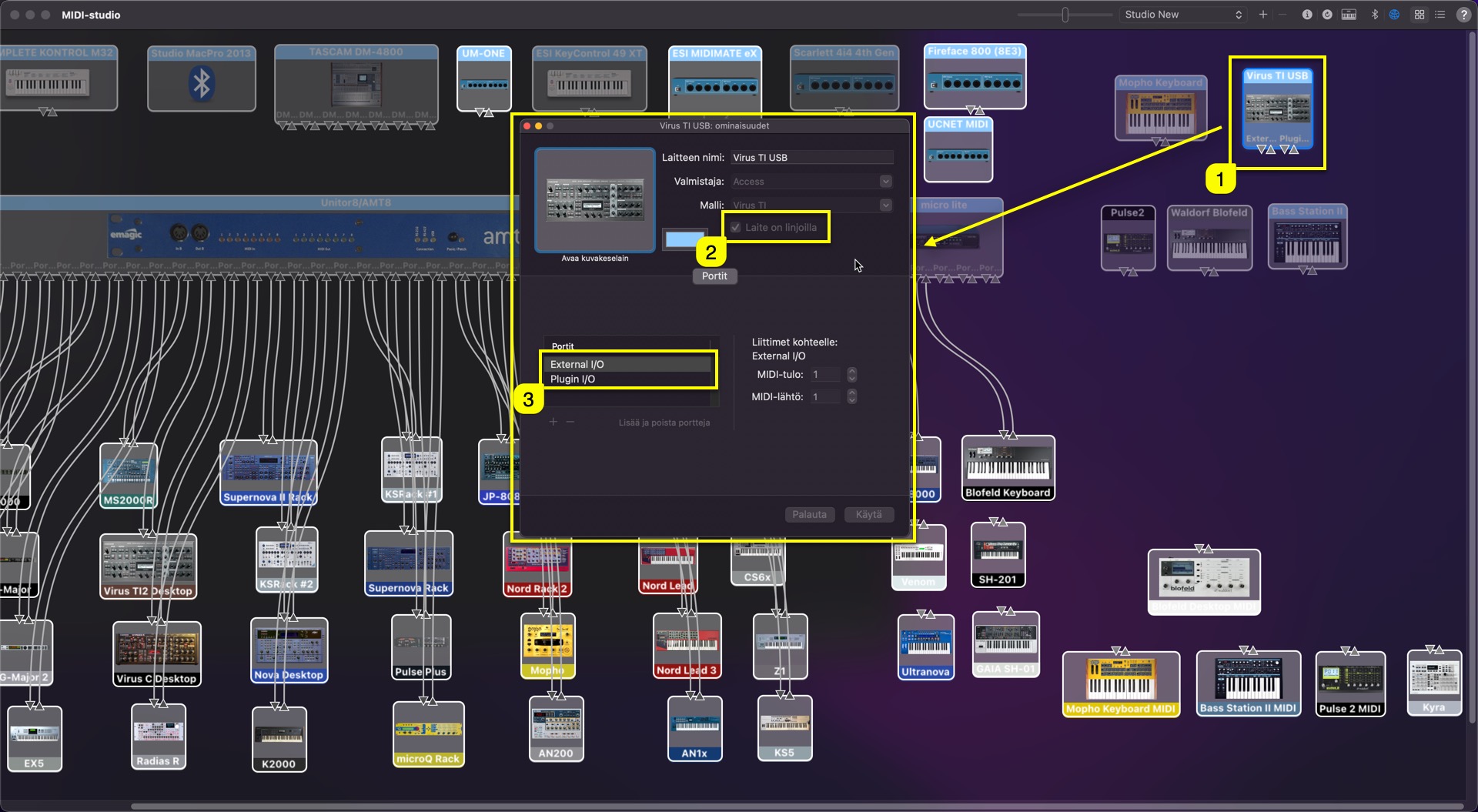
You can make sure that our driver works by double clicking the Virus TI USB [1] in the MIDI-studio view. New window will open up and you can see that the device is online [2] – Our driver has ports [3]
- External I/O
- Plugin I/O
You can close this window if everything is ok. If not, open a support ticket and we will help you out.
Create Aggregate Device
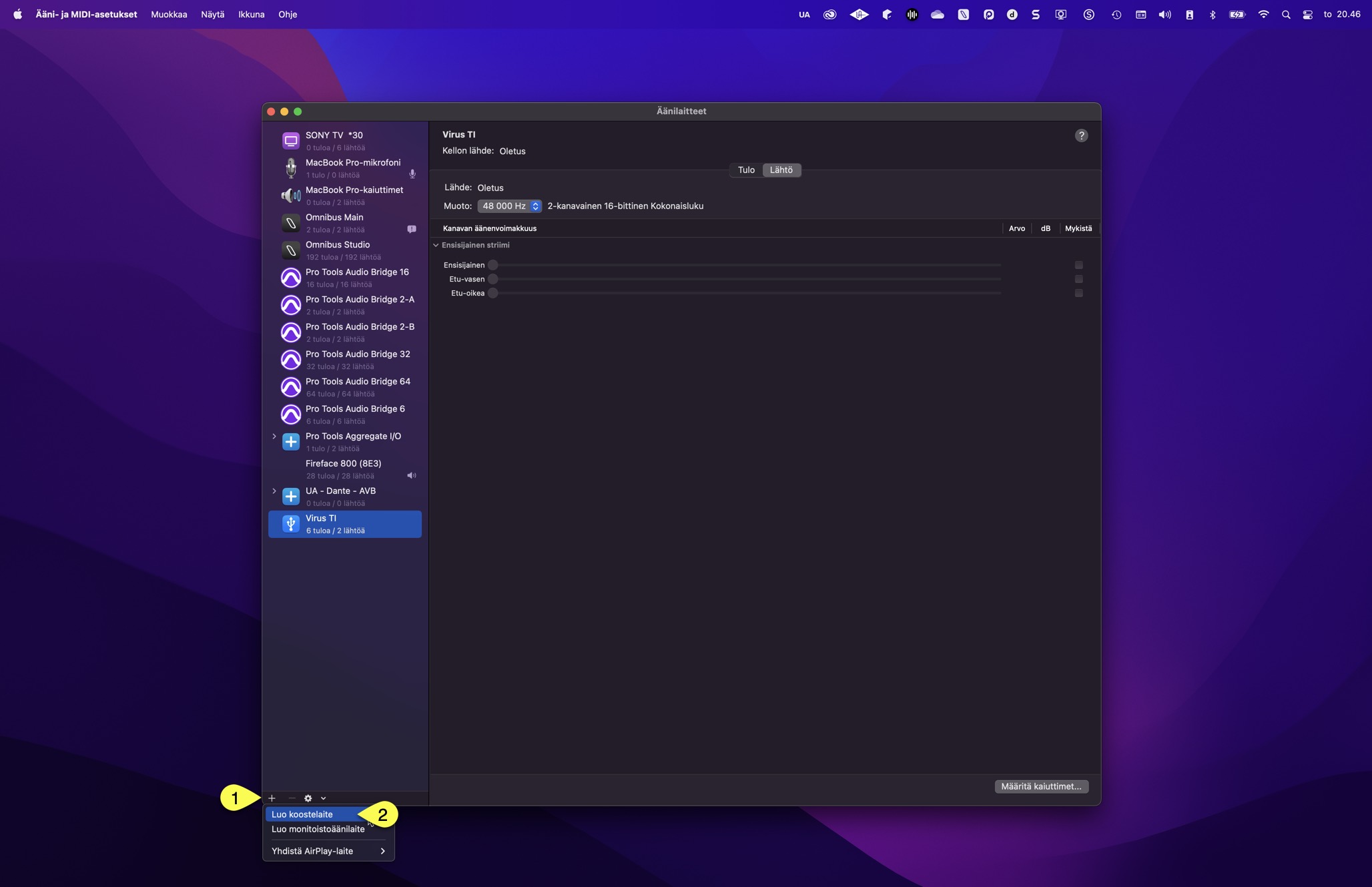
Open Audio Device view – In this window we can create a stack of devices that will be unified within your DAW. In the lower left corner, there is a + [1] sign, click that and choose Create aggregate device [2].
Rename Aggregate Device
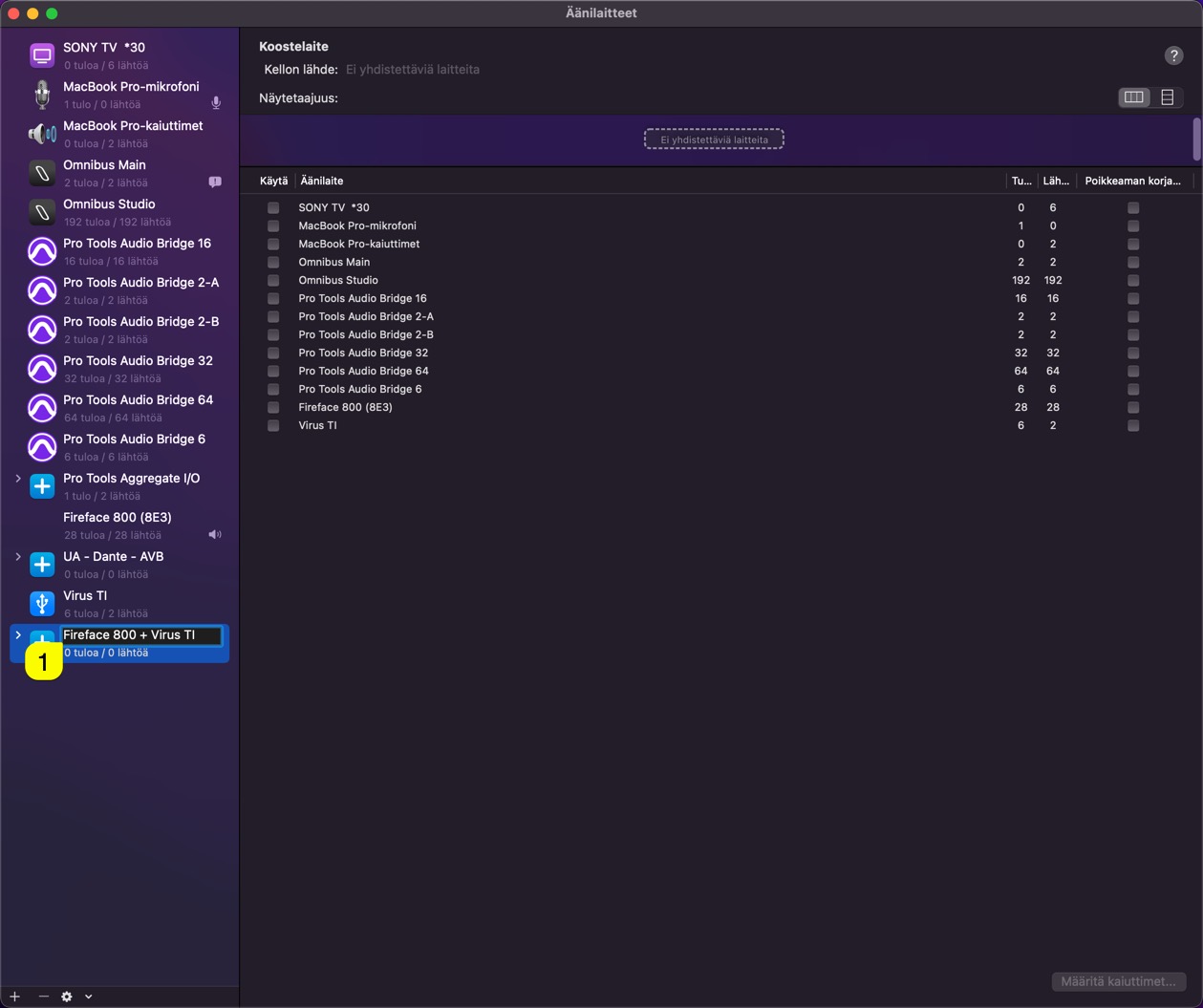
Rename your newly created Aggregate Device by clicking the device name [1]. Give it a name you can memorize. In this case, I am renaming mine as Fireface 800 + Virus TI.
Stack Devices together
Before you rush into adding the devices, ALWAYS make sure your master soundcard is the first option you select. This defines what the audio clock master is and which other devices will be clocked to. Virus TI should always be the last item in the list.
In the screenshot below, you can see that I have chosen my Fireface 800 and Virus TI [1] for this stack. You can add as many devices as you need. Virus TI has the drift correction [2] since Fireface 800 is our audio clock provider.
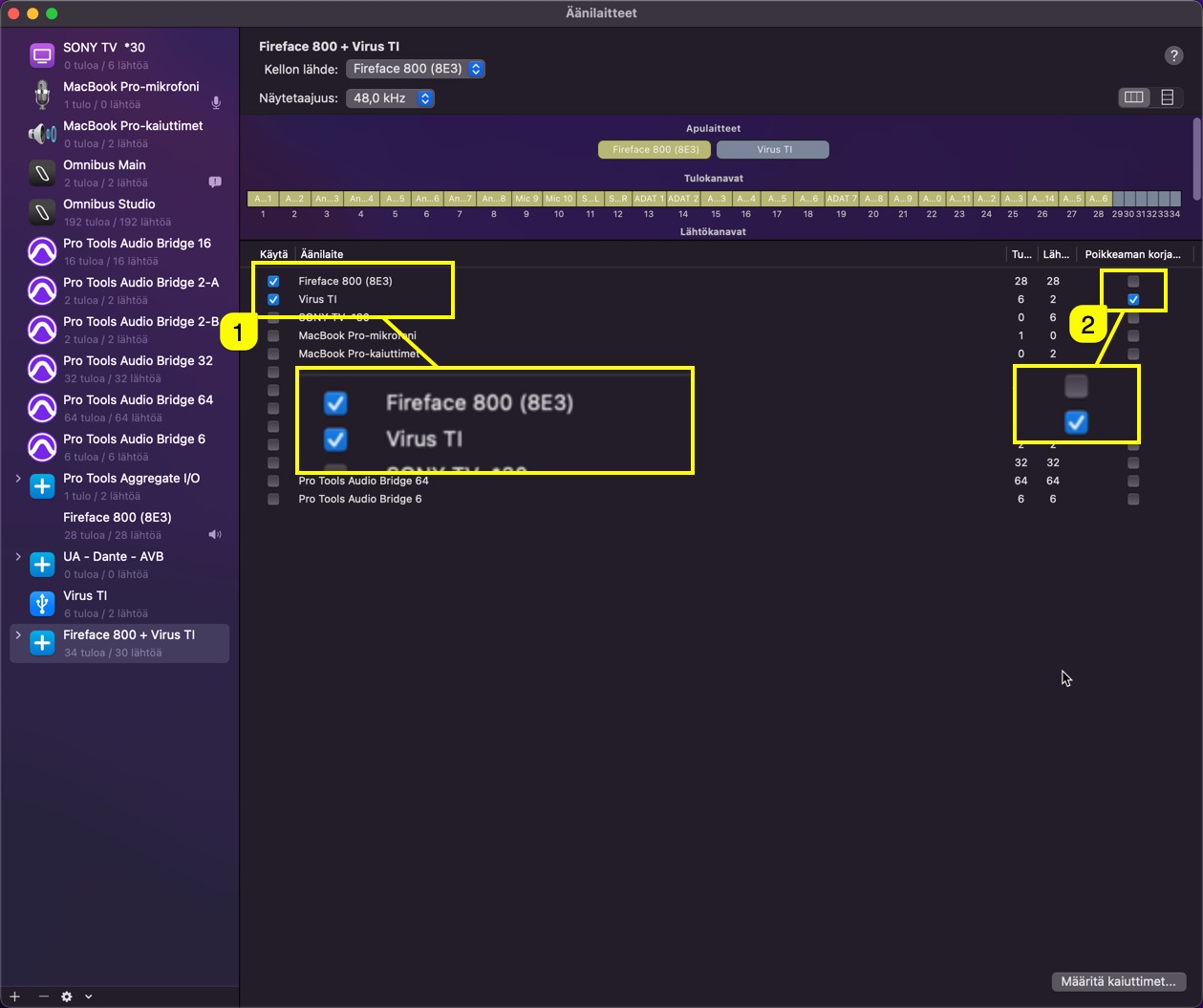
Note: As a safety measure, I have plugged Fireface 800 SPDIF output to my Virus TI SPDIF input. Virus TI should automatically sync to the incoming SPDIF clock. This can be defined from the Virus TI Config menu.
Rename Input ports
To make the workflow smooth, I would rename my ports while at it, here is how to do it the easy way: Change view to list [1] view. You can now see that Fireface 800 channels are yellow’ish and Virus TI channels are gray.
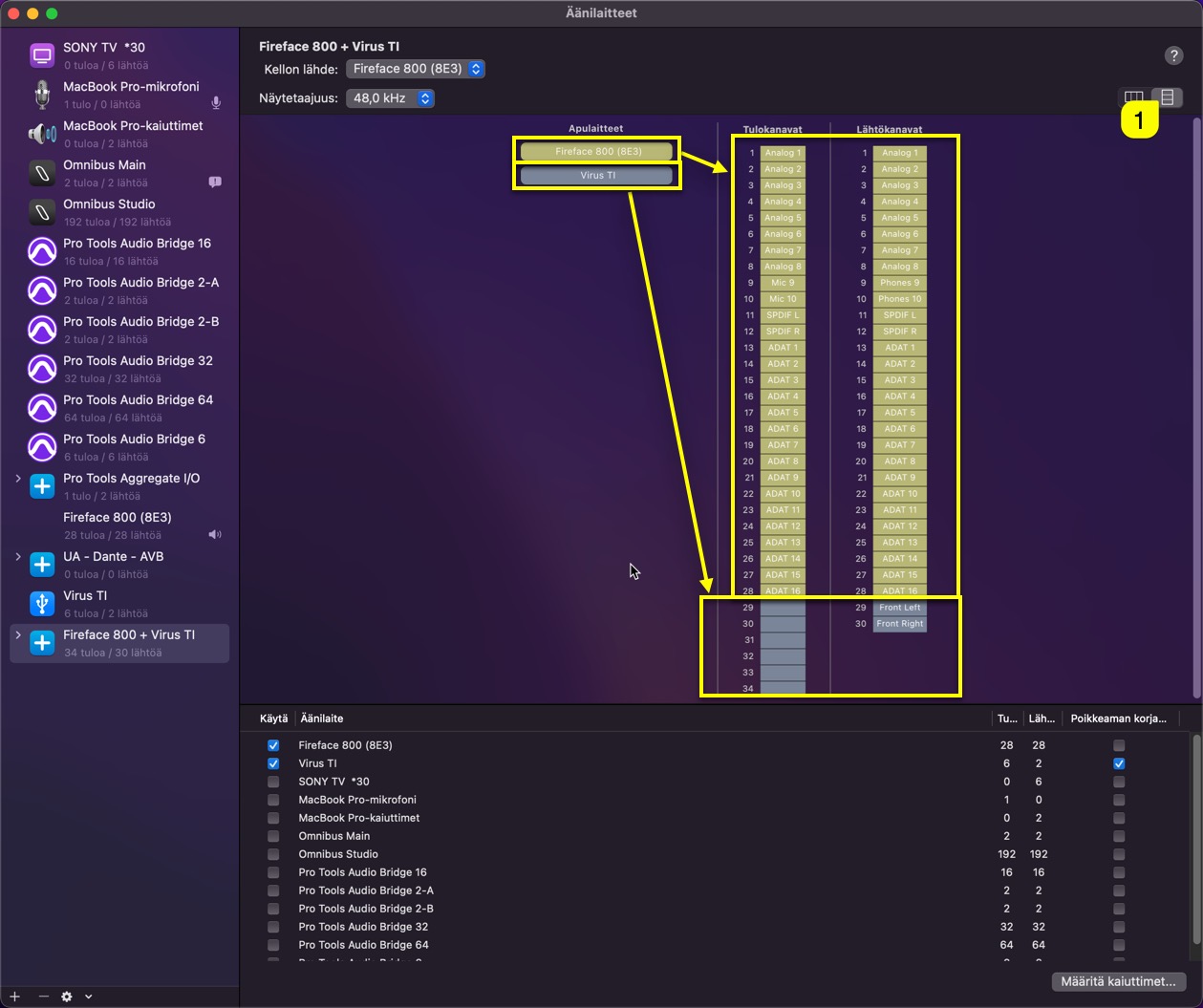
Move your mouse over to the Virus TI Input channels and you can see a little + sign appearing. Click to add name for the Input channel.
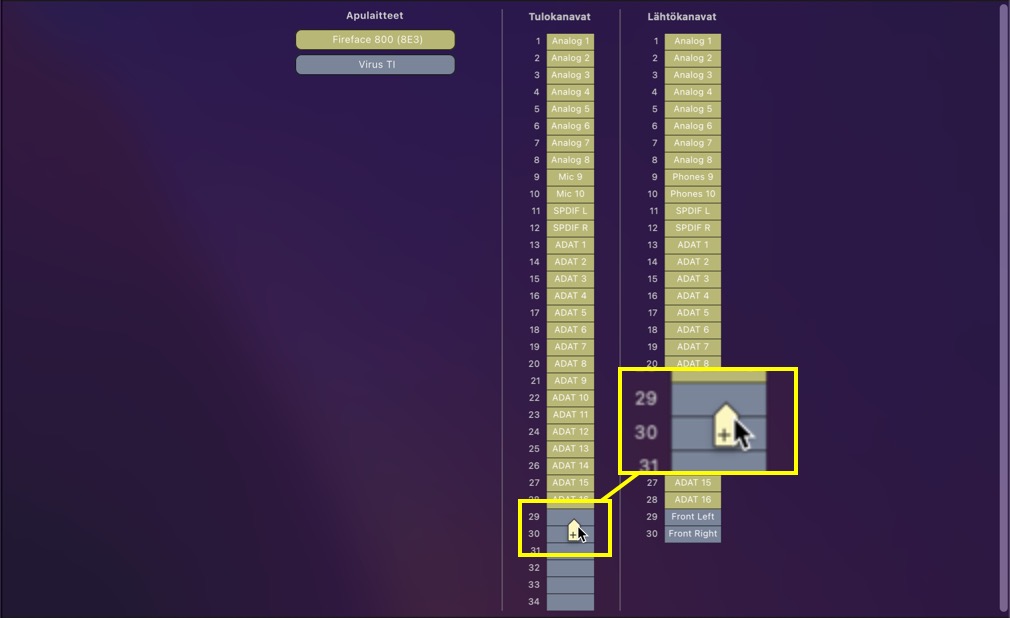
Since Access built the USB streams for the Virus TI, their stream format goes as follows:
- stream 1: usb 3 L&R
- stream 2: usb 1 L&R
- stream 3: usb 2 L&R
So naming the channels should be done as you can see from the screenshot below.
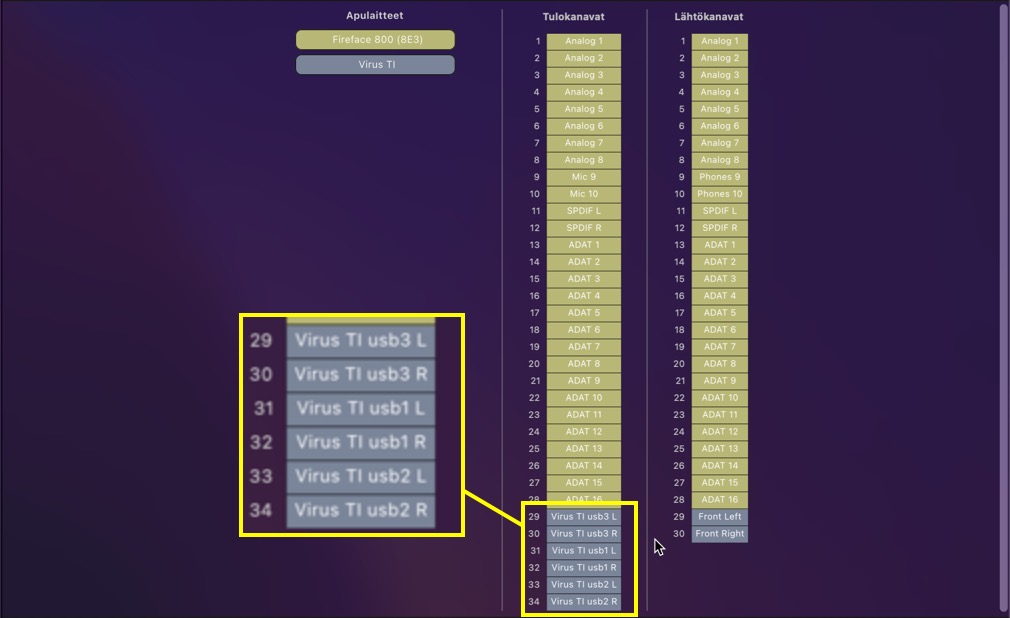
You can ignore the channel numbers 29 – 34, since they are completely setup dependant. For example, if I was to do this guide in our studio, there would be 256 inputs + Virus TI inputs.. In your setup it can be 8 inputs + Virus TI inputs etc.
Note: Virus TI is the last device in the Aggregate Device stack for two reasons!
1) if Virus TI usb connection is dropped / not found during the boot, device names prior to TI will be intact.
2) it is much easier to remember that Virus TI usb outputs are the last 6 channels in your DAW inputs list.
Before we will take a deep dive into Ableton Live, here is some thoughts and findings to-date:
Caveat with USB connection
Sometimes after Virus TI has been shut down, macOS nukes the USB connection and “kills” the Virus TI connection in the aggregate device list.
In the screenshot below, we can see that Virus TI [1] is disabled in the Aggregate Device list, while in the Device tree [2] it shows the device is available.
This can be easily fixed by UNCHECKING [1] and CHECKING [1] the Virus TI in the Aggregate device list.
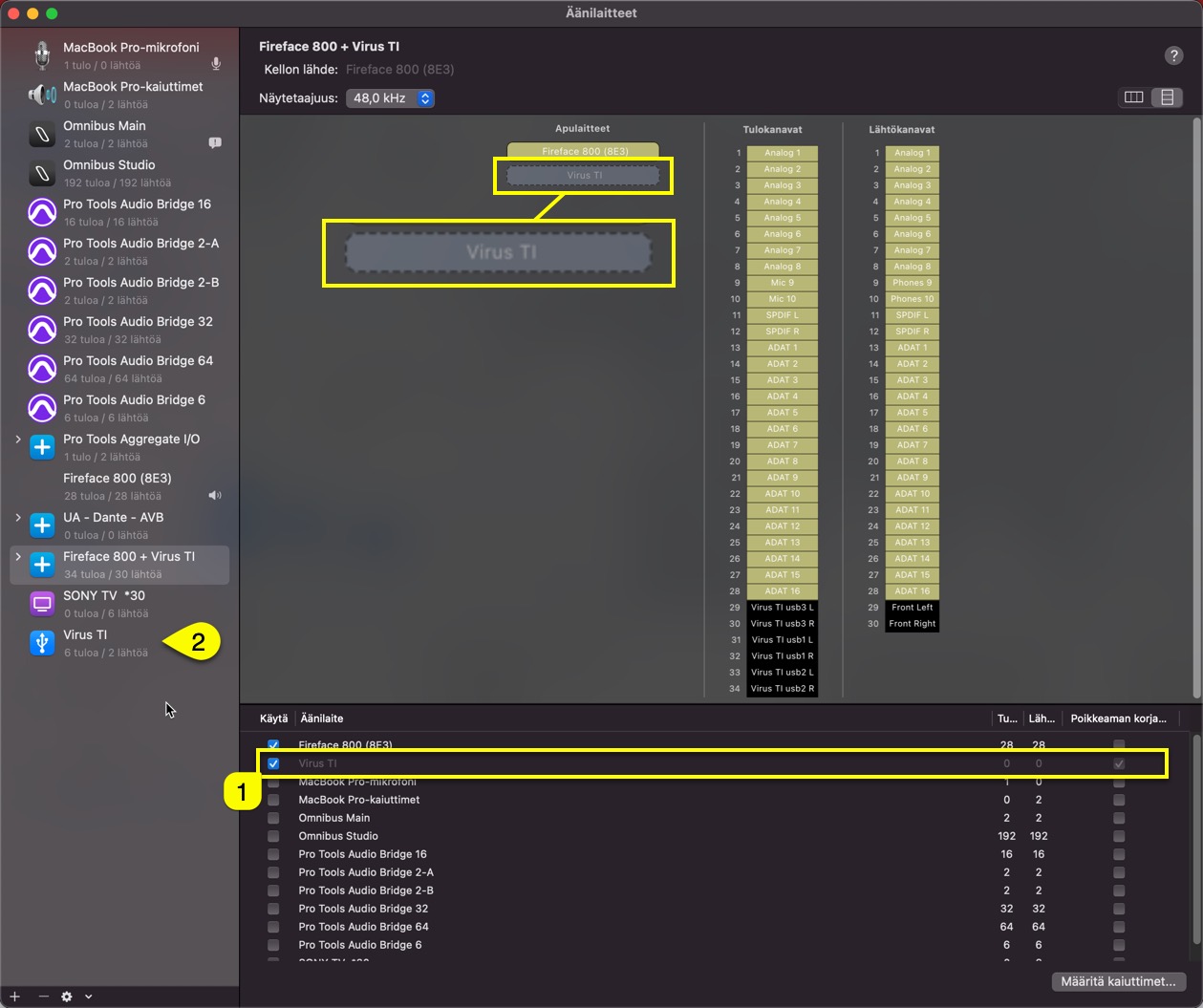
This is why we recommend to put the Virus TI as a last item in the list. If the trick above won’t help, shut down everything and start by turning on the Virus TI and then your Computer.
Ableton Live and Virus TI USB Audio with macOS
Selecting the right Audio Devices
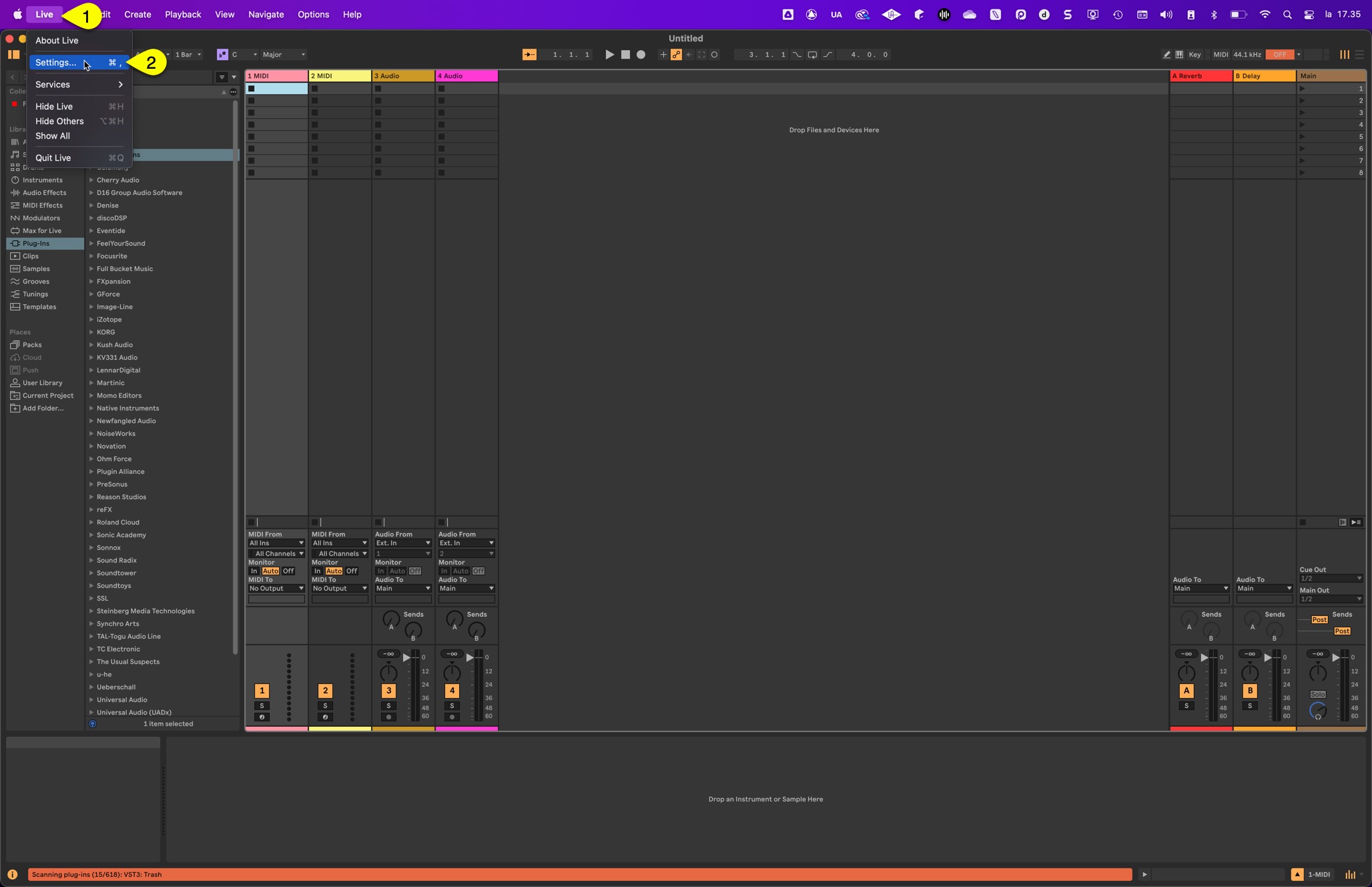
Lets open Ableton Live and set everything up in it. First, click Live [1] menu and open Preferences [2]
Start by setting the Audio Input Device [1] and select the Aggregate Device [2] you created from the list

Next we can select the Audio Output Device [1], but this time, we want to select our master device [2], in my case that would be Fireface 800!

Audio devices are now set, however, if you want to rename your input channels, click Input Config [1] to open the inputs view
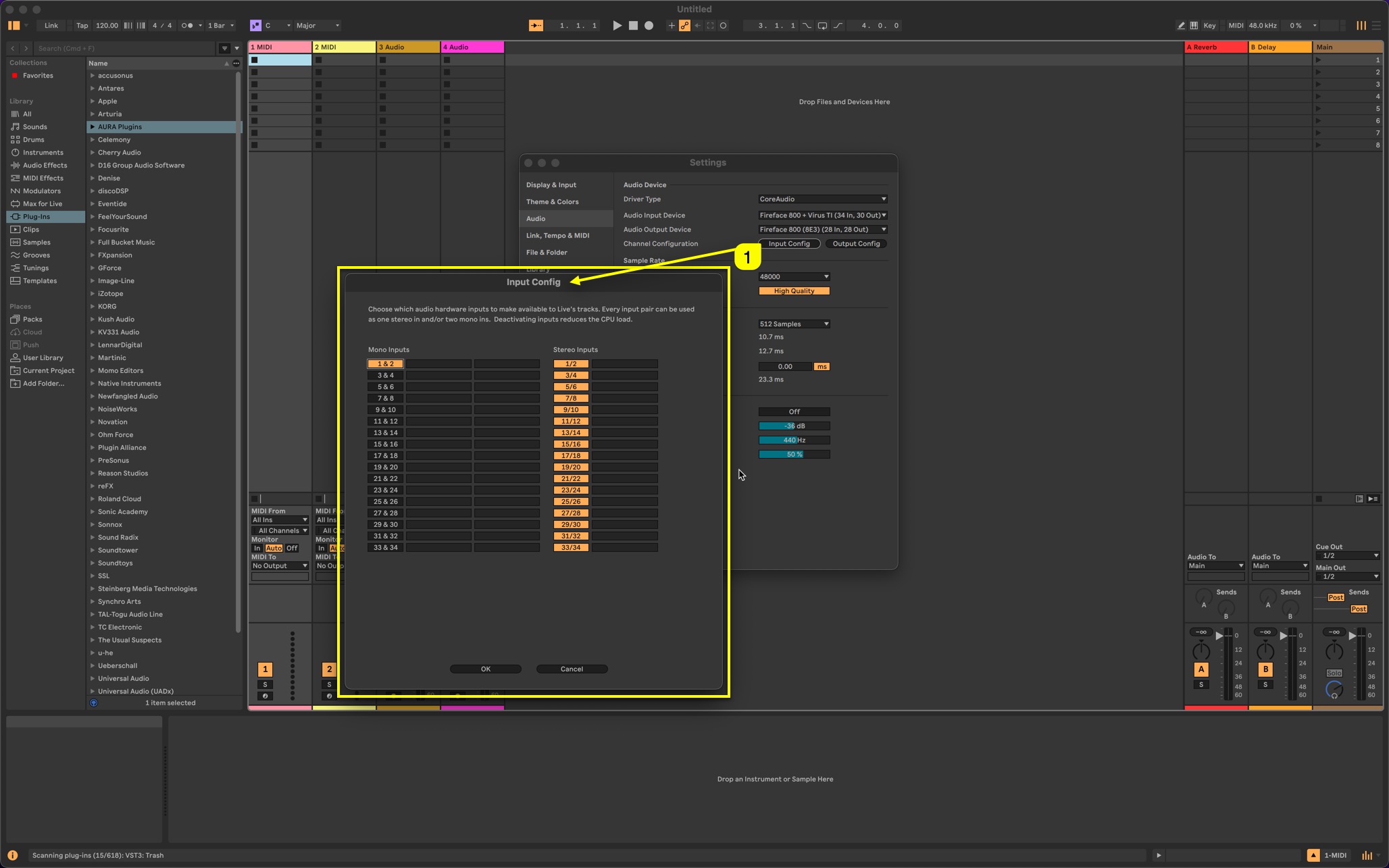
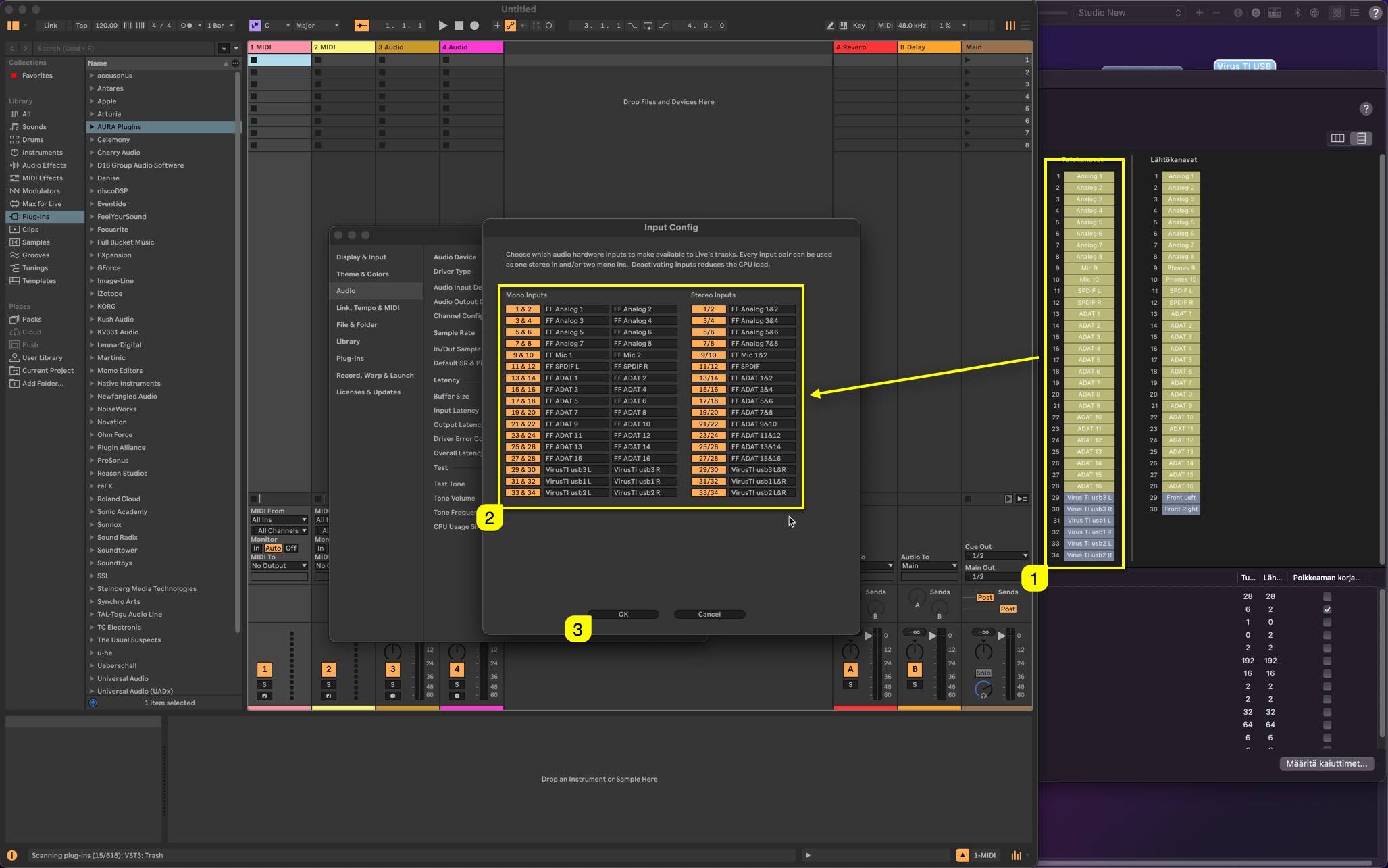
Remember how we had inputs configured earlier in the Aggregate Device view [1], well, you can now rename your Live inputs [2] with same titles so it is easier to select the proper inputs in your DAW!

Here is my result after renaming the titles, Aggregate Device input [1] names match Live input [2] names. Notice that I have manually enabled each input (the numbered titles are lit). Once you have configured your names, click OK [3] to close the window.
Final step before closing the Settings view is to make sure that you adjust your buffer settings [1]. I would personally start with lowest possible value you know your soundcard can handle. I’m setting mine to 64 Samples. Click close [2] toggle once you’re set!
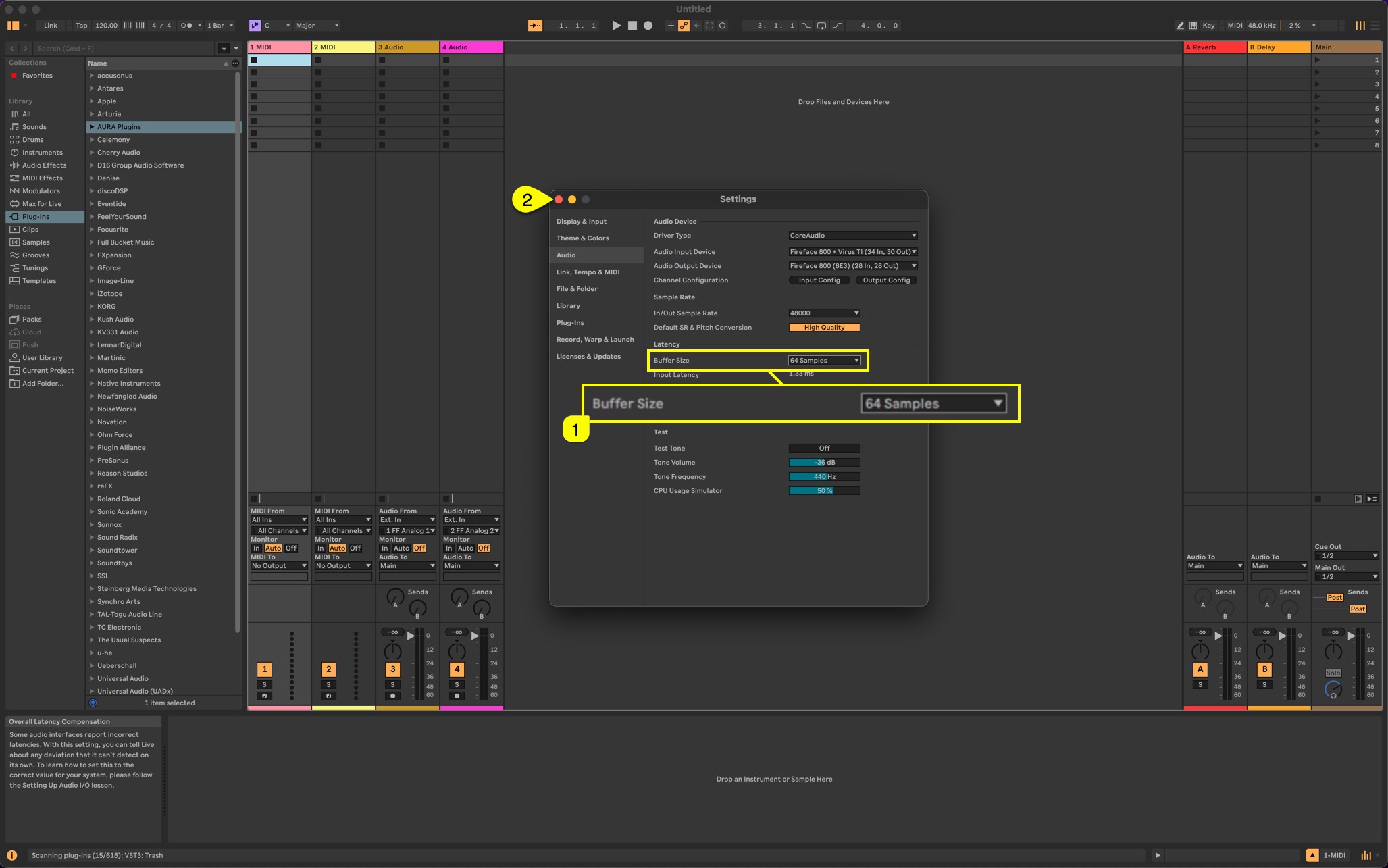
NOTE: If buffer setting is too low or too high, Virus TI USB stream will experience clicks and pops. You have to find a right balance for your setup by testing which works the best.
I personally don’t have any issues running 64 Samples with my M1 powered Mac. In fact, I can easily run 256 inputs in the studio with all channels being enabled for monitoring / recording.
Insert the Access Virus Editor
Lets insert the Access Virus Editor into the project now. We are gonna use Audio Unit since it provides best macOS integration with best stability. VST3 is the worst with MIDI, especially with multi channel configuration.
Drag’n’drop the Editor to Live (we recommend Audio Unit).
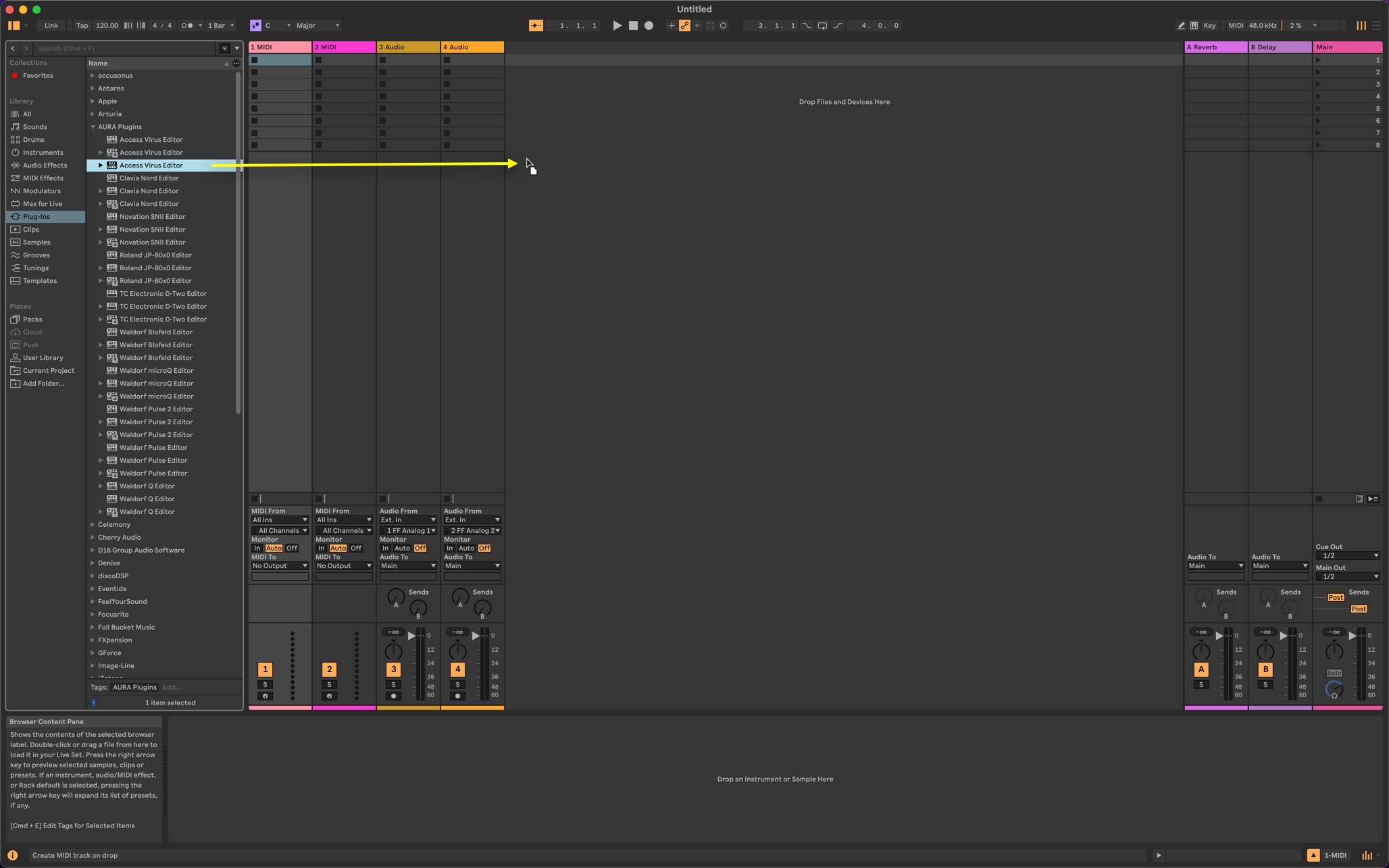
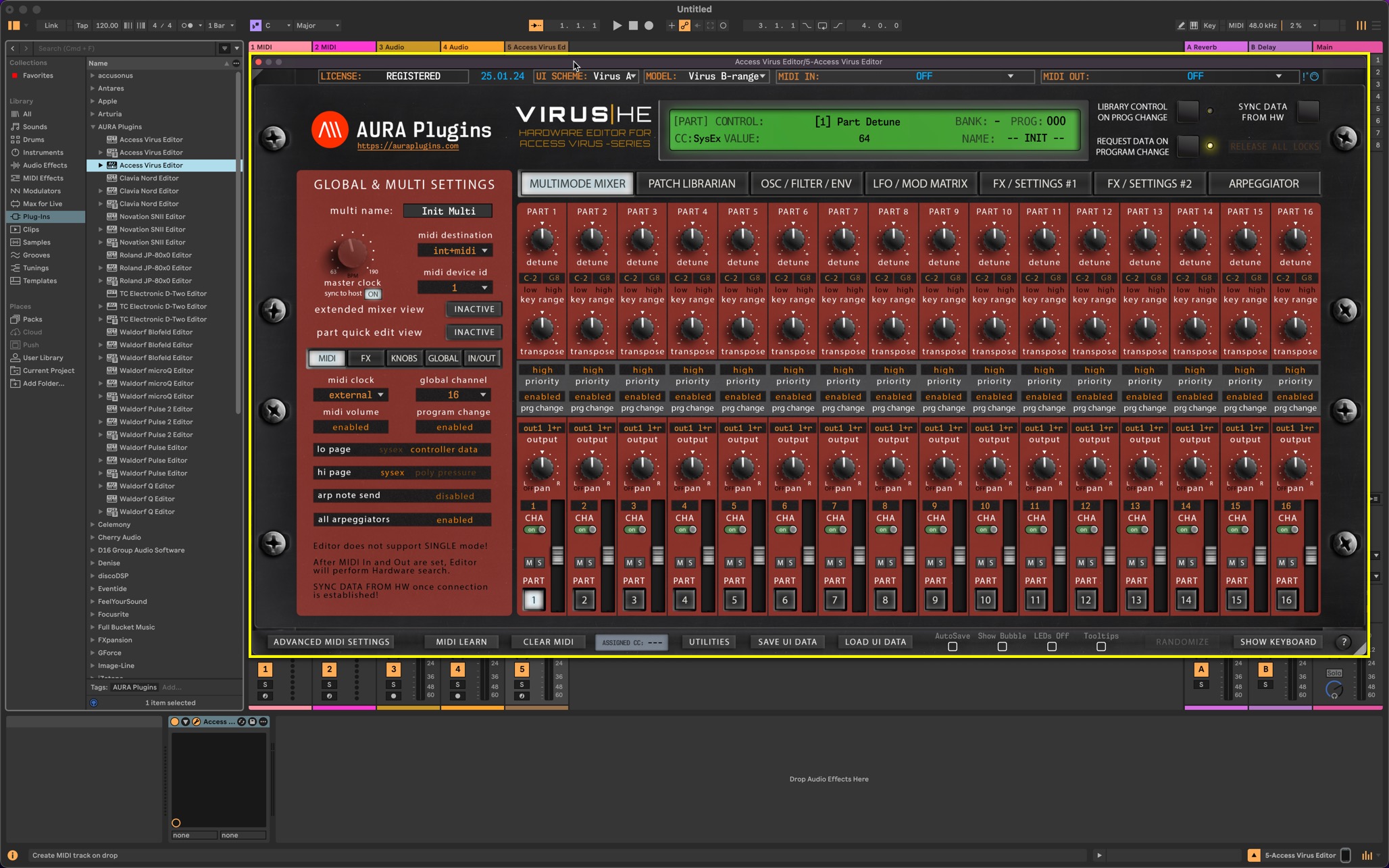
After a few seconds, this will open the Editor user interface.
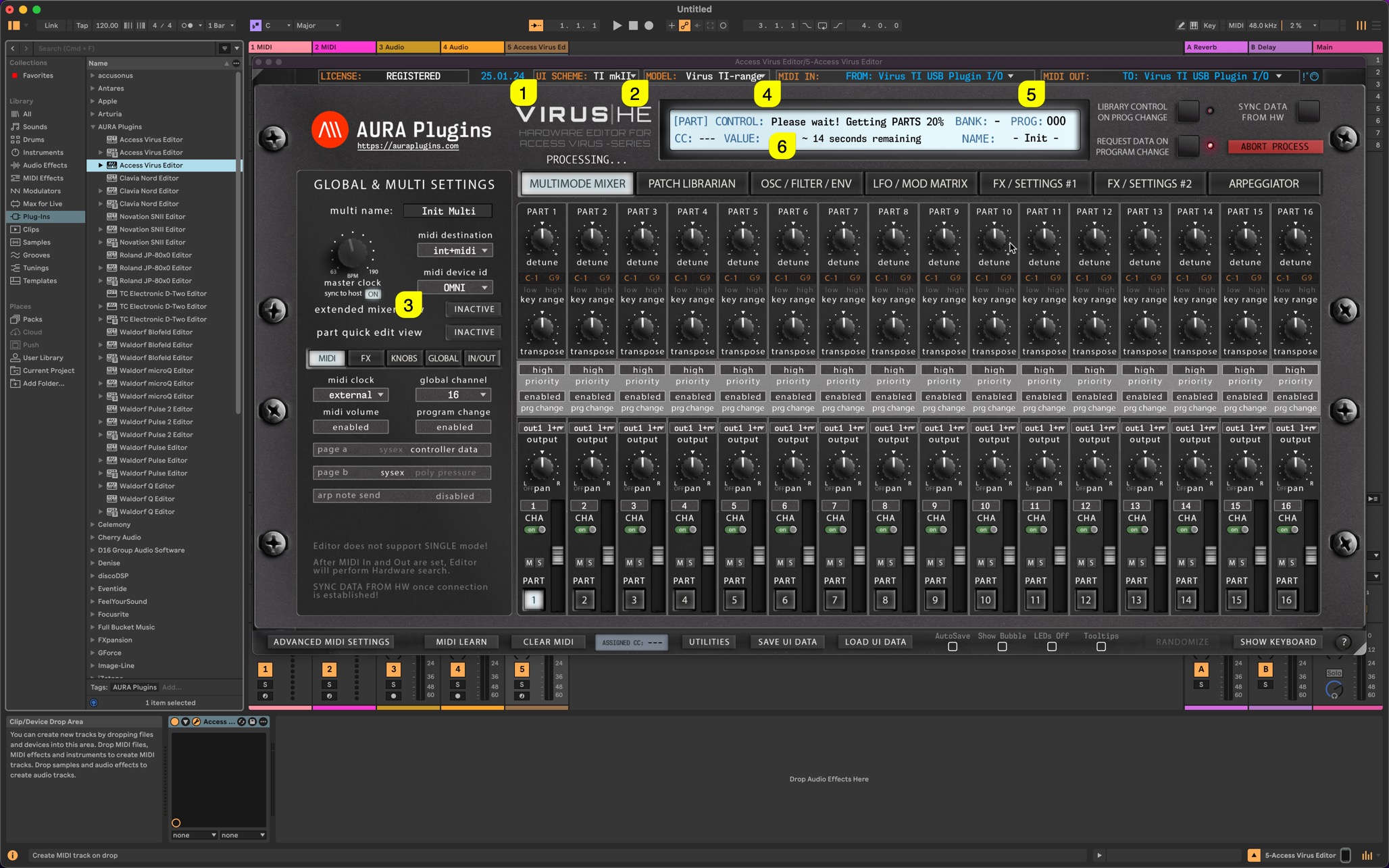
Lets adjust the User Interface and preferences before jumping into loading patches etc:
- 1) set UI Scheme to match your taste.
- 2) set Model to match your Virus TI model (Virus TI-series covers TI and TI2, Virus TI Snow is for TI Snow desktop users).
- 3) check Device ID and ensure it matches your Virus TI Device ID. (we recommend DeviceID 1).
rest of the settings are requested from the Virus once MIDI input and output are set. - 4) set MIDI IN port FROM: Virus TI USB Plugin I/O.
- 5) set MIDI OUT [5] port TO: Virus TI USB Plugin I/O.
- 6) Editor will start automatic sync with the hardware, getting global settings and parts from the Virus to the Editor User Interface. Wait until it’s done.
And the final result after the request process has been completed:
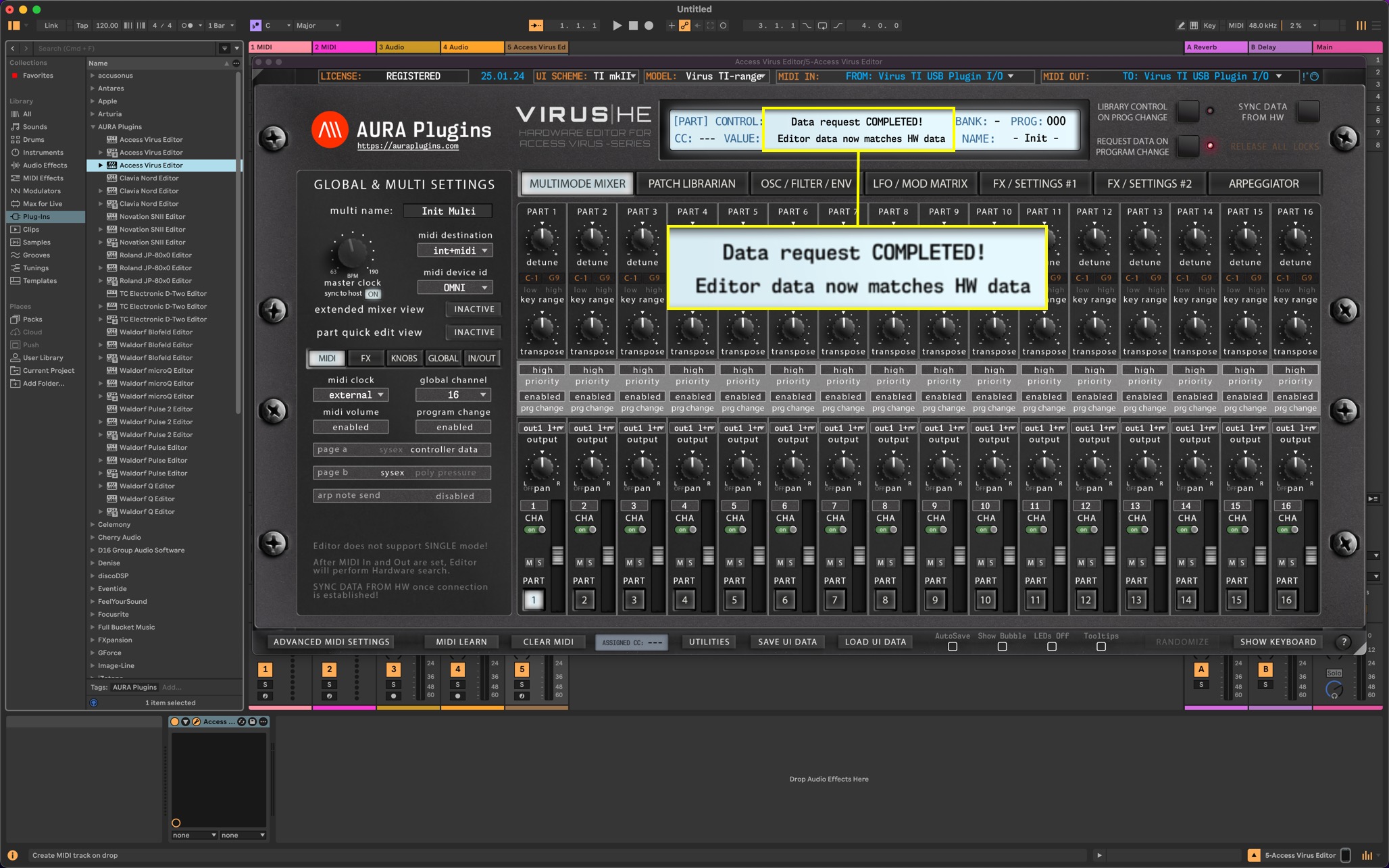
Part 1 of the Editor setup is done, lets minimize the view with left mouse click on the triangle at the top left corner [1] and move to adding Audio and MIDI tracks!
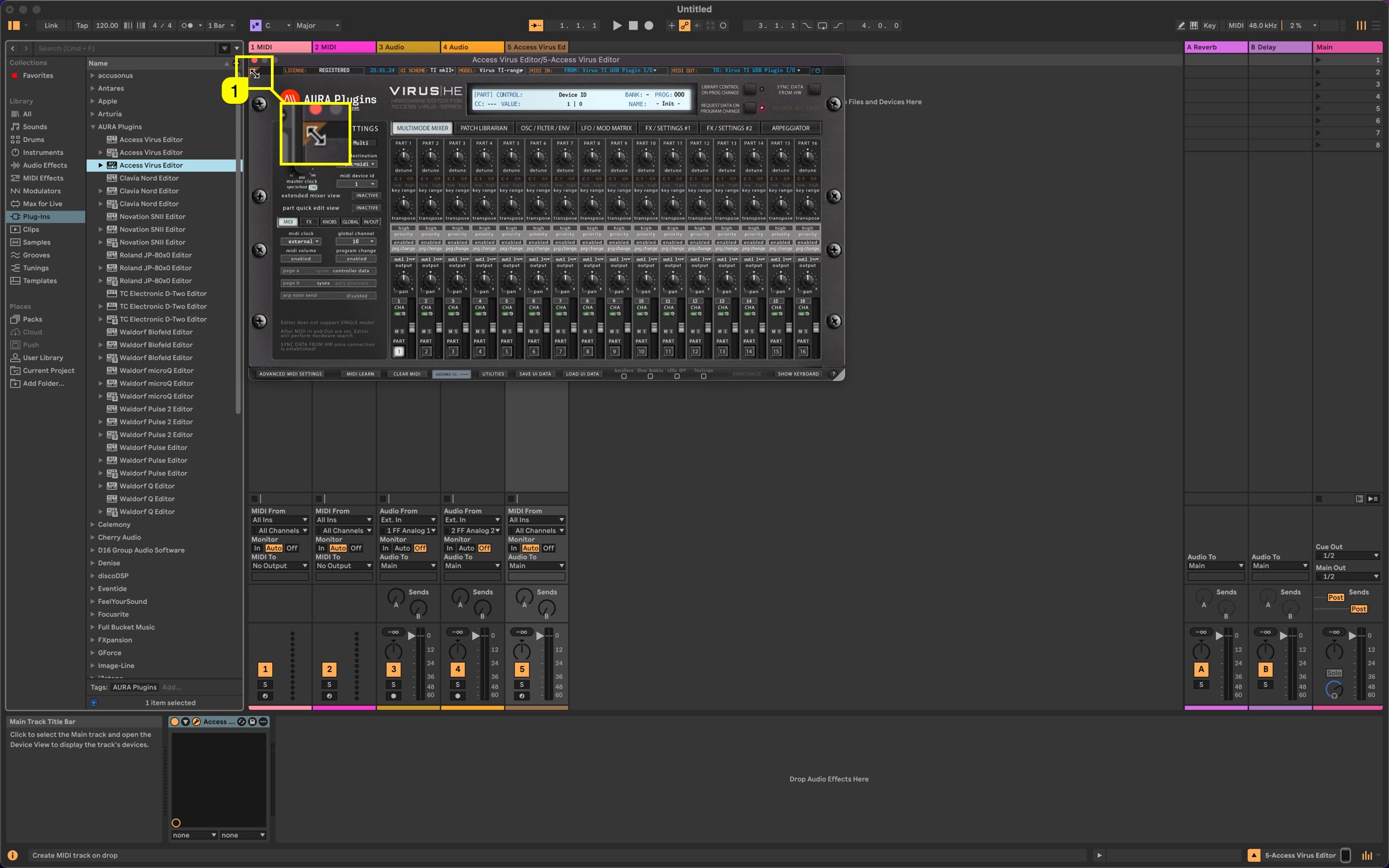
HEADS UP #1: When using USB connection, our Editor works with the Virus TI ONLY via the Plugin I/O ports on macOS. Windows has other options available. We will cover that later on with another article.
HEADS UP #2: External I/O is used for additional gear, like keyboard to trigger DAW or additional sound modules like Novation Supernova II Rack etc.
Create MIDI tracks
To get sample accurate MIDI from your DAW, we recommend to add MIDI tracks for each part used in your session. Our Editor is missing Audio DSP, therefore MIDI output is not compensated which might lead to timing errors.
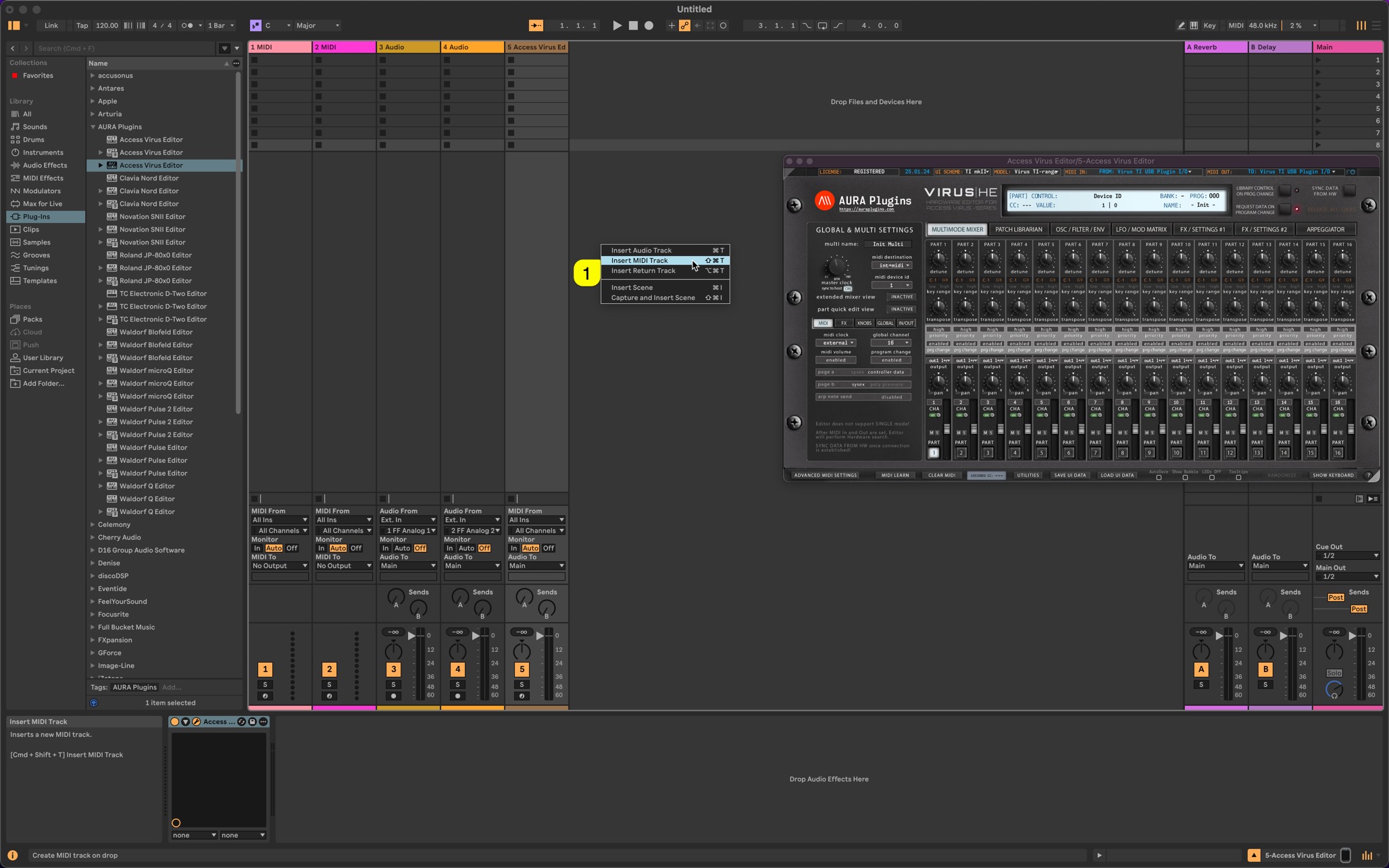
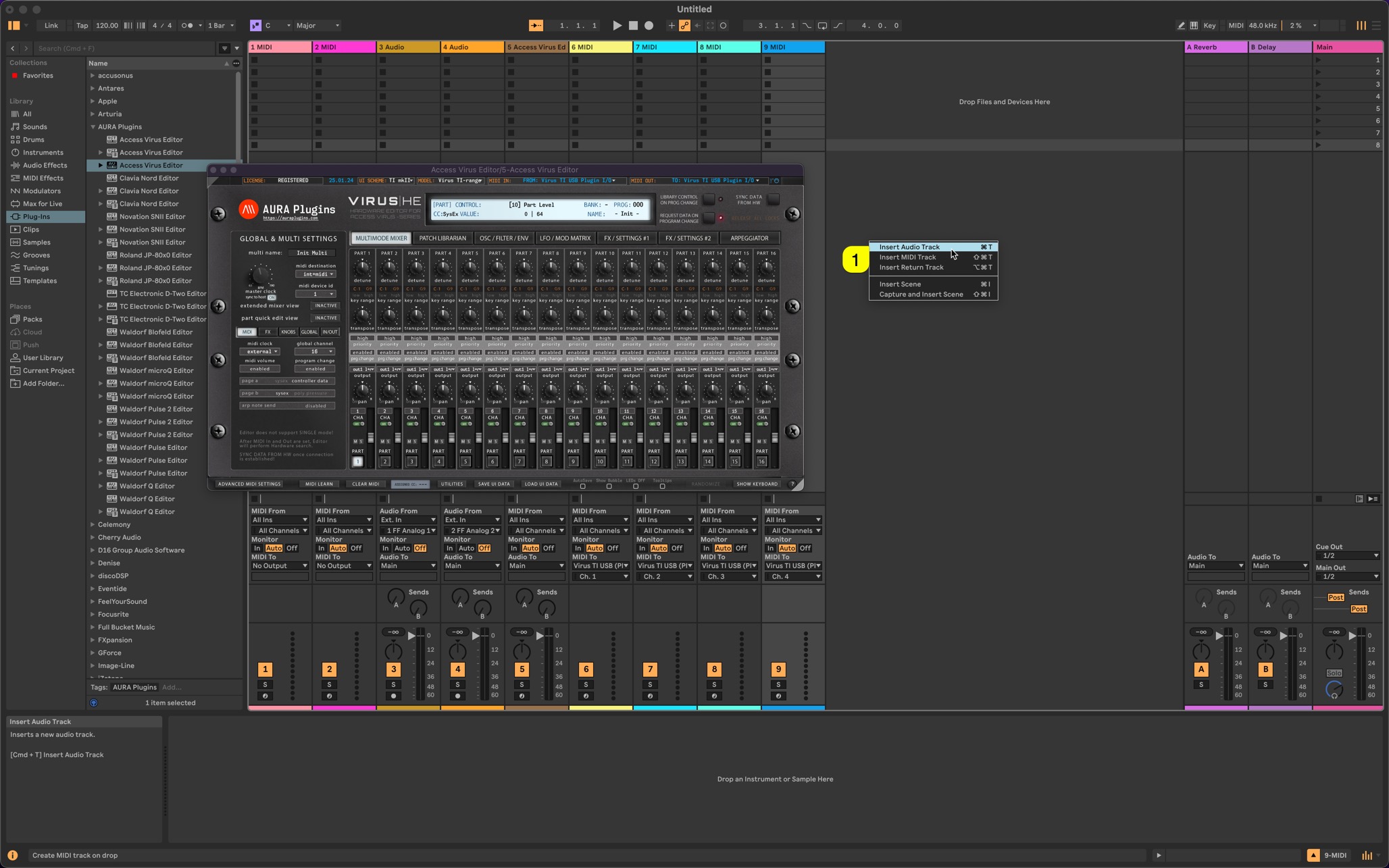
Right click [1] on the Live mixer background and choose Insert MIDI Track or use key command SHIFT + CMD + T. I’ve added 4 tracks for this example – you can add up-to 4 channels with Virus TI Snow and 16 channels with other TI models.
Now assign MIDI To pointing towards Virus TI USB (Plugin I/O) [1] for all channels you’ve created. Next assign each MIDI Track channel [3] to match the Editor/Hardware channels. As you can see from the image below, Part 1 has CHA 1 assigned to it, etc.
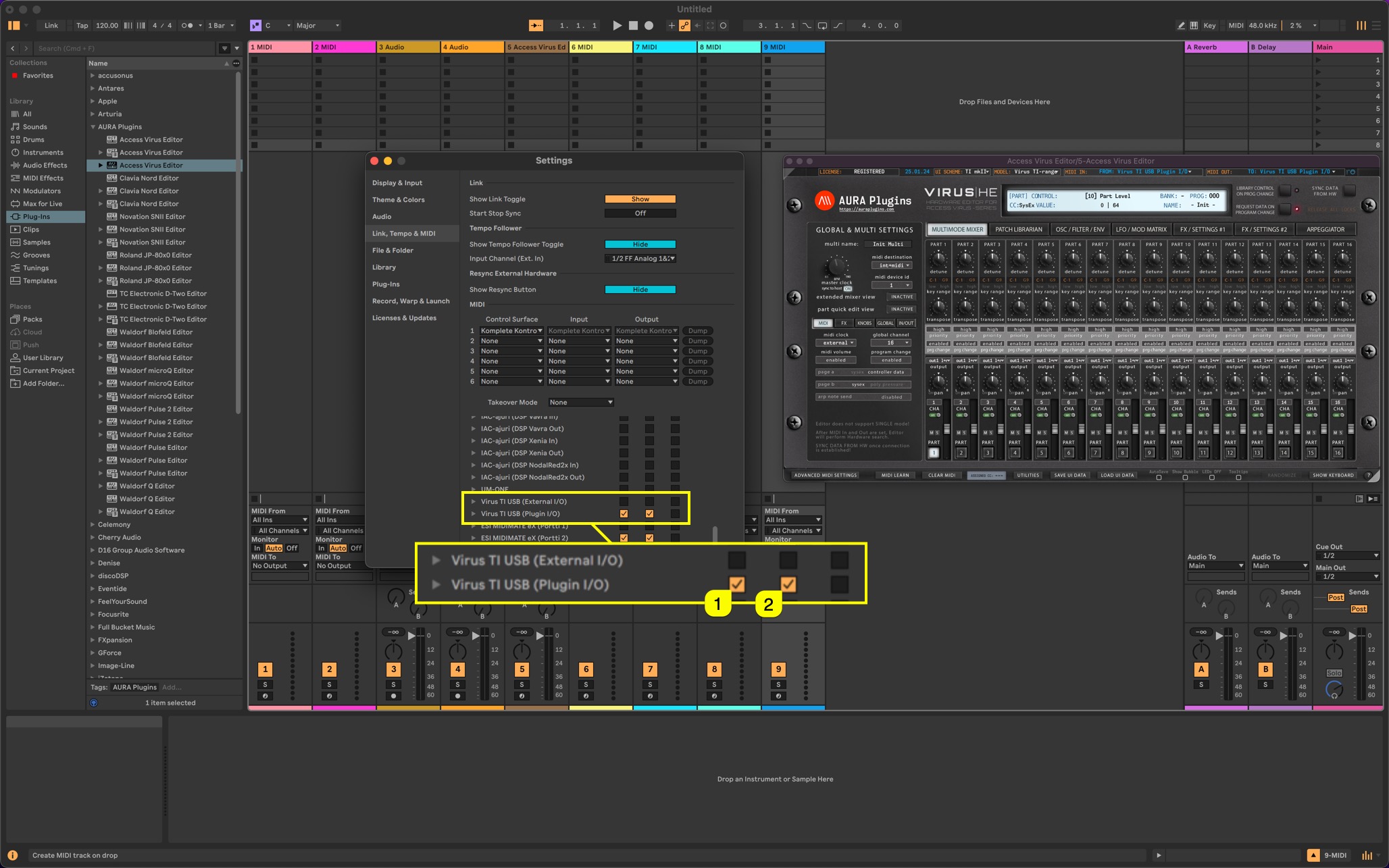
If you can’t see the MIDI port in the list, click Configure… [2] and see image further below how to make it visible.
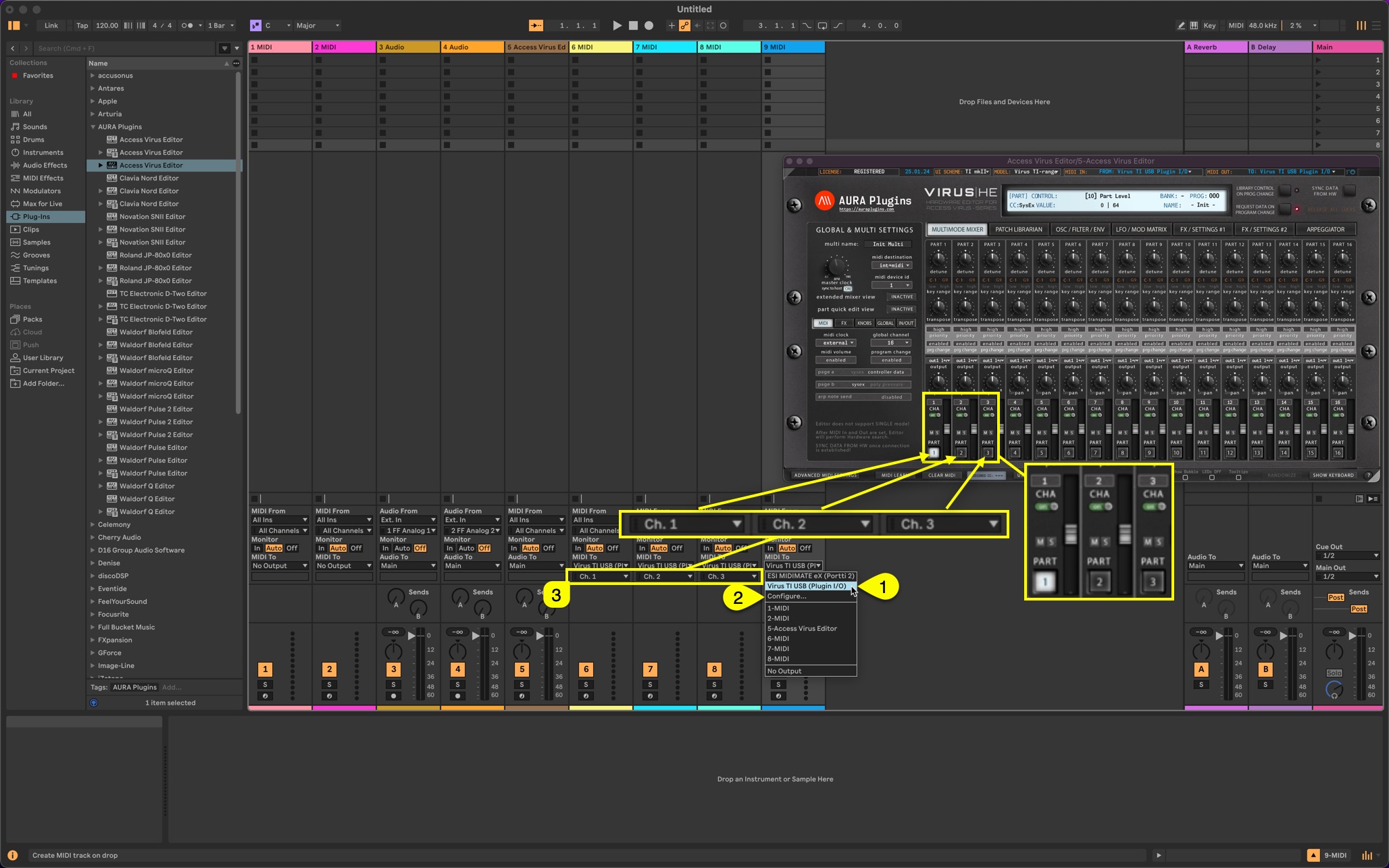
MIDI port configure opens the Settings dialog MIDI settings page. Scroll down the list and Locate Virus TI USB (Plugin I/O). Enable tracking [1] and sync [2] for the port and close the window. Now the port name is visible in Live.
NOTE: After Initial sync is done with the Virus TI, you should double check the MIDI channels per parts. Virus TI doesn’t transmit the channel settings back to the Editor User Interface when Sequencer mode is toggled on.
Create Audio tracks
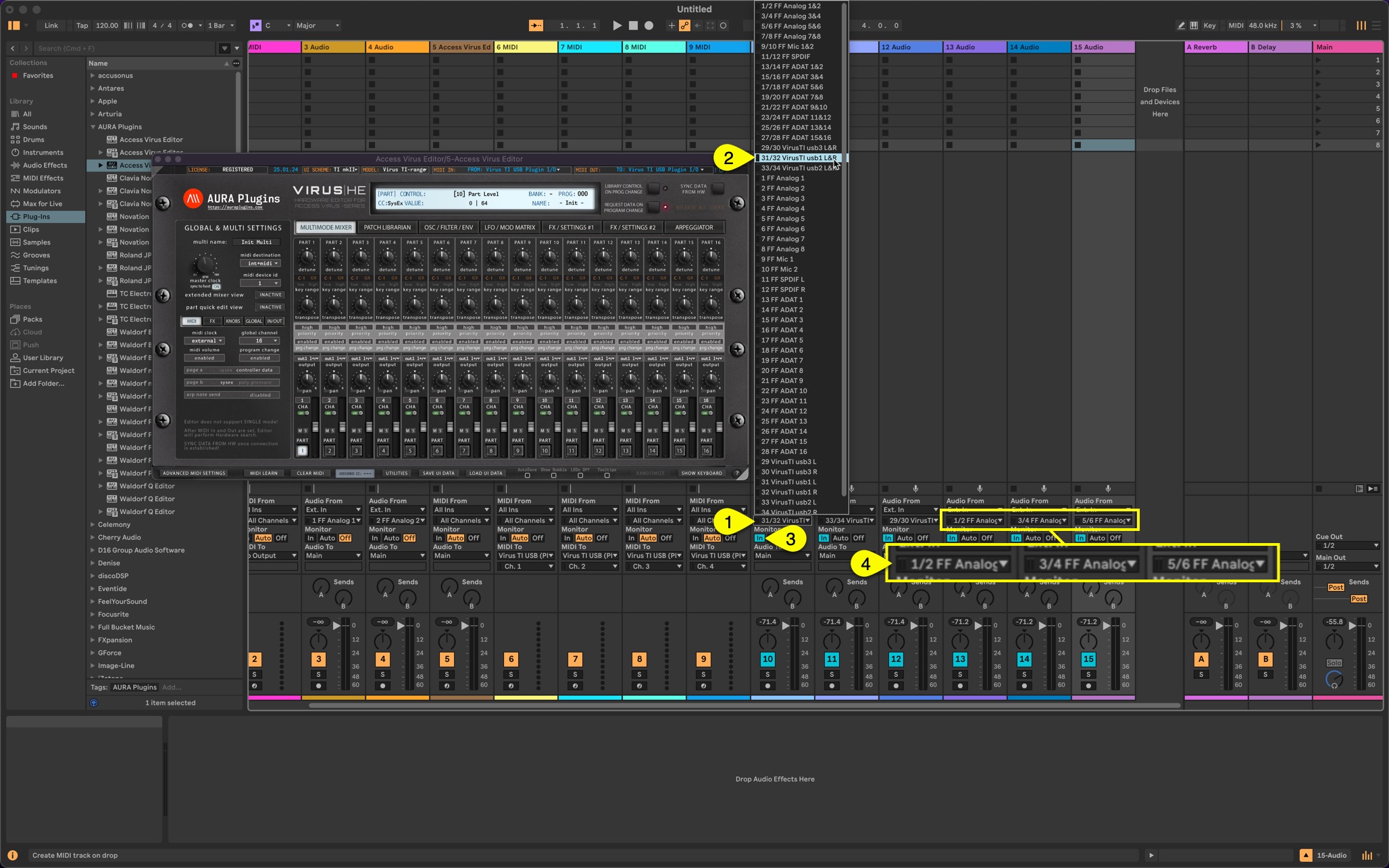
Right click [1] on the Live mixer background and choose Insert Audio Track or use key command CMD + T. I’ve added 6 tracks for this example – if you use USB only, then you can add 3 tracks – I’m combining USB + Analog Outputs.
Assign Inputs [1] in the mixer view. Audio 10 has inputs 31/32 VirusTI usb1 L&R [2] etc. After you’ve assigned all the inputs, toggle on Input Monitoring [3] to hear the Audio from the Virus TI once notes are triggered. Audio 13 – Audio 15 input ports [4] are my Fireface 800 inputs 1-6 enabled, where my Virus TI analog outputs are routed to.
Now the final step is to MAKE SURE THAT THE EDITOR PART OUTPUT is routed to USB 1, USB 2 or USB 3 in order to hear the Audio!
In the Editor window, double click the triangle in the top left corner [1] to enlarge the User Interface.
Now open output [2] dropdown for each PART and select your desired output. usb1-usb3 outputs [3] are listed at the bottom, while analog outputs [4] are listed on the top.
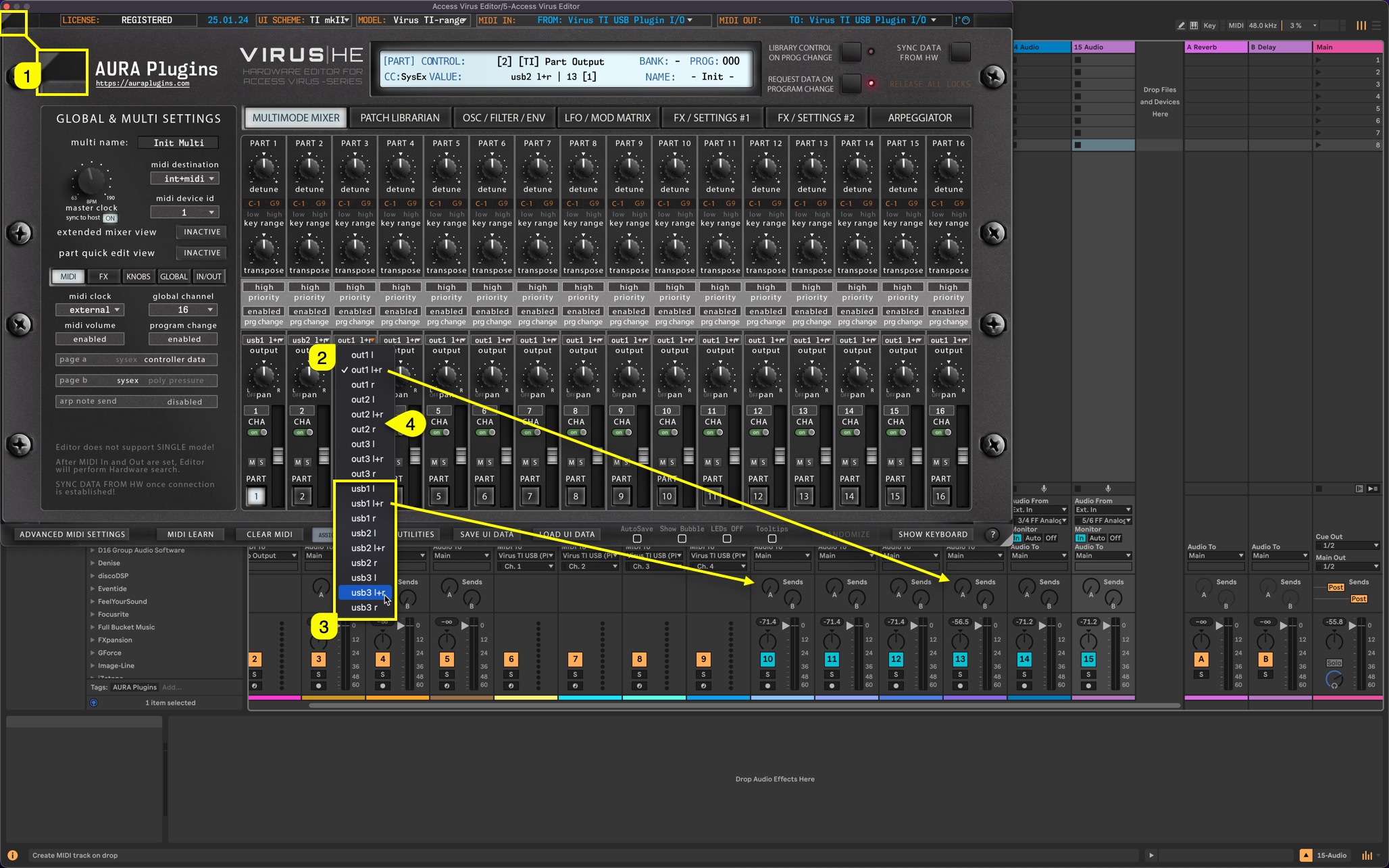
USB outputs from Virus TI are now routed to tracks 10-12 while Analog outputs are routed to tracks 13-15.
Now select a MIDI track you assigned for Virus TI and start playing! Make sure you have Input Monitoring enabled [1] for the specific MIDI track to send the notes to the hardware. In this last screenshot, we can follow the signal path as follows:
2) MIDI from Live tracks 6-9 is assigned to Editor / Hardware Parts 1-4.
3) Audio from Hardware is assigned to Audio tracks 10-15 with Input Monitoring enabled.
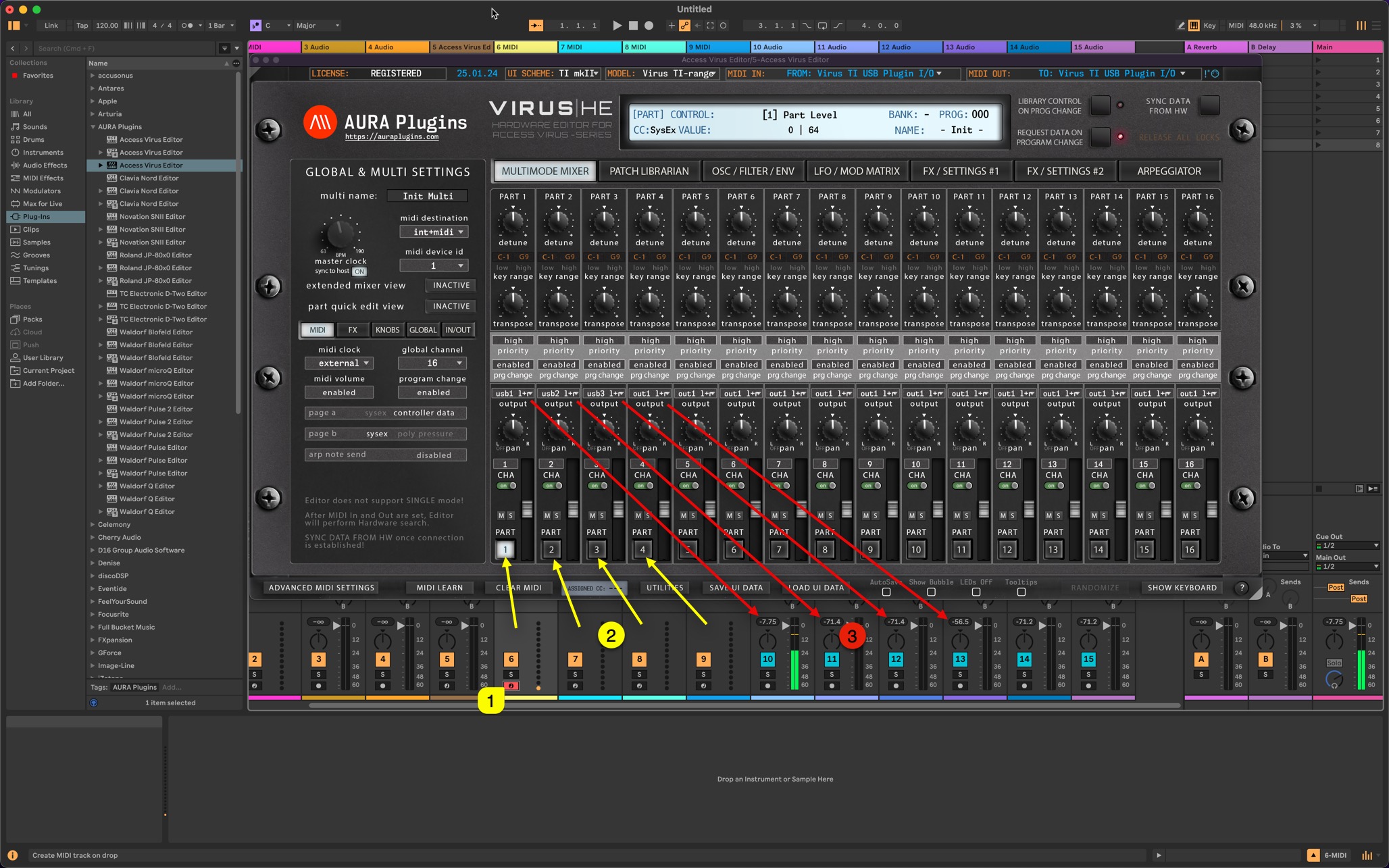
This is it! Access Virus TI USB Audio with macOS is working! It is really simple once you get it going – You can save the template after everything is configured, but keep in mind that you should check the Aggregate Device and make sure the Virus TI is enabled before you start your session.
Conclusion
It was all about creating aggregate device in the macOS Audio and MIDI Setup app so that I could add the Virus TI device in the chain. Caveat is that USB connection can get “killed” when the synth is powered off and the synth communication is VERY slow, especially when data is being requested from the Virus TI to the Editor. Overall the Virus TI USB Audio setup is simple.
Data flowing out from the Editor to Virus TI works out just fine.
Checkout our Access Virus Editor and spread the word – Its been a long road.
Access Virus Editor Product page (requires Access Virus synthesizer or DSP56300Emulator with Virus OS) (DSP56300 Setup Guide is coming soon!)
Access Virus Editor Downloads page (logged in customers can see full downloads, guests can see demo downloads).
For those who don’t like to read, here is a video how we setup Access Virus TI USB Audio with macOS:
Return to Virus TI USB Audio connection article
Share this with fellow producers