Knowledge Base forAccess Virus Editor

Documentation
Resources
Access Virus Editor – Ableton Live
DISCLAIMER
Our company & product has nothing to do with Ableton AG.
If there is an issue with our product, open a support ticket in your account page.
You can find support details at the end of this document.
Support and updates are free to anyone who has bought the license from our store
Audio Configuration
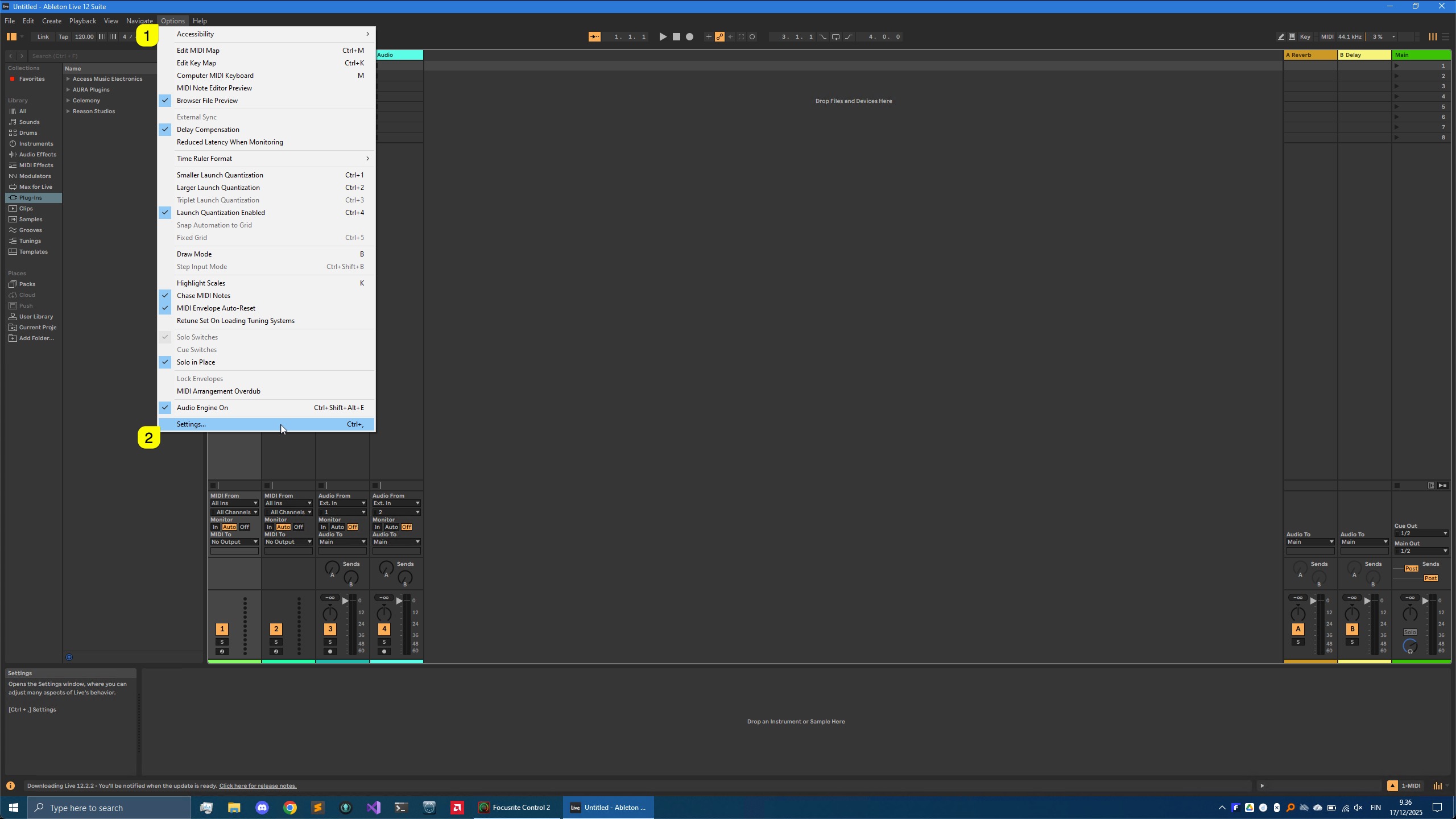
First, open Ableton Live, click Options [1] from the top bar and select Preferences… [2] – We are making adjustments to Audio and MIDI settings which are crucial for our Editor to work flawless.
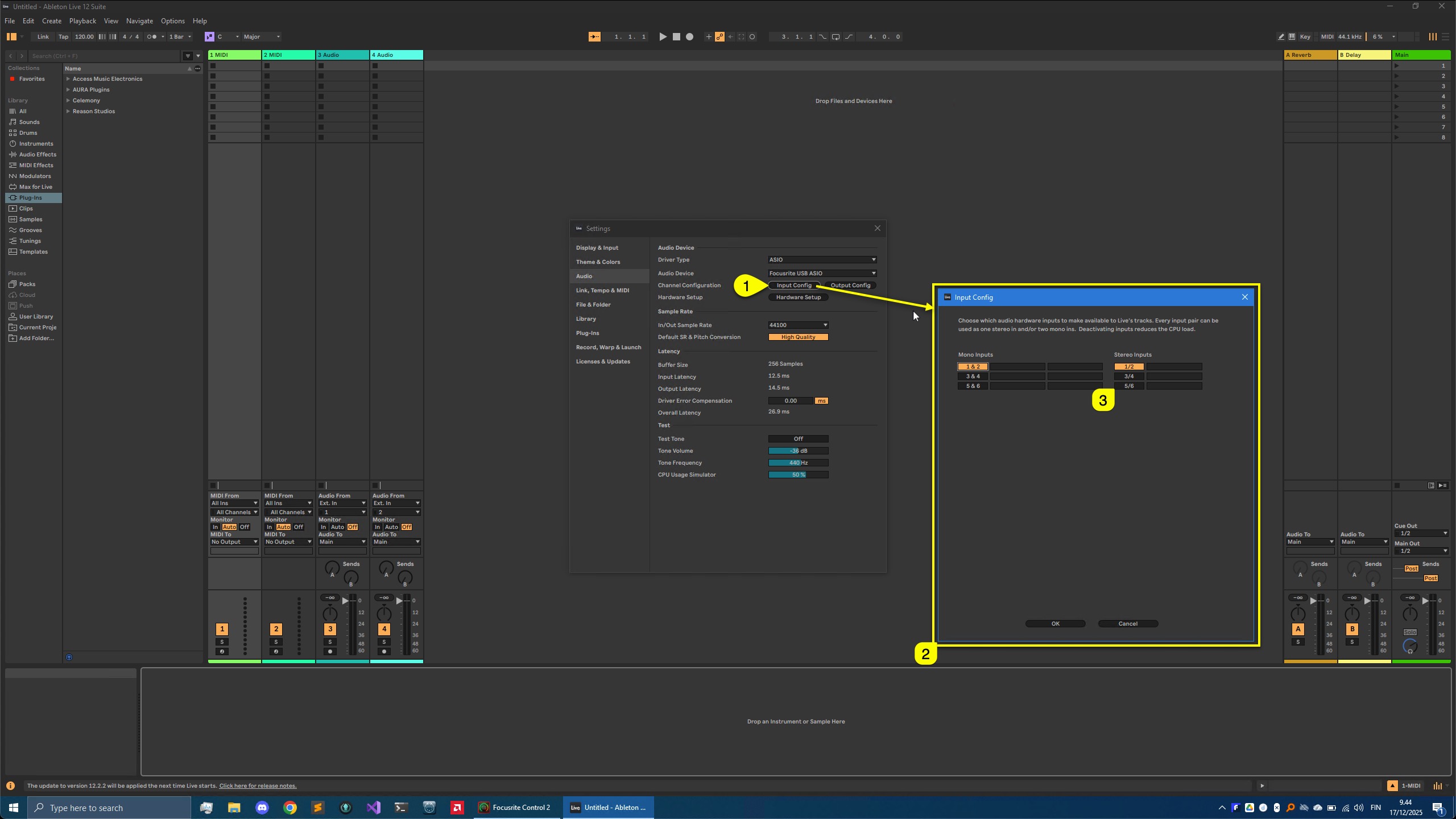
Open Audio [1] tab and select your Audio device [2] you use for your setup (if not set already). We are going to use Focusrite USB ASIO [3].

After Audio engine is initialized, click Input Config [1]. This will open a new window [2] with all inputs listed. Enable input ports [3] you use with your setup .
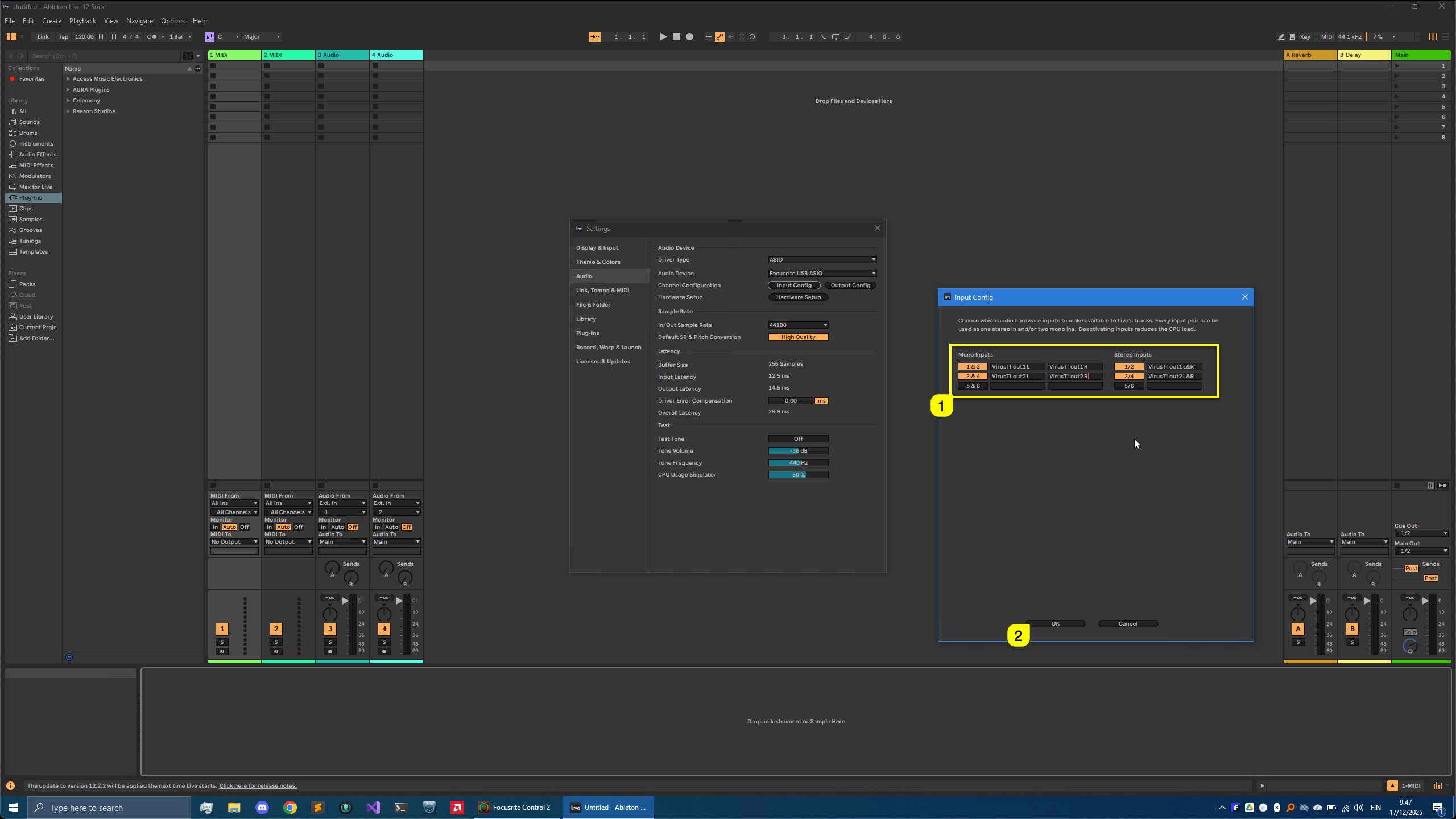
Our input ports [1] are now renamed accordingly. Click OK [2] to close input config.
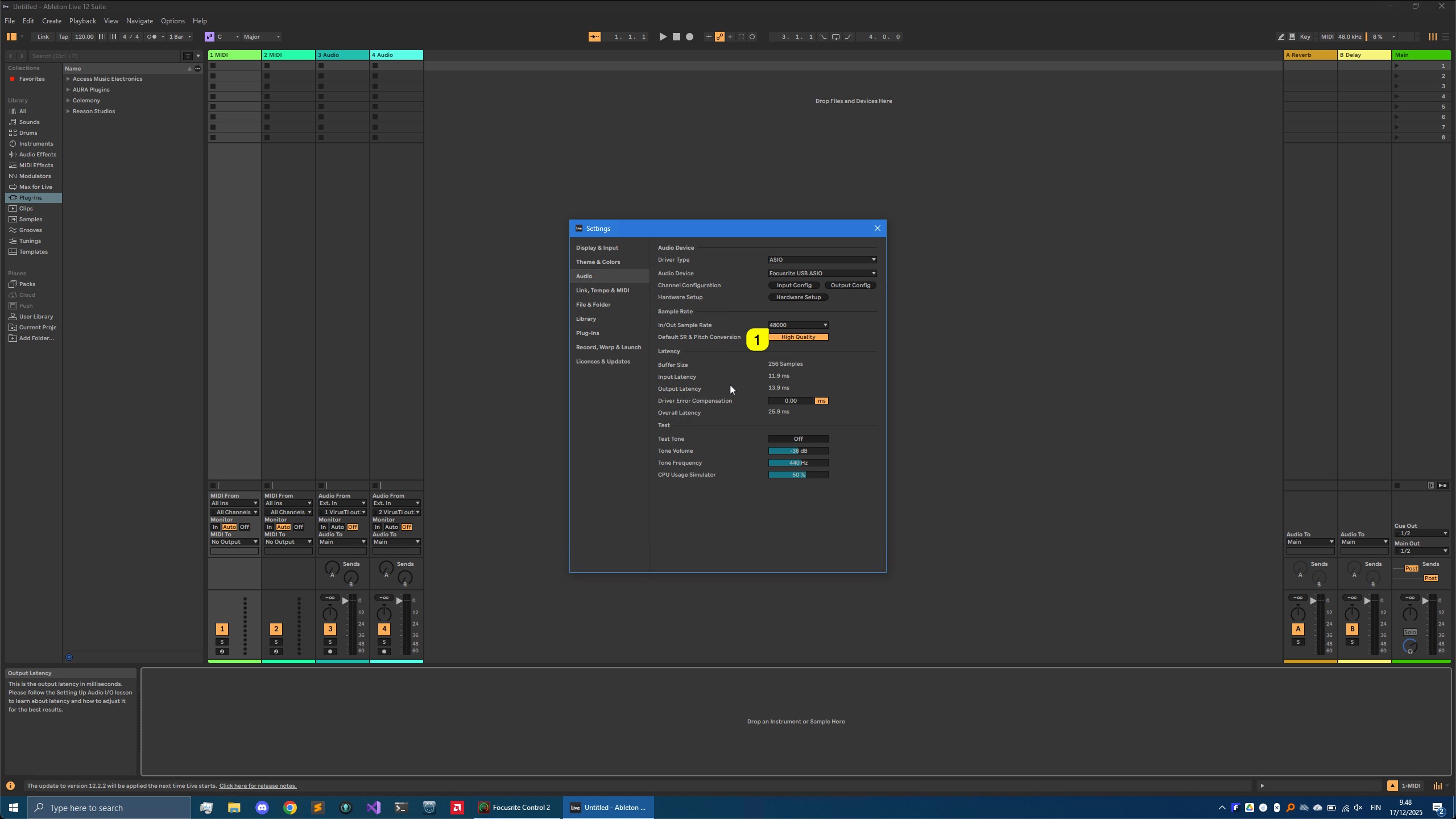
Finally, adjust your Sample Rate [1] if needed. We are using 48000 for all projects.
MIDI Configuration
Next we want to adjust MIDI ports and how they are shown in Live. Click on LINK / TEMPO & MIDI [1] to open it. Check and make sure that the hardware ports you want to use with the Editor are NOT enabled in MIDI Control Surfaces / Input / Output [2] area.
Then move onto Input Ports [3], Output Ports [4] and disable all boxes [5] that are directly connected to the hardware. In our case that is ESI Midimate eX and UM-ONE ports.
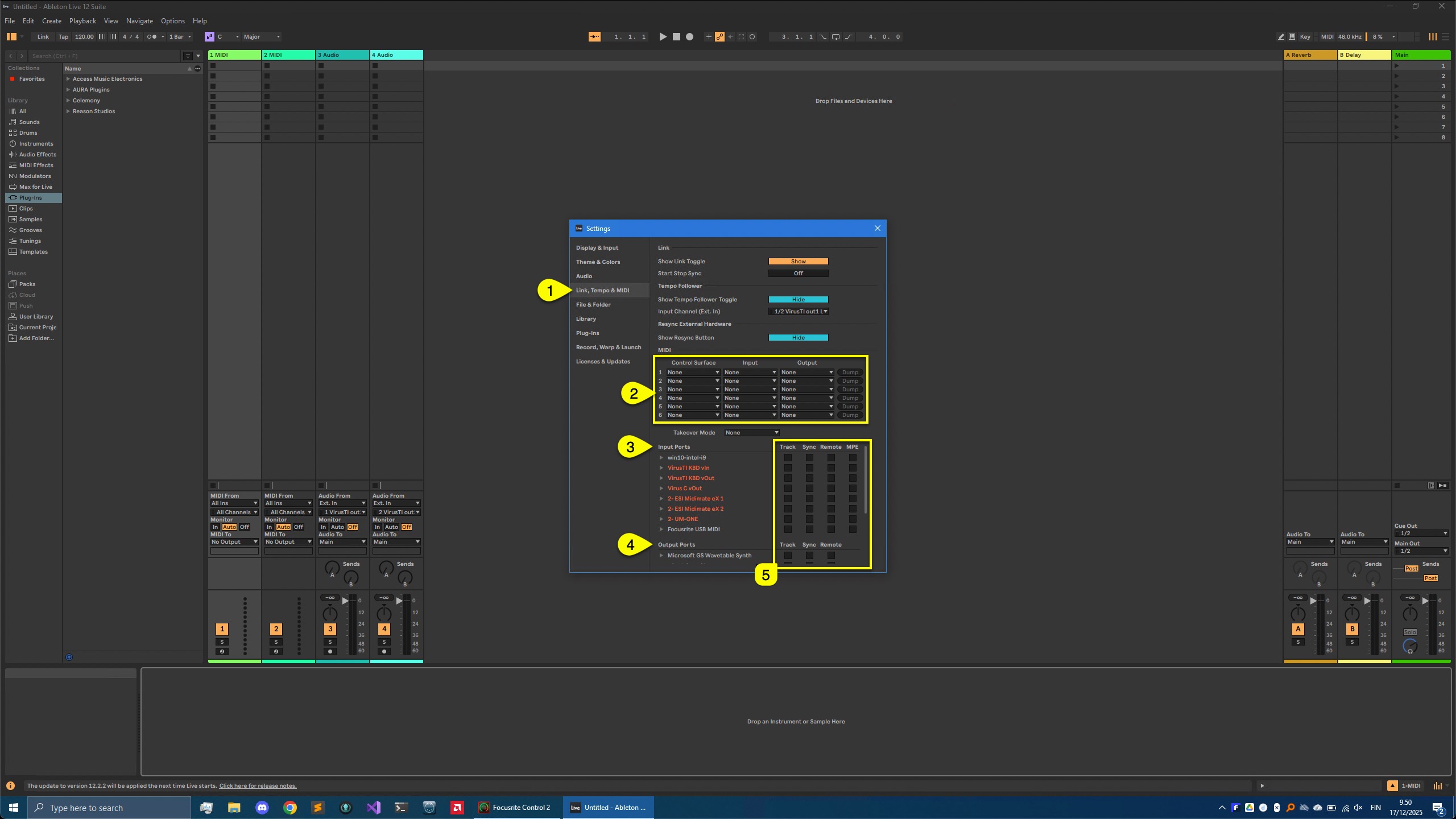
ATTENTION: Our Editor uses DIRECT connection from MIDI interface to the hardware. Therefore the hardware ports need to be disabled from the DAW settings!
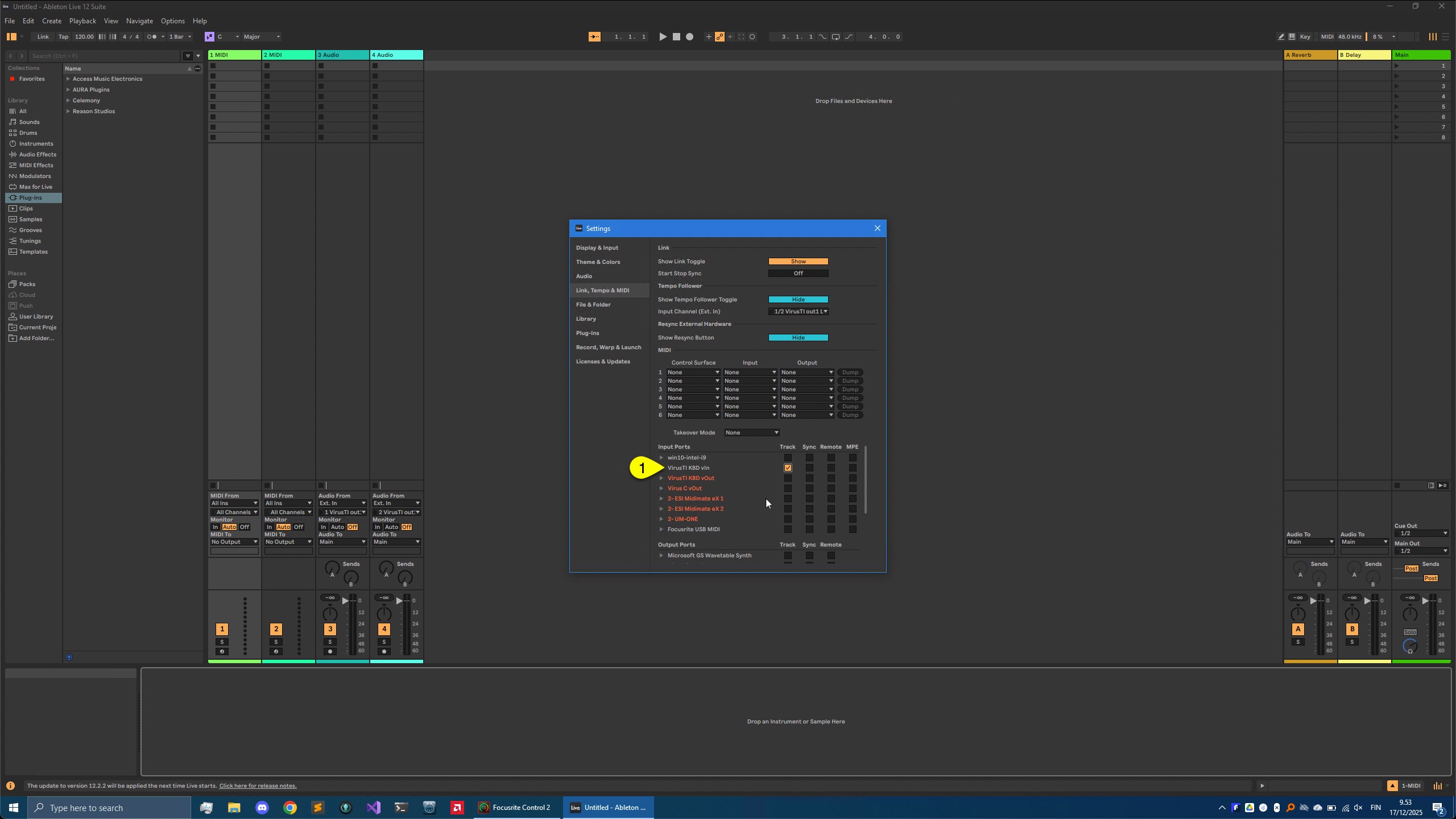
While we are at it, lets enable virtual input ports [1] created in loopMIDI / MIDI-OX guide for the Virus TI Keyboard so we can play any MIDI track in Live.
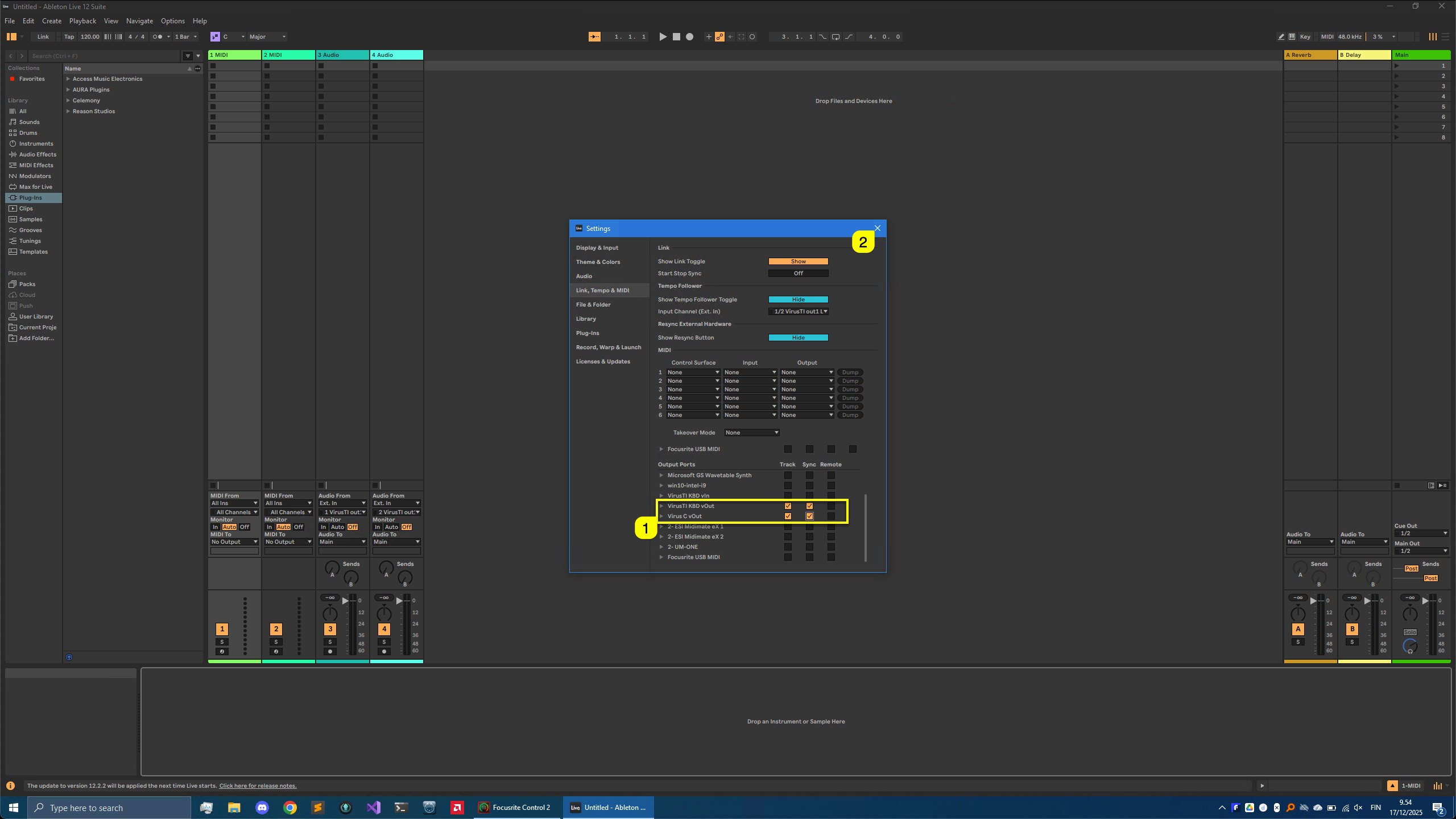
Lets do the Output Ports: We are going to enable virtual output ports [1] assigned to Virus TI Keyboard and Virus C Desktop. Check “tracking” and “sync”. With sync toggled on, you can pass MIDI clock information from DAW to your hardware which is used when LFOs or Effects are clocked to incoming MIDI clock status.
Once these settings are dialed in, you can close [2] the preferences.
NOTE: Virus TI is known to have ARP sync issues / notes drifting – This is something we can’t fix as it is an hardware issue out of our reach!
Share this with fellow producers