Knowledge Base forAccess Virus Editor

Documentation
Resources
Access Virus Editor – Automation in Live
Learning Parameters for Automation
You can automate almost every parameter of your Virus with our Editor in DAW without having to remember CC numbers or have spread sheets constantly open on your screen.
Click toggle [1] to view arrangement view. Now click Unfold Device Parameters [2] button and enable Configure [3] so we can map the parameters we want for automation.
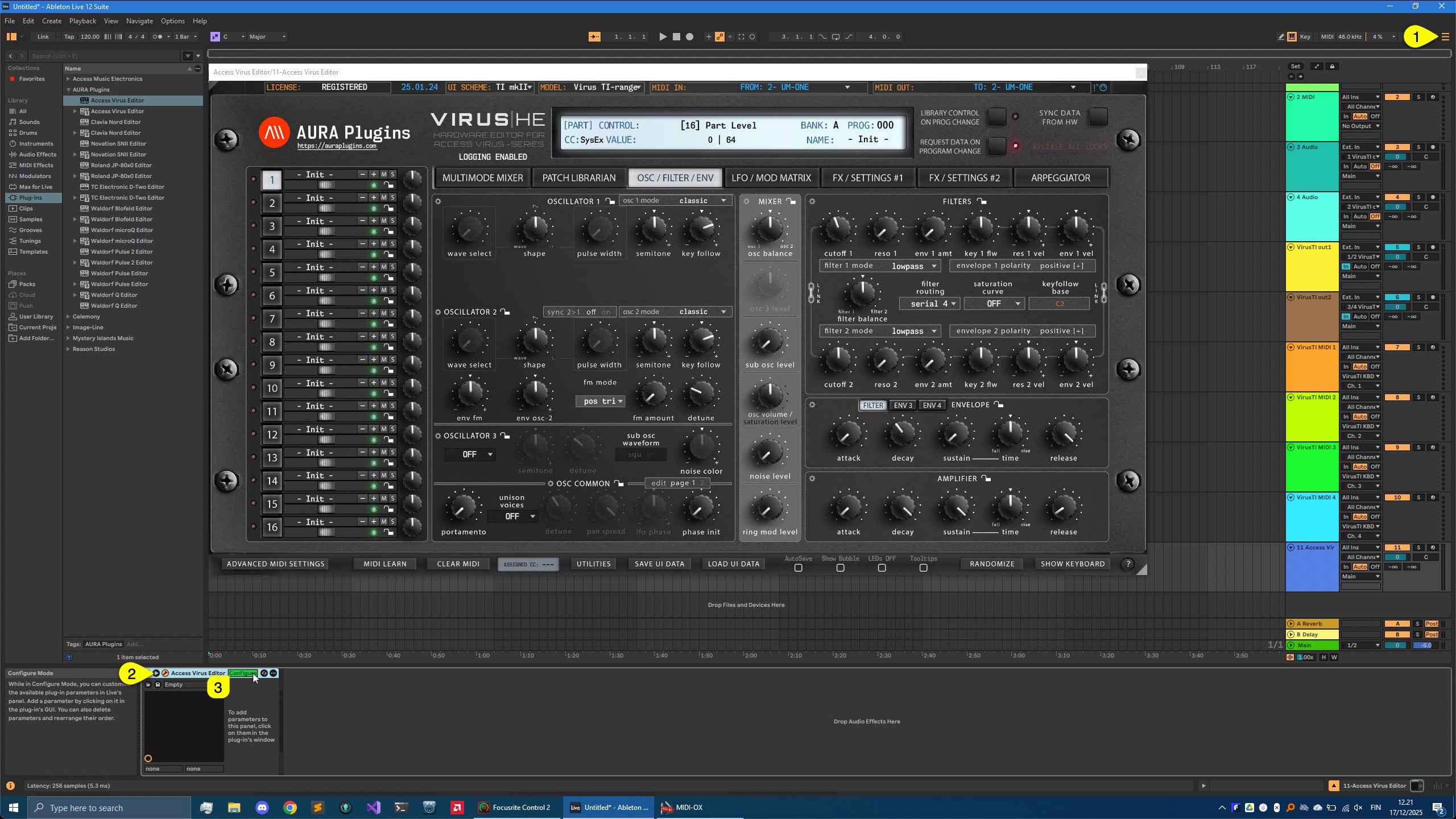
Now if you move parameters from the Editor User Interface [1] or Hardware, Live will register the parameters [2].
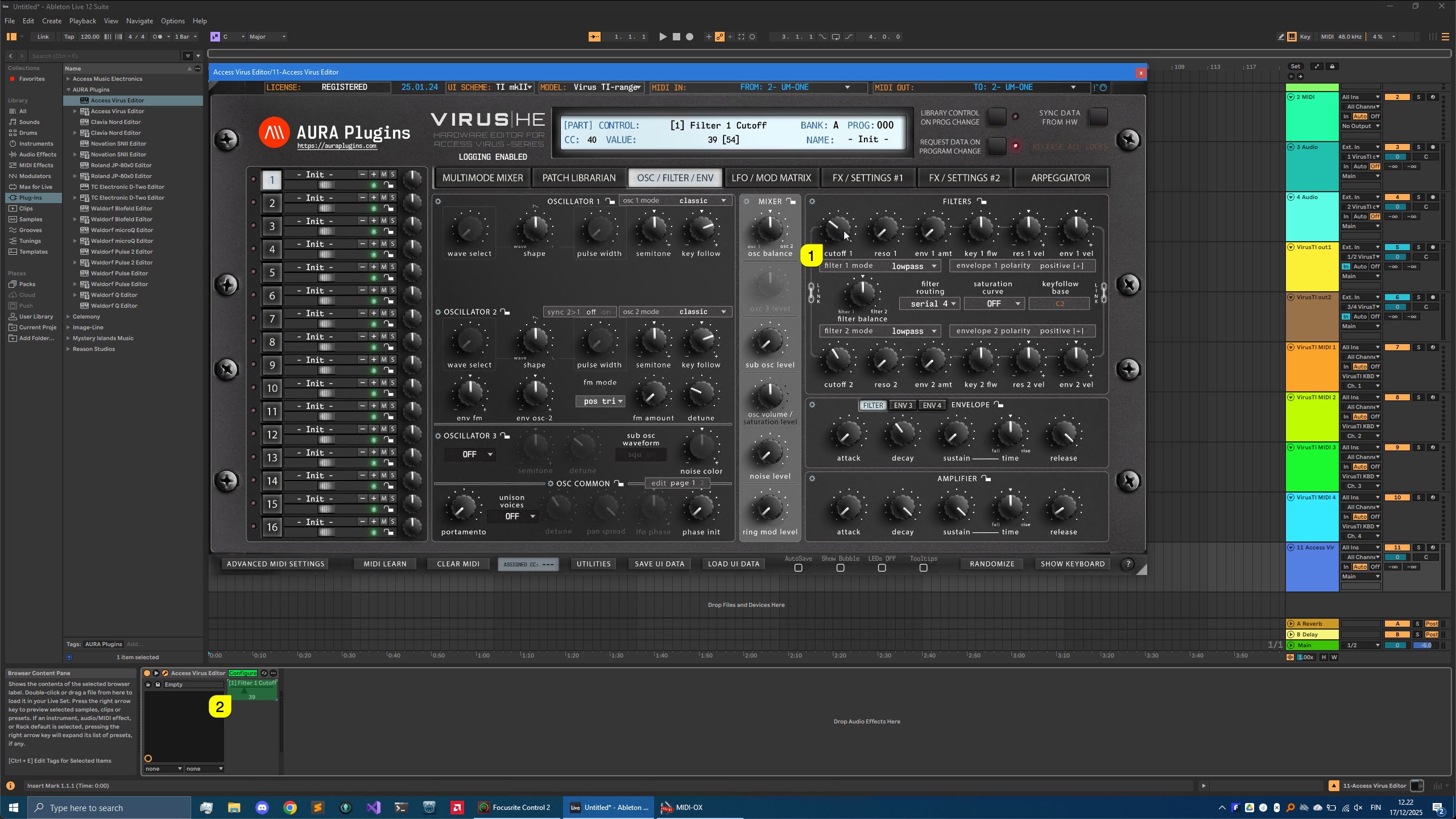
Once you have all the parameters learned that you need, click Configure [1] again to finish parameter assignments. Now if you toggle on Automation [2], all of the parameters you assigned in Configuration mode will be shown in the Editor track [3] in Live.
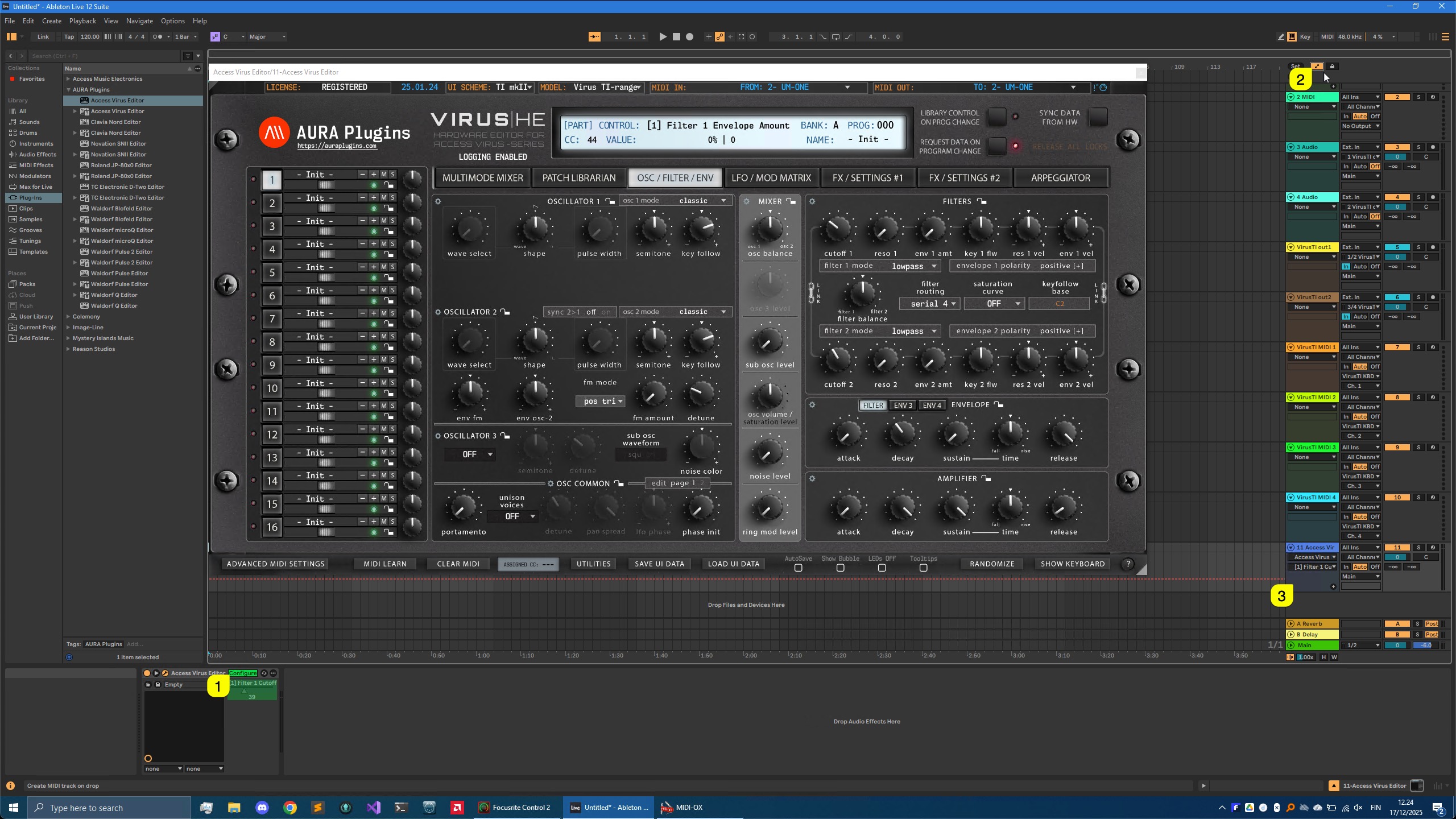
Closure
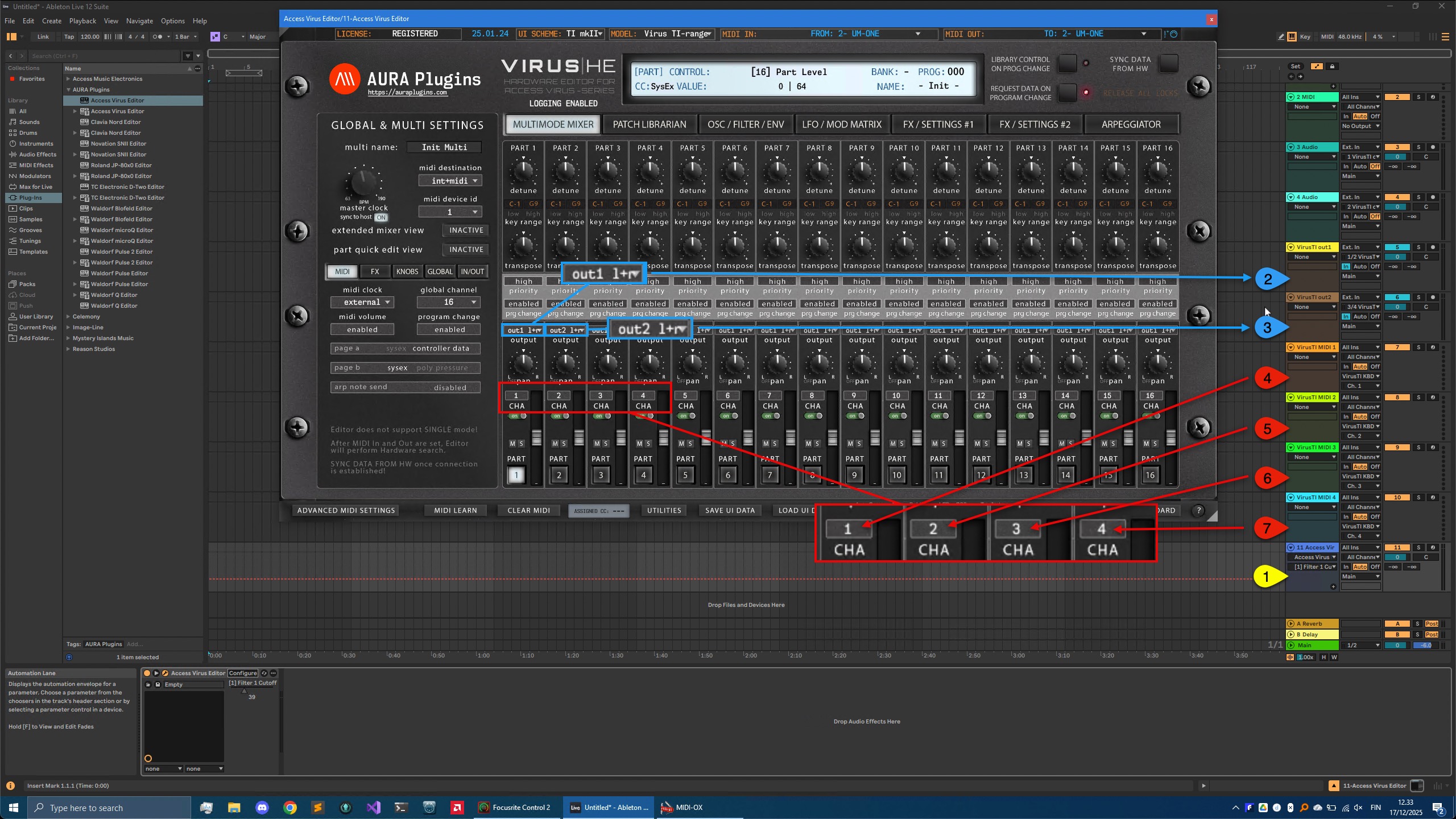
Here is a summary of what is happening in Live now that everything is configured as they should be!
- [1] Track hosting our Editor.
- Ideal for automation,
- Patch change and value edits per layer,
- Librarian Edits,
- and Total Recall : Data is sent to hardware automatically when project is loaded.
- [2 & 3] Stereo Audio tracks.
- Audio Inputs from Virus out1 L&R [2] selected as source of audio.
- Audio Inputs from Virus out2 L&R [3] selected as source of audio.
- Input Monitoring is toggled on so that we can hear everything happening with the Virus.
- [4 – 7] MIDI tracks assigned to VirusTI KBD vOut Port.
- MIDI channel is set to 1 [4].
- MIDI channel is set to 2 [5].
- MIDI channel is set to 3 [6].
- MIDI channel is set to 4 [7].
Now if we take a look at the Editor MIDI channels in the MULTIMODE MIXER area, we can see that channel 1 is assigned to Part 1 etc. - Best use for sending DAW clocked / timed MIDI notes to hardware.
Check rest of the Editor Functions from the Main Functions and Librarian sections.
If you have trouble with the Editor setup / configuration, check the troubleshooting section.
Share this with fellow producers