Knowledge Base forAccess Virus Editor

Documentation
Resources
Access Virus Editor – How To Change Parts
PART SELECT
Virus has 16 multitimbral parts (except Virus TI Snow, which has 4). When MAIN EDIT TAB [1] is set to PATCH BROWSER -> ARPEGGIATOR, you can select different PART [2] by clicking the number toggles.

Main Edit Tab Content
Each edit TAB has specific set of controls available for sound editing. You can access additional parameters via the highlighted toggles / menus found from each of the tabs. Appearance of these toggles / menus are model specific.
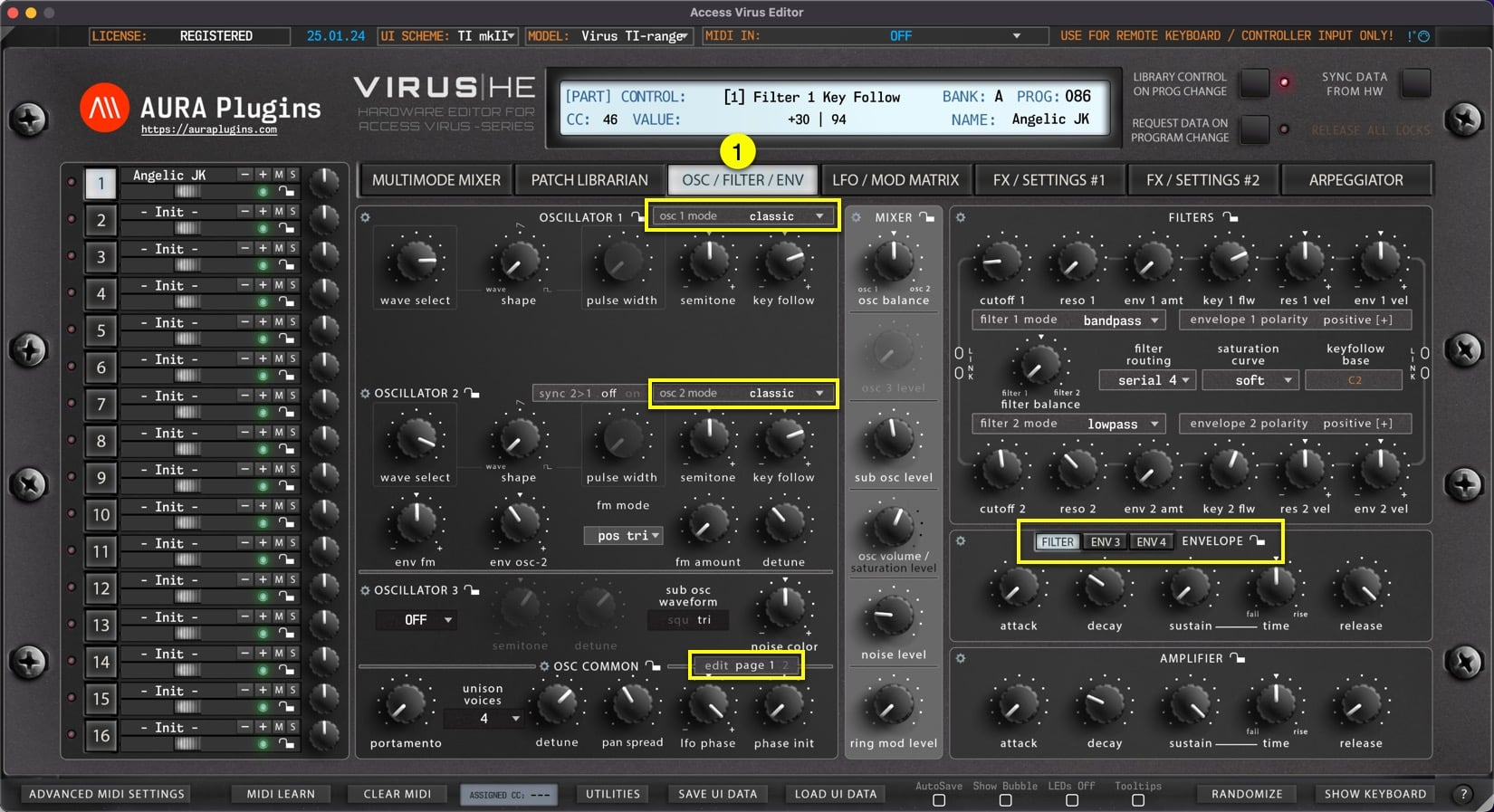
OSC / FILTER / ENV tab
Contains mostly all of the Oscillator, Mixer, Filter and Envelope related parameters and some common voice parameters.
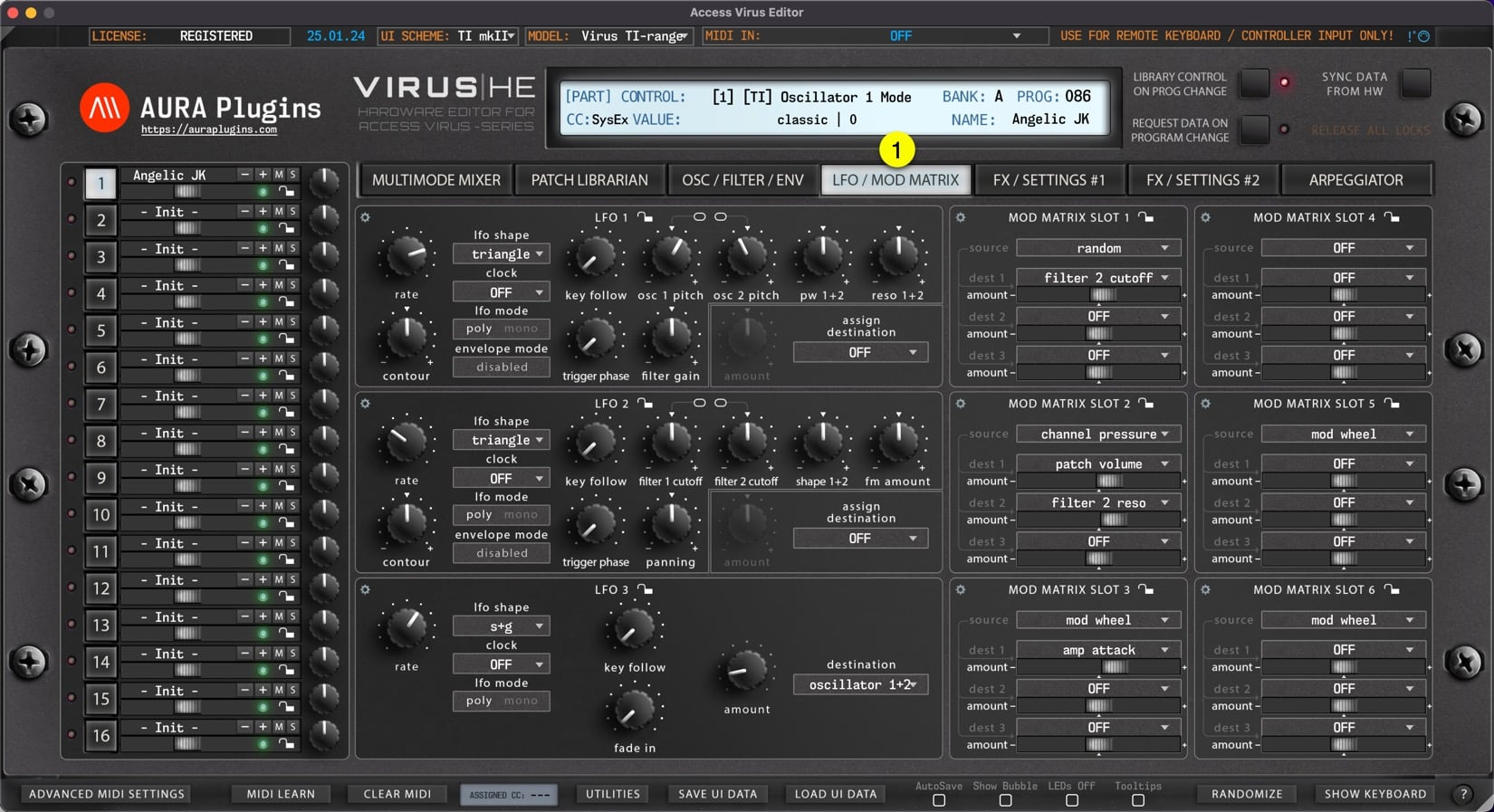
LFO / MOD MATRIX tab
Contains LFO parameters and Modulation Matrix source / destination view.
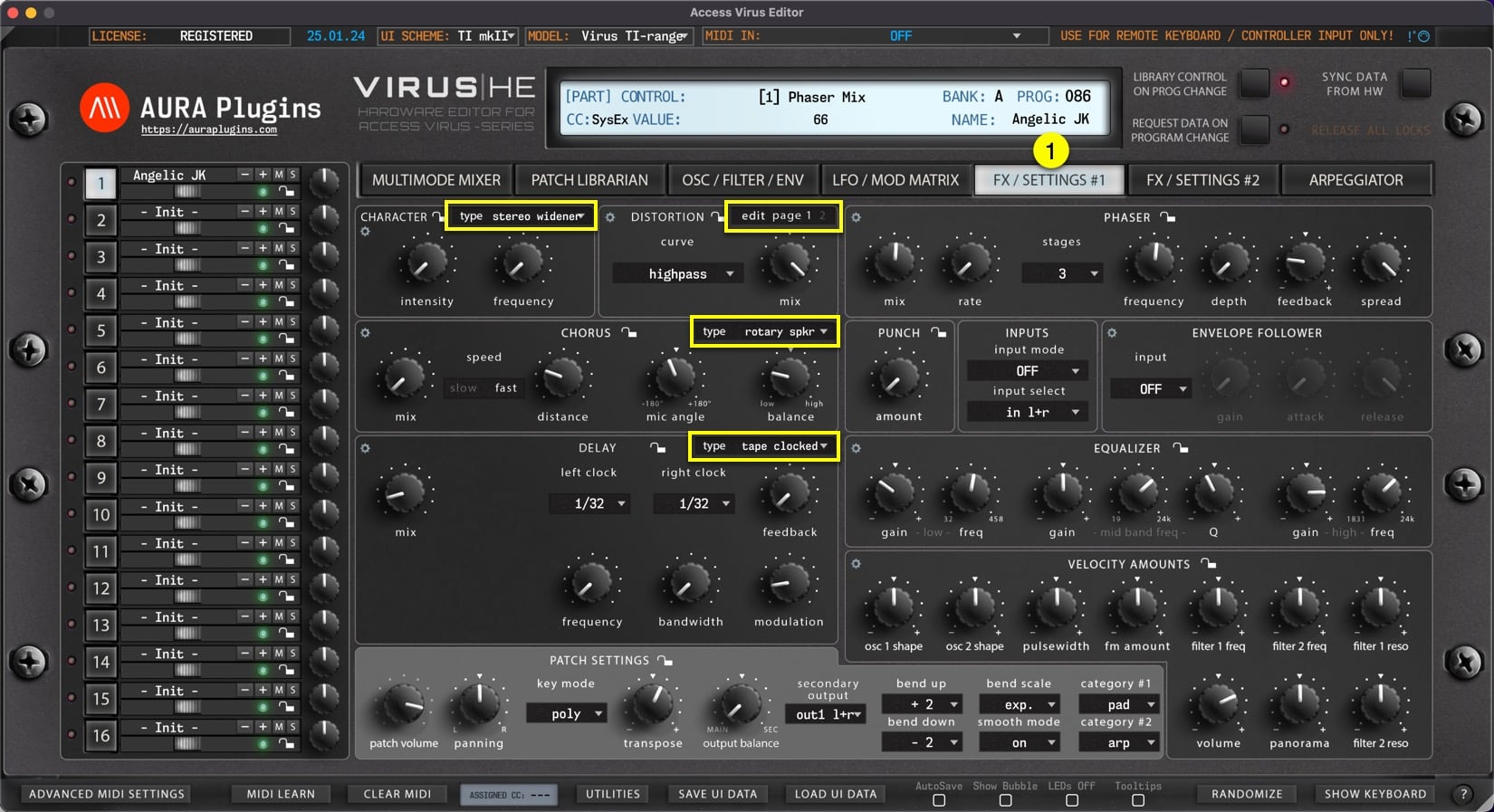
FX / SETTINGS #1 tab
Contains Character, Distortion, Phaser, Chorus, Punch, EQ, Envelope Follower and Velocity Assignment parameters as well as Patch Settings like key mode, patch volume, panning etc.
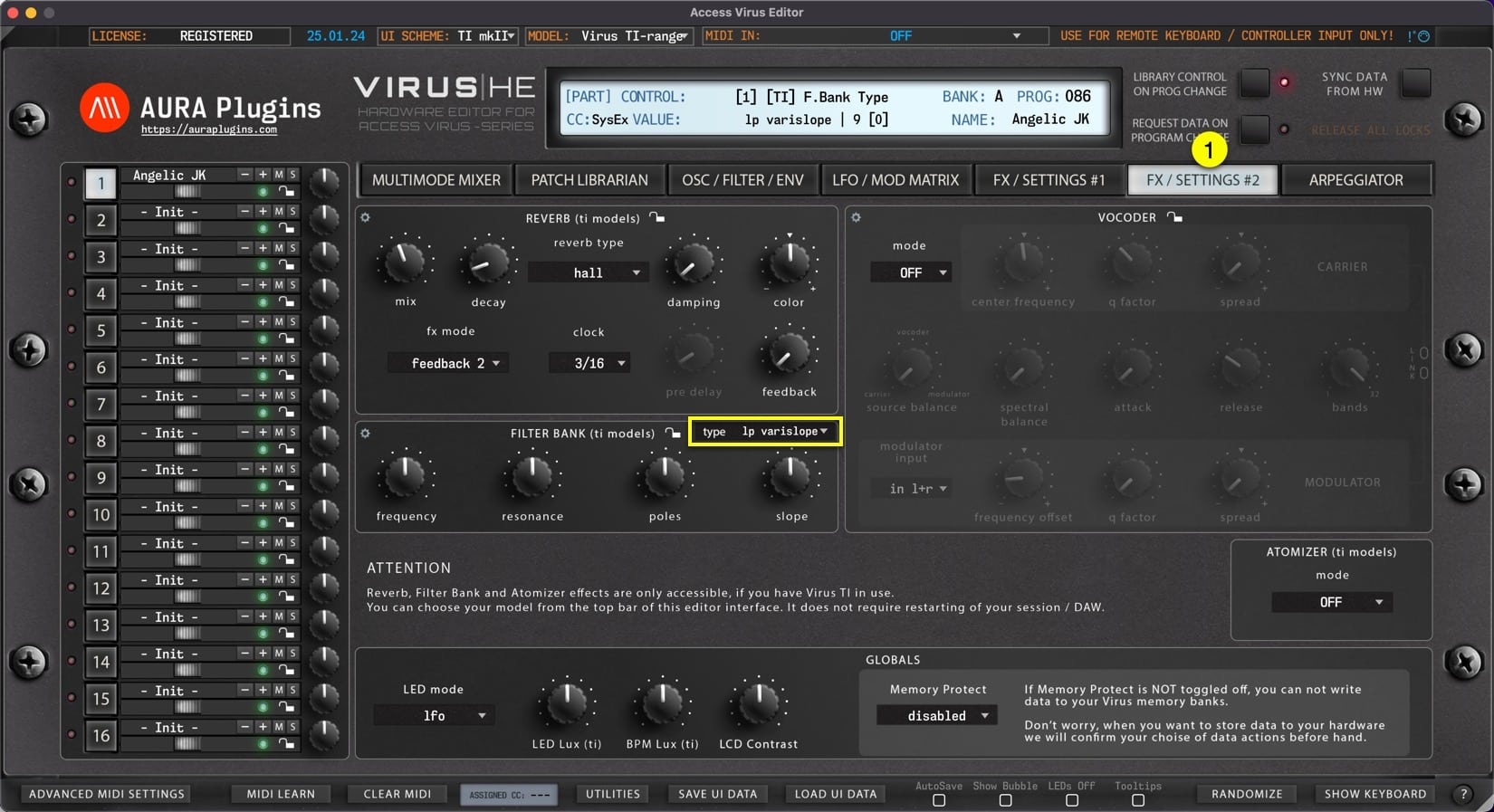
FX / SETTINGS #2 tab
Contains some Global parameters, Vocoder and Virus TI specific effects like Reverb, Filter Bank and Atomizer mode toggle.
ARPEGGIATOR tab
Contains only Arpeggiator related parameters and when you have Virus TI in your setup, you can use the USER ARP to modify the Arp Pattern content.

Active Part quick actions menu
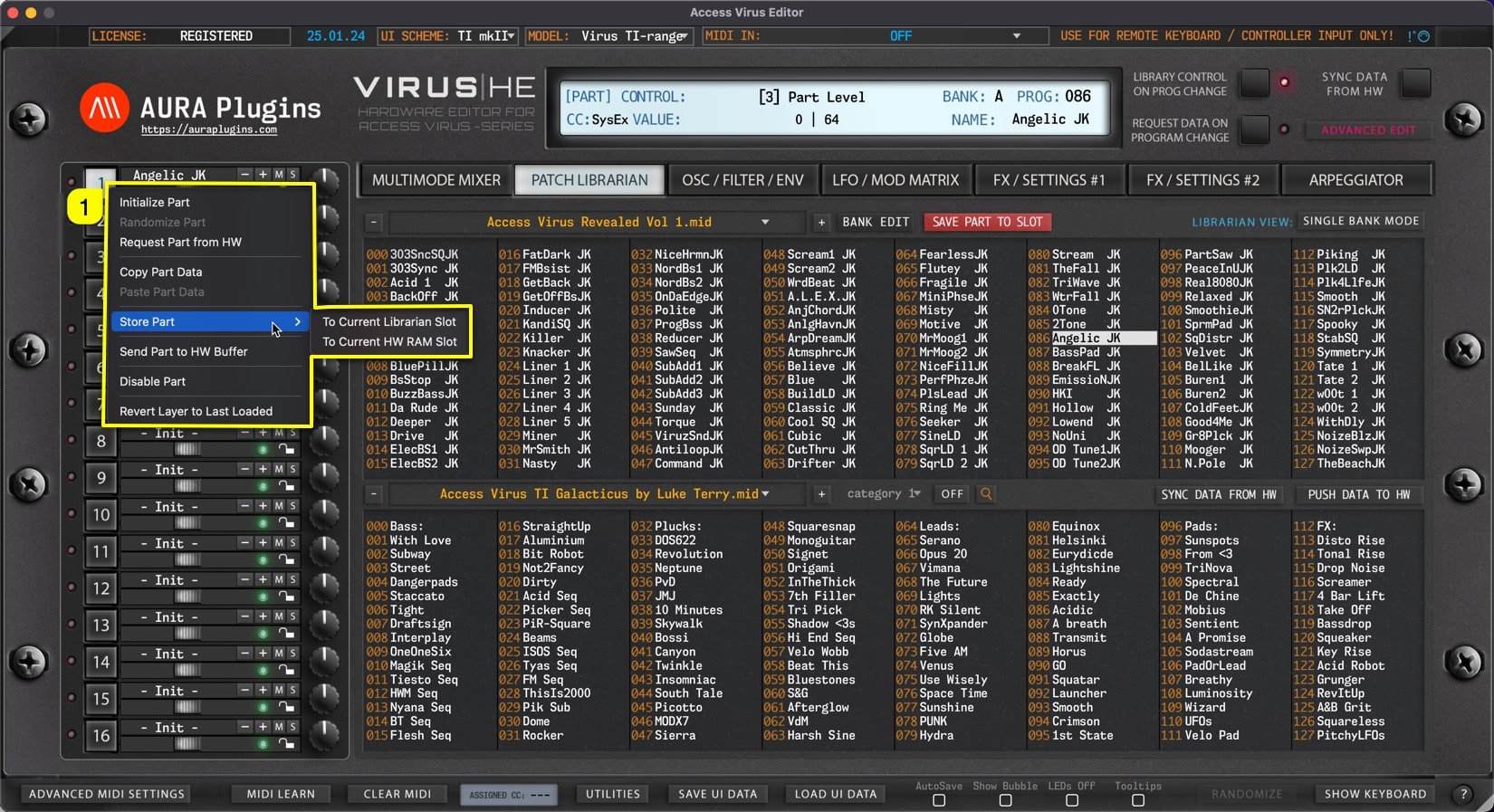
With right mouse click, you can open Part Quick actions menu for active part [1]. Most of these are utilities menu items but they are faster to reach right after selecting part.
MULTI SETTINGS
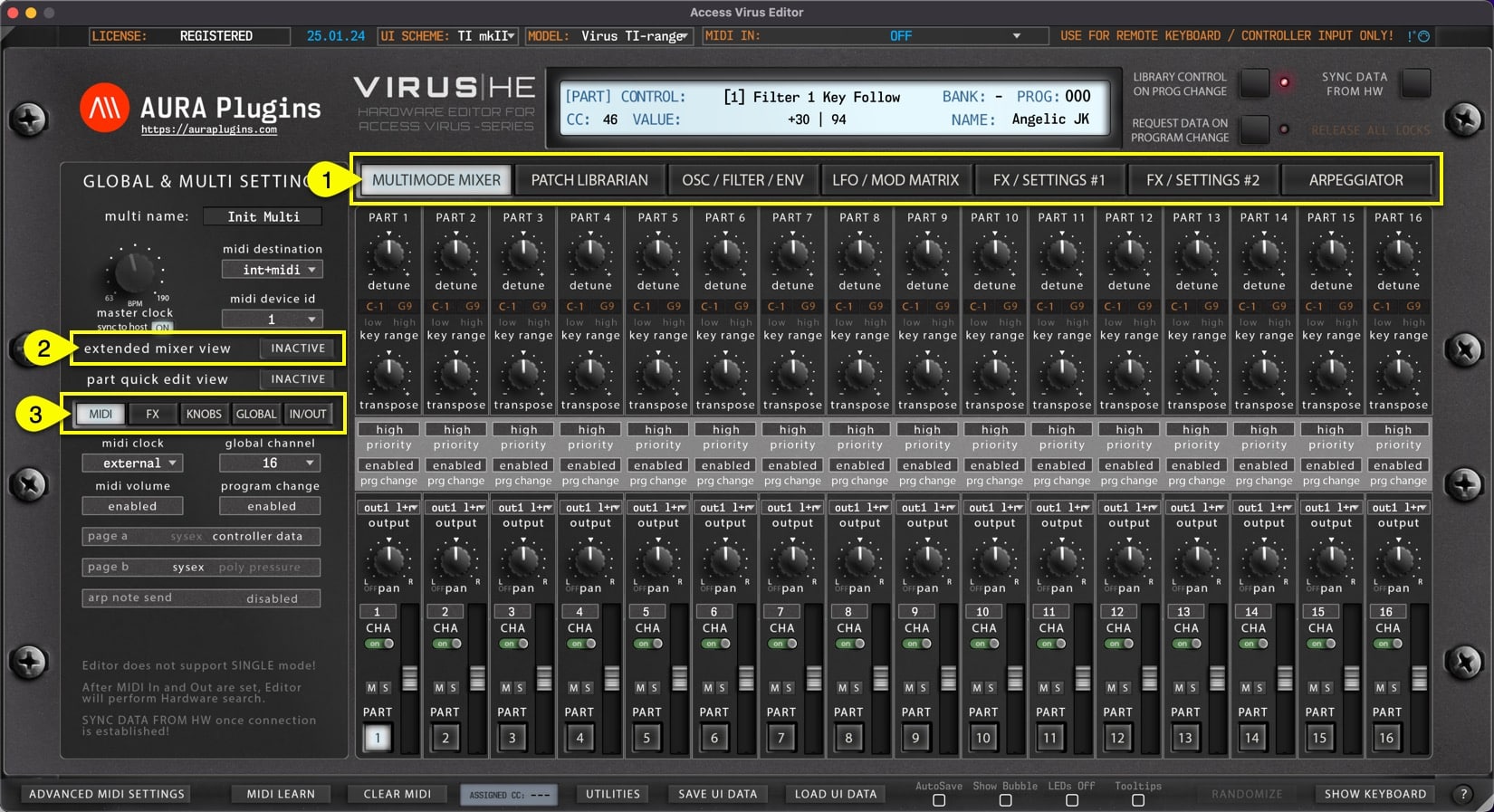
When MAIN EDIT TAB [1] is set to MULTIMODE MIXER, you can view the Multi Mixer. There are additional Multi specific settings when extended mixer view [2] is enabled.
MIDI – FX – KNOBS – GLOBAL – IN/OUT [3] toggles contain mostly Global parameteres which changes how the hardware behaves.
Share this with fellow producers