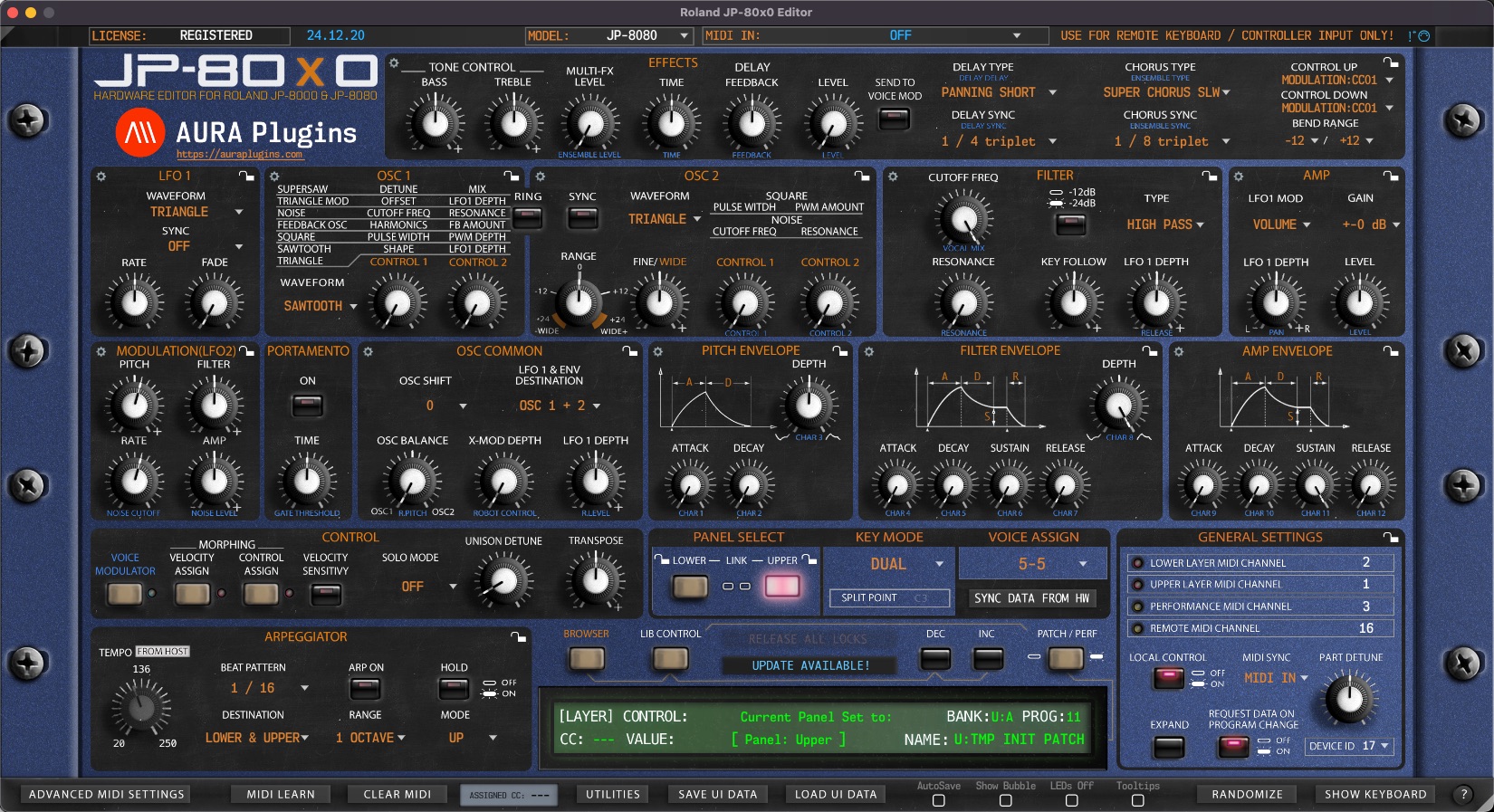
Knowledge Base for
Roland JP-80x0 Editor

roland-jp-80x0-main-v24-12-20
Latest version: 25-01-24 | 2025-Jan-24

Roland JP-80×0 Editor – Troubleshooting

NOTE: FAQs are listed first, then we have some random Troubleshooting scenarios listed below!

General FAQs

Which functions are not available in the DEMO version?
  1. User can not save requested data from hardware to HDD.
  2. User can not store patches from librarian to hardware.
  3. Total Recall is disabled. This means, your last used Editor settings will not be sent to your hardware automatically up on loading the project.
  4. MIDI Learn is disabled. User can not map favorite CC controls to Editor parameters.
  5. Editor parameters are not visible for DAW to automate.
  6. User can not store UI DATA files (arrangements).
  7. Demo version can not be registered.
What are the Editor requirements?
  1. You must have the real hardware (or DSP Emu), which the editor is made for.
  2. Version xx.xx.xx requires 64-bit AAX, Audio Unit, VST2 or VST3 host for Mac or PC.
  3. Version xx.xx.xx requires Mac with Metal supported graphics.
  4. Version 1.x and 2.x requires 32/64-bit Audio Unit / VST host for Mac or PC.
  5. MIDI interface. A good one which supports SysEx messages. ESI MIDIMATE XT is proven to work.
  6. Direct MIDI in / out connection between your hardware and the MIDI interface. No MIDI Thru connections or MIDI in only / MIDI out only connections OR direct USB connection to computer if USB is available in hardware.
  7. Audio cables from the synth to sound card or mixer in order to hear the sound.
  8. At least FULL HD resolution display.

License FAQs

Why Editor says reload license after copying license to right folder?

There are usually two reasons for that:

  1. Editor has failed to read the license file. Make sure the license doesn’t have any additional extensions ie. “Access Virus Editor.license.txt”. If you see .txt appended, rename the file to “Access Virus Editor.license” and try to validate again.
  2. Editor has failed to locate the license file. Make sure the license is in the Editor data folder (versions 1.x-2.x):
Macintosh HD/Library/Audio/Presets/Mystery Islands Music/(plugin name)/license.key

Note that new version has a new location AND name for license. License should be placed in /Users/(your username)/Music/AURA Plugins/(“plug-in name”)/”plug-in name”.license

Sample below:

[macOS] ~/Music/AURA Plugins/Access Virus Editor/Access Virus Editor.license
[Windows] ~MusicAURA PluginsAccess Virus EditorAccess Virus Editor.license
How do I add the license for the Editor to register?

UPDATE 2023-August-28

[ version 1.x & 2.x ] license.key needs to be located in:

[ WINDOWS ] ”login username”DocumentsMystery Islands Music”plug-in name”
[ macOS ] /Library/Audio/Presets/Mystery Islands Music/”plug-in name”/

…in order to register. Reload your project or plug-in instance in order to validate.


[ version “3” ie. 25.12.11 ]

Downloaded license.key must be renamed to “(plugin name).license” and placed in: Users/(your username)/Music/AURA Plugins/(plugin name)/ folder.

To make this easy, click on “register” text in the top left corner to open the file browser dialog and open the license file with it. Rest will be automated.

Troubleshooting FAQs

Why Editor displays DEMO version after purchasing the license?

You need to download and install FULL version of our Editor in order to register it.

Head down to https://auraplugins.com/my-account/ (login if prompted) – You should see the downloads links once logged in.

  • Download the full installer and license.
  • Install full version.
  • Check license instructions and install license.
  • Re-open the Editor to validate the license.
  • When validation succeeds, Editor says “Registered” in the top left corner.


Why Editor fails to connect with the hardware?

There are a few reasons why this could happen, so lets make sure everything is right:

  1. MIDI out from your hardware is connected to your MIDI interface input.
  2. MIDI out from your MIDI interface is connected to your hardware input.
  3. Hardware has Global MIDI Channel set as instructed.
  4. Hardware has Device ID set as instructed.
  5. Hardware is in Performance / Multi mode (mono timbral and FX Editors excluded).

If all of these conditions are right and the Editor still fails, check the MIDI interface specs to ensure it can handle large SysEx packages which the Editor & Hardware uses to send program data back and forth.

You can open a ticket with our Support Team if you’re stuck.

I think I found a BUG, how can I report it?

You can report any BUGS via our Bug Report form. It is very important to include all of the details that can help us solve the issue.

  • Your computer specs
  • Your hardware specs
  • How we can reproduce the issue

The more information we get from the Bug Report, the easier it is for our team to resolve it.

Updates are not immediate, if another update process is in the works.

When I change preset in hardware, Editor is not receiving the data

Cause 1: If hardware DeviceID differs from the Editor DeviceID set. Usually when DeviceID matches with the hardware, then data flow works perfectly.

Cause 2: If DAW playback is on, then data transfers are held back because of excessive MIDI data flows. This is to prevent hanging notes and mis-aligned data.

Cause 3: Request Data on Program Change is toggled OFF. In this case you can change presets in hardware without interactions with the Editor. Use case: you want to quickly go thru sounds to find the sound you need. Remember to Sync Data from HW if this is toggled off in purpose.

I get connection timed-out messages when changing programs

See above!

I don’t get sound from Hardware after chancing programs

Cause 1: During the initial MIDI Input / MIDI Output configuration step, Editor was unable to sync data with the hardware, therefore Editor can not route MIDI channel messages to appropriate Layer.

Cause 2: When Performance is changed, it might have changed the Layer MIDI Channels to different channel configured on your DAW MIDI track.

My DAW freezes when I insert the JP-80×0 Editor or when I import a bank

Cause: Our Editor checks the file you have chosen to import into the Editor. During this time, if the Editor detects an error with the file, it might get stuck.

Check further details on How to Enable LOG article for details to reveal which bank is causing the issue and how to resolve it.

I can only play one Layer when MIDI is triggered on Editor track

Cause: Incoming MIDI channel from DAW track usually determines which Layer is played, if channels match. You can engage SHOW KEYBOARD function to force incoming MIDI data to currently selected layer.

Data is not recalled properly when I re-open my project

Cause: Maybe the DeviceID has changed or something else is wrong with the configs. Double check your MIDI ports on the Editor, DeviceID on both ends and then try PUSH DATA TO HW from LIBRARIAN VIEW.

I can not trigger Arpeggiator on my JP-8080

Cause: You have to add additional MIDI out from your DAW to Roland JP-8080 Remote KBD IN port. Regular INPUT accepts notes and control changes, while Remote KBD INPUT takes notes and triggers arpeggiator.

In summarum:

  • MIDI OUT #1 from MIDI interface to Roland JP-8080 MIDI IN
  • MIDI OUT #2 from MIDI interface to Roland JP-8080 REMOTE KBD IN
  • MIDI OUT from Roland JP-8080 to MIDI interface input

Remember to check the MIDI channels once everything is setup!

MIDI input and MIDI output is not memorized on new instances

Cause: This is by design. We have learned that in some cases where MIDI input and output ports are stored within the Editor, it has potential to crash the DAW on plug-in insertion. We are looking to fix this in upcoming release.

In the meanwhile, if you are confident your setup can handle memorizing the MIDI ports, you can setup the Editor as usual and then save the entire channel strip as a preset to your DAW channel strip settings. Next time you recall the channel strip setting, MIDI is assigned and data from the Editor is pushed to the hardware (unless its disabled via the Utilities menu).

Something else that buzzles me…

You can open a ticket from my-account page if your issue is not listed above. We will update the FAQs and Troubleshooting page as time goes on.

Closure

Hopefully this User Manual helped you understand how the Editor works and how it is designed to work. Now start making some awesome tunes and don’t forget to review our product – that would make our day!

Share this with fellow producers

Rate this Article
0
0
113
WordPress Cookie Plugin by Real Cookie Banner
AURA Plugins

AURA Plugins

Drop us a message, we will get back to you shortly!

Leave a message, we'll be back 09:00 EEST 😴

Contact Us

Contact Form
AURA Plugins
Hi! Before you send a message, try search function and read our FAQ which is up-to-date.

Join our Discord server for Developer & Community help.

Thanks,
AURA Plugins Team
Start Chat with:
chat Need Help?
Share to...